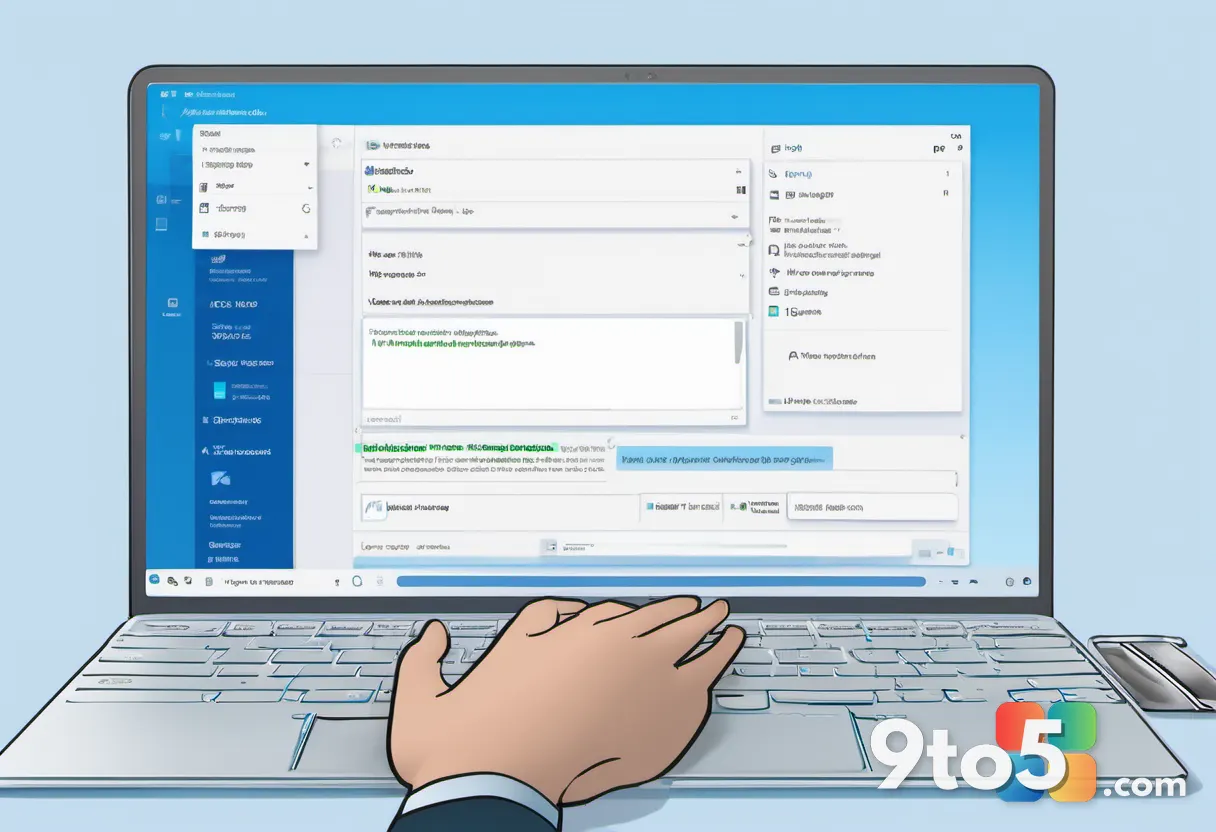
Unexpected restarts during critical deadlines can derail your workflow and stress your entire team. Windows Update for Business gives you the ability to control when your organization’s computers receive major upgrades and security patches. By configuring deferral periods directly in your system settings, you can align update installations with your project schedule without disrupting ongoing work.
Before You Start: Confirm that your IT department has not locked update configuration through Group Policy or Microsoft Intune. Many corporate environments manage these settings centrally, which means your local changes might revert or appear grayed out. If you manage a Windows 10 Enterprise or Windows 11 Pro/Enterprise device, the steps below will apply directly to your interface.
Step 1: Verify Your Administrative Access and Policy Status
Open the Settings app and check your account type. Click the Start button, type Settings, and press Enter. Navigate to Accounts > Your info and look for the Administrator label under your account name. If you see Standard User, your organization restricts local update configuration, and you will need to request temporary elevated privileges from your IT helpdesk. Without administrator rights, Windows blocks changes to update scheduling to maintain corporate security standards.
Step 2: Open Windows Update Settings
Navigate to the Windows Update hub. Press Win + I to launch Settings, then select Windows Update from the left sidebar. You will see your current update status, a list of recent installations, and a Pause updates toggle near the top. This hub serves as the central control panel for all update-related actions on your device. If you do not see the Windows Update option, your device is likely enrolled in a managed configuration that hides standard update controls.
Step 3: Navigate to Advanced Options
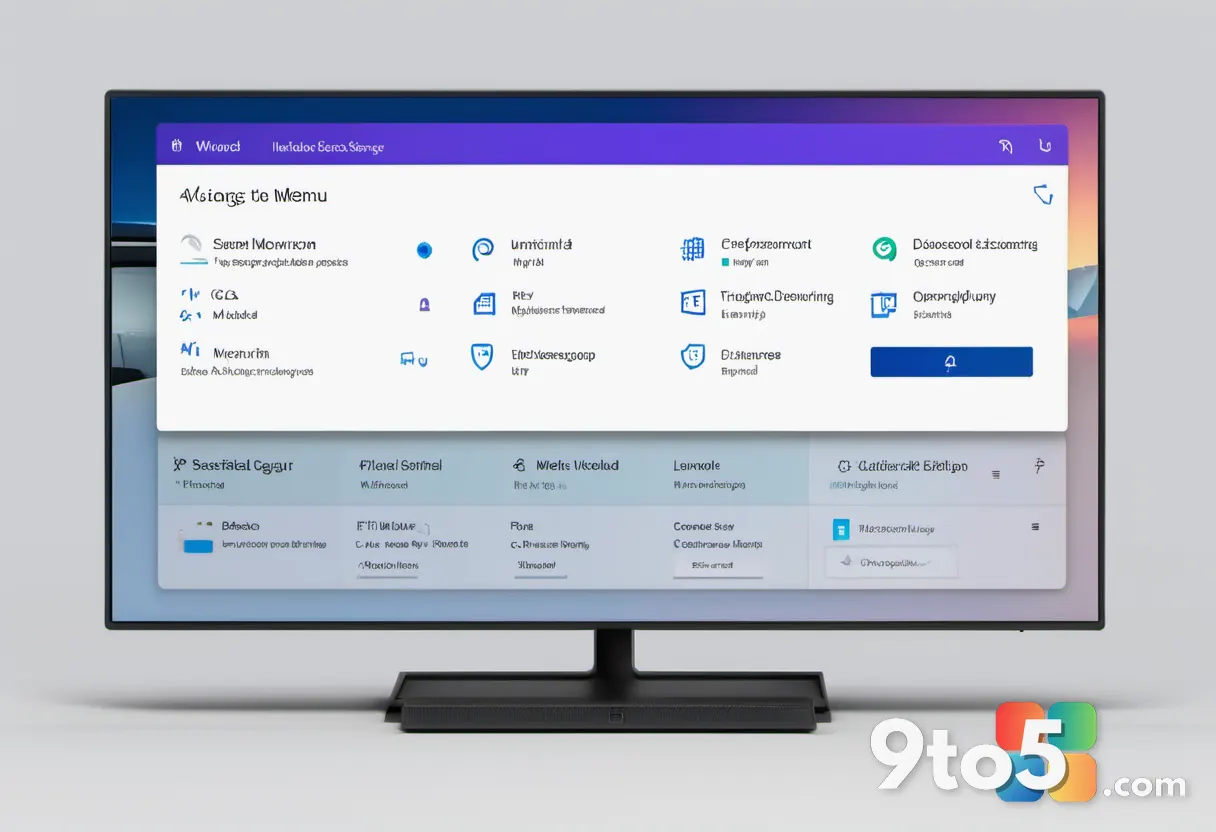
Click the Advanced options link to access scheduling controls. Scroll down within the Windows Update page and select Advanced options. You will see a new screen displaying sections for Active Hours, Update History, and Optional Updates. This page is where Windows Update for Business exposes the deferral mechanisms that keep your system aligned with your work calendar. Look for the Pause updates section to verify how long your current pause remains active.
Step 4: Configure Active Hours
Set your daily active hours to prevent interruptions during work. Under the Active hours section, click Change active hours. Use the dropdown menus to define your typical start and end times, then save the selection. Windows will automatically avoid restarting your device or installing updates during this window. If you work irregular hours, adjust this setting weekly to match your actual schedule, since the system only allows a five-hour window by default.
Step 5: Set Feature Update Deferral Periods
Define how long your device waits before receiving major version upgrades. Still within Advanced options, locate the Feature update deferral section and click Choose a branch or Set the deadline depending on your Windows build. You will see a calendar picker that lets you postpone feature updates by up to 365 days. Feature updates introduce new interfaces, tools, and system changes, so delaying them gives your team time to test compatibility with internal software before rolling out changes across the organization.
Step 6: Adjust Quality Update Deferral Periods
Control when security and cumulative patches install on your machine. Find the Quality update deferral section and select your preferred delay period from the dropdown menu. You can typically defer these updates by 7 to 30 days. Quality updates focus on bug fixes and security improvements, but they occasionally trigger restarts that interrupt long-running tasks. Setting a consistent deferral period ensures your IT department can validate patches in a test environment before they reach your workstation.
Step 7: Review and Apply Your Changes
Return to the main Windows Update page and trigger a manual sync. Click the back arrow to return to the primary update screen, then select Check for updates. Windows will evaluate your new deferral settings against Microsoft’s update catalog and queue any eligible patches for your chosen timeline. You will see a confirmation message indicating that updates are paused or scheduled according to your preferences. If the system displays an error code, note the number and proceed to the troubleshooting section below.
Troubleshooting Common Deferral Issues
Options appear grayed out or locked. This usually means your organization manages updates through Microsoft Intune, Group Policy, or a third-party endpoint management tool. Contact your IT administrator and request that they adjust the AllowWindowsUpdatePolicy registry key or modify your device compliance profile. You cannot override enterprise policies from a standard user account.
Updates install despite your deferral settings. Windows occasionally forces critical security patches to bypass deferral periods when a severe vulnerability is detected. If you notice unexpected restarts, check the Update history section to confirm whether the installed patch was classified as a priority security update. You can request an exception from your IT department if the patch is not immediately critical.
Deferral deadlines reset after a restart. This behavior typically occurs when your device syncs with a corporate management server upon boot. Ensure your machine stays connected to the corporate network during business hours, and verify that your local deferral settings are not being overwritten by a scheduled policy refresh. Restarting the Windows Update service via services.msc can sometimes clear stale policy caches.
Pro Tip: Combine your deferral settings with a scheduled maintenance window. Create a recurring calendar event labeled Update Installation and align it with your quality update deferral deadline. This habit ensures you manually trigger installations during low-traffic hours instead of waiting for Windows to force a restart.
Managing update timing on a corporate device requires a balance between personal workflow needs and organizational security requirements. By configuring deferral periods directly in Windows Update for Business, you maintain control over your daily routine while staying aligned with your company’s patch management strategy. Test your new schedule for one full week, then adjust the deferral windows if you notice conflicts with recurring meetings or project deadlines. Keep your IT helpdesk contact information handy, since they can push policy overrides when urgent security patches require immediate attention.
What deferral period works best for your daily workflow, and how do you coordinate with your IT team when urgent patches arrive?
Over to you: What deferral period works best for your daily workflow, and how do you coordinate with your IT team when urgent patches arrive?