Microsoft has released a new preview update for Windows 11 26H1, and it brings a notable change to how users can manage update timing. The cumulative update preview, designated KB5101681, introduces a calendar-based update pause feature that shifts away from the traditional day-count method.
If you’re enrolled in the Windows Insider Preview channel for 26H1, this build is now available through Windows Update. The change matters because it gives you a clearer, more predictable way to defer updates without guessing how many days remain on your pause window.
What Is Windows 11 26H1?
Windows 11 26H1 is the first major feature update of 2026, following Microsoft’s new annual release cadence. The “26” refers to the year, and “H1” indicates it targets the first half of the calendar year. This version is being developed alongside ongoing refinements to Windows 11’s core experience, including improvements to performance, security, and developer tooling.
Users on the 26H1 branch typically run builds numbered in the 26xxx range. The preview channel, formerly known as the Fast ring, delivers these builds to testers who opt in to try new features before they reach the general public.
Calendar-Based Update Pause Explained
The headline addition in KB5101681 is the calendar-based update pause. Previously, Windows allowed users to pause updates for a set number of days—usually up to five weeks for feature updates. You’d select a pause duration, and the system would count down from there.
Under the new approach, you can now choose a specific calendar date to resume updates. Instead of wondering whether your pause will expire on a Tuesday or a Thursday, you pick the exact day you want updates to start again. This aligns better with how people plan their workweeks, travel schedules, or maintenance windows.
According to the Windows Insider Blog, Microsoft is rolling out this change to give users more predictable control over update timing. The feature is available to both Insider preview users and, eventually, general release customers on supported editions of Windows 11.
What This Means for You
For everyday users, the shift to a calendar-based pause means less guesswork. If you know you’ll be away from your PC next week or have a critical deadline, you can set the pause to resume on a date that works for you. The system will no longer restart unexpectedly before that date unless you manually cancel the pause.
For IT administrators managing fleets of Windows 11 devices, this change simplifies scheduling. You can align update resumption with maintenance windows, training periods, or quarter-end reporting cycles without relying on day-count calculations that may not match your operational calendar.
How to Get the Update
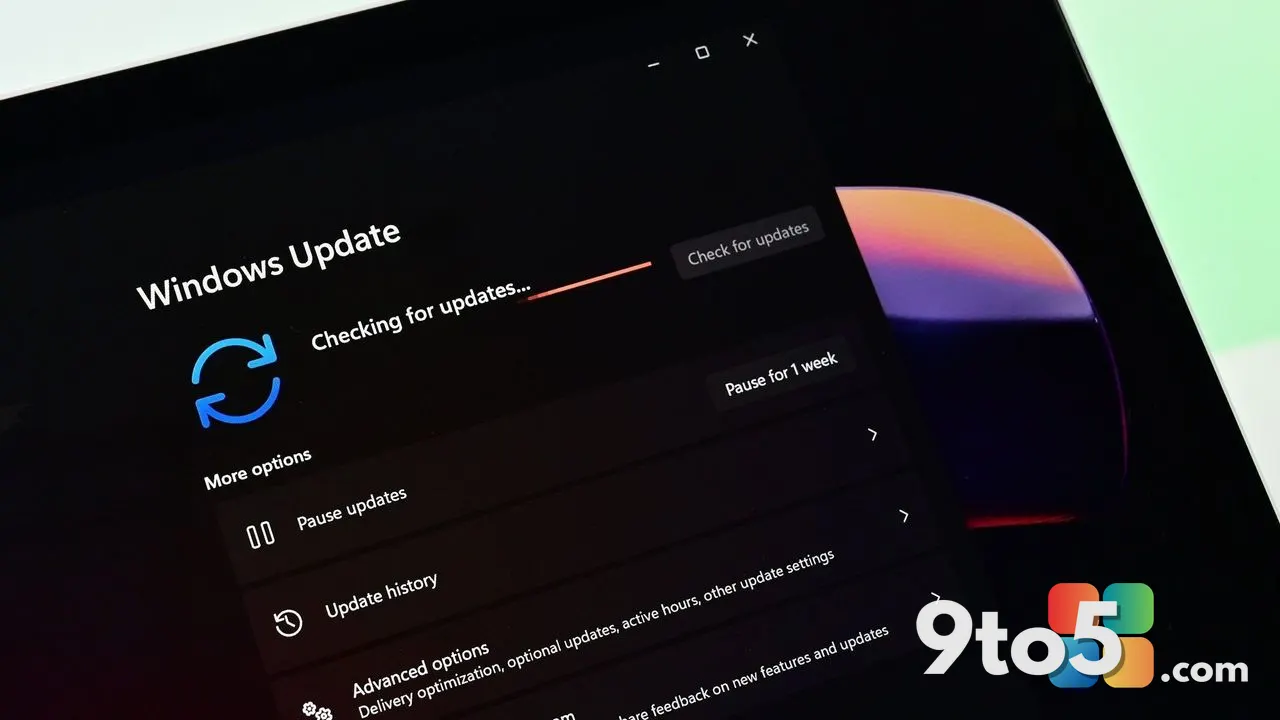
To receive KB5101681, you need to be running the Windows 11 26H1 preview build and enrolled in the appropriate Insider channel. Open Settings, navigate to Windows Update, and select Check for updates. If your device is eligible, the update will appear in the available updates list.
Microsoft recommends reviewing the known issues in the update’s release notes before installing, especially if you rely on specific third-party software or hardware that may not be fully compatible with preview builds. Back up important data before applying any preview update, as is standard practice for the Insider program.
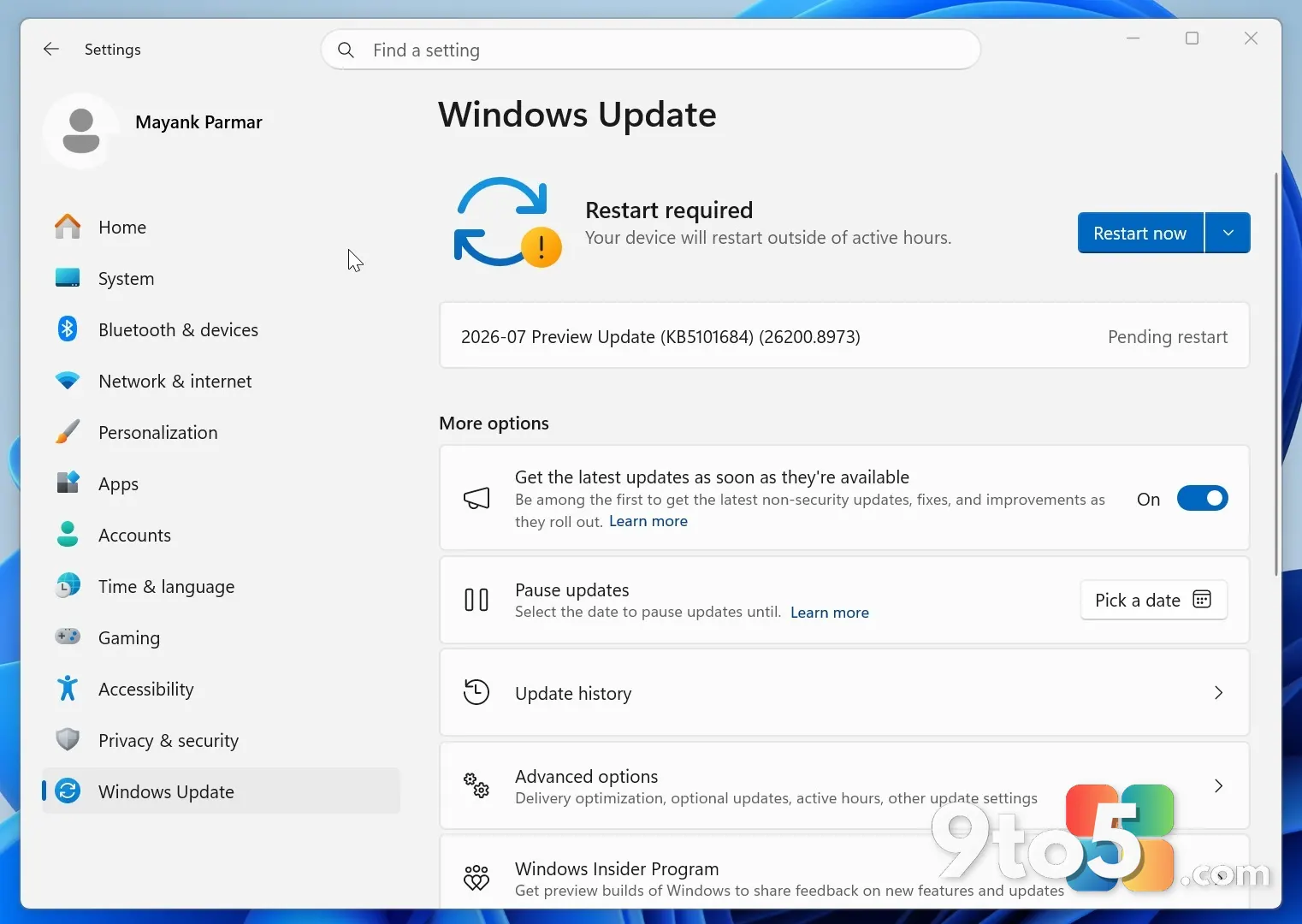
Once installed, you can access the new calendar-based pause option through Settings > Windows Update > Pause updates. Instead of selecting a number of days, you’ll see an option to choose a specific date. The interface will display a calendar picker for quick selection.
Looking Ahead
This update is part of Microsoft’s ongoing effort to refine how Windows 11 handles update management. The calendar-based pause is one of several changes aimed at reducing friction for users who need more control over when their systems restart. As 26H1 moves toward its general availability, expect similar features to land on stable builds in the coming months.
For now, the preview channel remains the place to test these changes and report feedback. Your input helps shape which features make it into the final release.
Source: Neowin
Over to you: Will you use the calendar-based pause to schedule your next update, or keep it on auto?