Microsoft is preparing to release the Windows 11 August 2026 Security Update on Tuesday, August 11, 2026. This eighth month of the year brings a substantial quality update for both Windows 11 versions 25H2 and 24H2, which will receive identical changes. The update introduces several new features, improvements to existing functionality, and necessary fixes across the operating system.
Among the notable additions are Windows Hello Enhanced Sign-in Security (ESS) support for external fingerprint sensors, the ability to uninstall AI models from Copilot+ PCs, new touchpad gestures, voice isolation for Voice Access, and Fluid Dictation for Voice Typing. Additionally, there are refinements to File Explorer, Windows Search, Widgets, Windows Update, power management, and system sounds.
Microsoft typically uses Controlled Feature Rollout (CFR) to deploy new improvements gradually, meaning some users may not see these changes immediately upon installation. Below, we break down the most significant changes in this month’s release.
#1 Windows Hello Enhanced Sign-in Security for External Sensors
In this update, Microsoft is expanding Windows Hello Enhanced Sign-in Security (ESS) support to include external fingerprint sensors. Previously, this enhanced security feature was restricted to devices with built-in sensors, such as Copilot+ PCs.
Standard Windows Hello encrypts sign-in data, but ESS takes security further by isolating the biometric process into a secure memory space, separate from the operating system. This added layer of protection helps safeguard your biometric information from potential threats.
The option is available through Settings > Accounts > Sign in options. Users with compatible external fingerprint readers will now be able to enable this enhanced security feature, providing an additional layer of protection for their devices.
#2 Uninstall AI Models from Copilot+ PCs
One of the most requested features by Windows 11 users is the ability to manage AI components. In this update, Microsoft is allowing users to uninstall the Image Generation AI model from Settings > System > AI Components.
While this does not provide a master switch to completely disable AI on Windows 11, it is a significant step toward giving users more control over their system. This change addresses one of the common complaints about Windows 11’s deep integration of AI features, allowing users to remove specific components they do not need or want.
#3 File Explorer and Windows Search Improvements
File Explorer receives several practical enhancements in this update. When using the “Details” view, file sizes now display appropriate units (such as KB, MB, and GB) instead of showing all values in kilobytes, making it easier to understand file sizes at a glance.
Users can now use middle-click to open a folder in a new tab from the address bar and Home page, improving multitasking efficiency. Additionally, the Home page has been refined to fix a gray flash bug on loading and scrolling, and thumbnails in the Recommended section now appear with better quality.
Windows Search also sees improvements, including better handling of typos and the ability to start searches with two-character queries. When searching for apps, Windows Search now improves recognition of partial names and typos, making it easier to find what you need even with imperfect input.
#4 Voice Typing and Voice Access Enhancements
Microsoft is making several updates to voice-related features. In Voice Typing, Fluid Dictation is now deactivated by default, and tooltips have been integrated to help users understand how the feature works.
Voice Access now comes with Voice Isolation, which improves speech recognition by filtering out background noise and other speakers. Users can choose from three speech recognition settings in Settings > Voice Access > Improve speech recognition:
- Voice Isolation: Requires a one-time voice setup and filters both background noise and nearby conversations.
- Remove background noise only: Suppresses sounds such as typing or doors closing without additional setup.
- No filtering: Uses the microphone input without any processing.
#5 New Touchpad Gestures and Power Settings
After installing the August update, users can customize touchpad gestures in Settings > Bluetooth & devices > Touchpad. New options include the ability to adjust the speed for scroll and zoom gestures, as well as a new option to enable accelerated scrolling, which increases scrolling speed as gestures are repeated.
In the Power & battery settings, Microsoft is making changes to how power settings are applied. Customizations made to display timeouts, sleep and hibernate timers, and laptop lid actions are now automatically applied to every power plan instead of only the active one. Additionally, the ability to configure the battery percentage for “Energy Saver” is returning to the “Power & battery” settings.
#6 Account Control and Widgets Updates
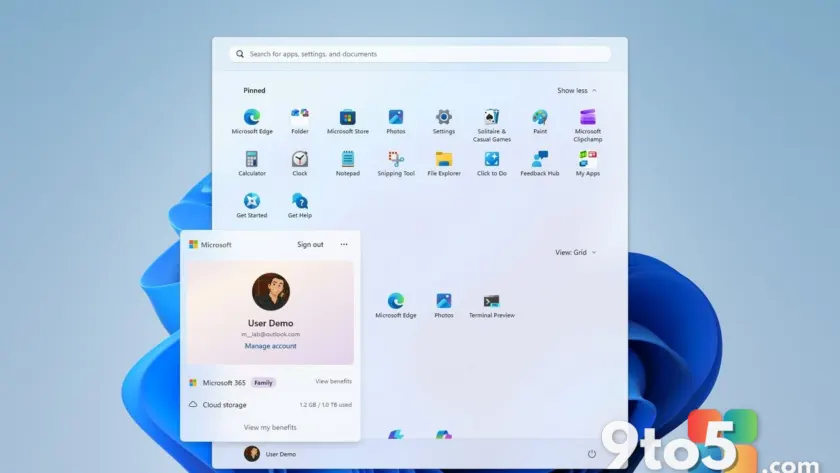
The flyout that appears when clicking the profile button in the Start menu, known as the Account Control interface, is receiving design changes. The new design aims to be more modern and clearer, with a new badge to quickly understand the current plan and state. It also provides access to plan benefits and other information, such as storage usage from OneDrive.
On the Lock screen, the experience should now be less distracting, as users will only see the Weather widget by default. Additionally, notification badges in the Taskbar will now take the current accent color instead of the previous red indicator.
What This Means for You
The Windows 11 August 2026 update focuses on refining the user experience through practical improvements rather than introducing flashy new features. The ability to uninstall AI models and the expansion of Windows Hello Enhanced Sign-in Security are particularly significant for users who value control and security. The enhancements to File Explorer, Windows Search, and touchpad gestures will make daily interactions smoother and more efficient.
For IT administrators, the changes to power settings application and the return of the Energy Saver battery percentage configuration offer better management options. The gradual rollout via Controlled Feature Rollout means that some users may experience these changes over time, so patience may be required.
How to Get It
To receive the Windows 11 August 2026 Security Update, ensure your device is connected to the internet and go to Settings > Windows Update. Click Check for updates to download and install the latest update. If the update is not available immediately, it may be rolled out gradually through Controlled Feature Rollout.
For those who prefer manual updates, the update can also be downloaded from the Microsoft Update Catalog. Simply search for the update using the provided KB article ID and follow the installation instructions.
As with every Patch Tuesday release, it is advisable to wait a few days before installing the update on your primary computer unless you need the latest security fixes immediately. Monthly updates occasionally introduce unexpected issues, and giving Microsoft time to address early reports is a prudent strategy.
Source: Latest from Windows Central
Over to you: Which change in the August 2026 update will you be using the most: the ability to uninstall AI models or the new touchpad gesture controls?
You may also like
 Windows 11 In-Box App Updates Roll Out to Insiders for Calculator, Clock, Media Player, and Notepad
 Microsoft Rolls Out a New Windows 11 Experimental Build for Insiders
 Windows 11 Future Platforms Build 29634 Adds Voice Isolation and Instant Braille
 Microsoft Pushes Fresh Updates to Notepad, Calculator, Media Player, and Clock