The Copilot Key Controversy Ends
For years, the dedicated Copilot key has been one of the most debated additions to modern keyboards. The problem was never the key itself, but what it replaced. Every laptop and external keyboard that ships with a dedicated Copilot key currently lacks a Right Ctrl key. That missing key has frustrated power users, developers, and anyone who relies on keyboard shortcuts for daily tasks.
Microsoft has finally addressed the complaint with a native Windows 11 update. The operating system now includes a built-in setting that lets you remap the Copilot key to act as the Right Ctrl key, the Context Menu key, or disable it entirely. This change comes after years of community feedback and multiple support documents hinting at the adjustment.
What Exactly Changed in Windows 11
The new update adds a straightforward configuration option directly in the system settings. You can now choose how the Copilot key behaves without relying on third-party tools or registry edits. The available options are:
- Right Ctrl: Restores the missing modifier key for shortcuts like Ctrl+C or Ctrl+V.
- Context Menu: Opens the right-click context menu, useful for users who prefer keyboard navigation.
- Do Nothing: Completely disables the key, effectively removing it from your input entirely.
This gives you full control over a key that previously launched Copilot by default. If you never use the AI assistant, you can reclaim that physical space for something more practical. The change is particularly relevant for users who rely on the Right Ctrl key for extended keyboard layouts or accessibility features.
How to Access the New Setting
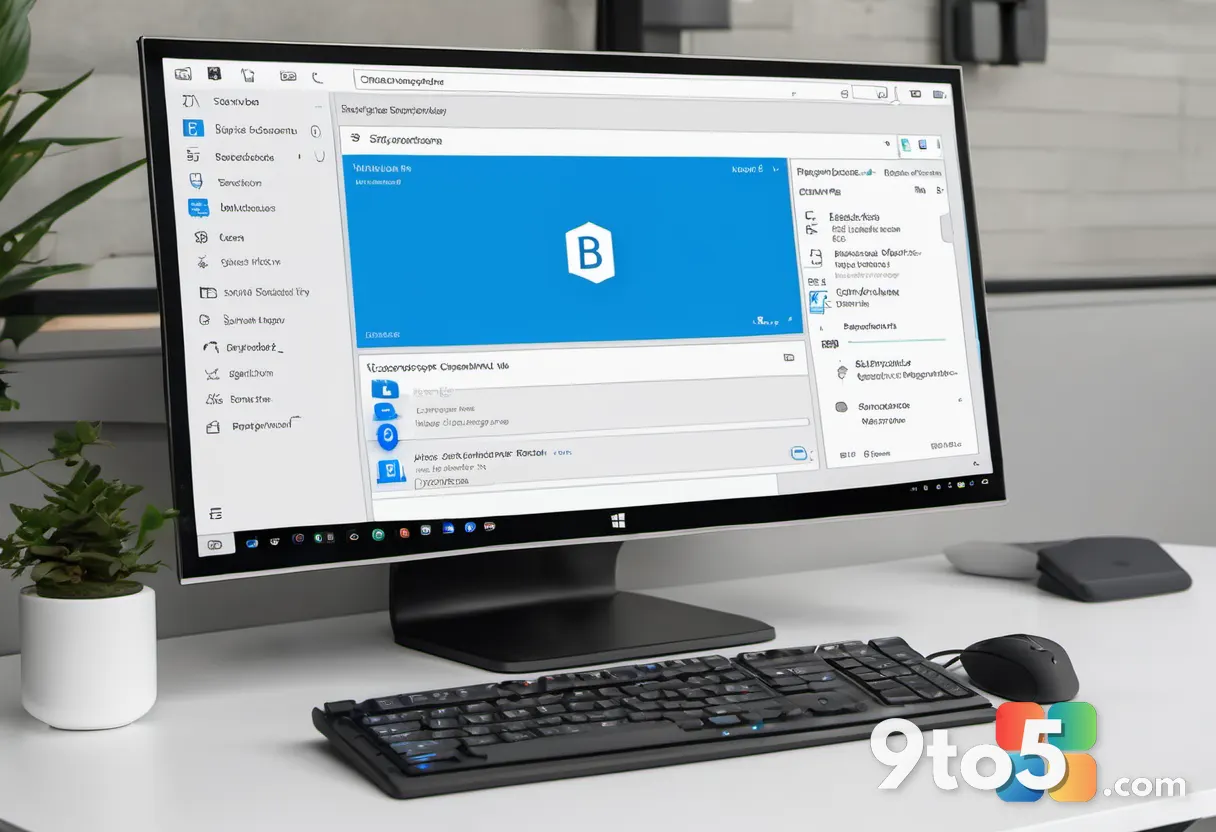
Microsoft confirmed the location of the toggle in an official support document. You can find the option by navigating to Settings > Bluetooth & devices > Keyboard. Once there, look for the Copilot key dropdown menu to select your preferred behavior.
It is worth noting that the feature has rolled out inconsistently across different Windows 11 builds. Some users have reported that the option does not appear immediately after updating. If you do not see the setting right away, you may need to enable a specific feature ID through the Windows Insider program or wait for a broader rollout. Microsoft has not provided an exact date for when the option will be available to all Windows 11 users, but the feature is already active on systems running the latest updates.
What This Means for You
If you are currently using a keyboard without a Right Ctrl key, this update solves a major usability issue. You no longer have to rely on awkward workarounds or third-party software to restore standard shortcut functionality. The native integration means the change is stable, secure, and automatically updated alongside your system.
For users who rarely interact with Copilot, disabling the key entirely is a clean solution. It removes accidental activations and keeps your keyboard layout consistent with older models. Whether you choose to remap it to Right Ctrl or the Context Menu, you now have a native way to tailor your typing experience.
Alternatives for Power Users
Before this native option existed, the only reliable way to remap the Copilot key was through Microsoft PowerToys. The open-source utility suite includes a Keyboard Manager that allows you to remap any key to any other key, offering far more flexibility than the new built-in setting.
PowerToys remains a strong choice for users who want granular control. You can map the Copilot key to custom shortcuts, macros, or even launch specific applications. If you are already using PowerToys, you might prefer to keep using it for consistency across your entire keyboard layout. However, for most users, the new Windows 11 setting is simpler and requires no additional software installation.
How to Get It
To access the new Copilot key setting, ensure your device is running the latest version of Windows 11. Go to Settings > Windows Update and check for updates. If the option appears, you can configure it immediately. If it does not show up, check back in the coming weeks as Microsoft continues to push the feature to all compatible devices.
Microsoft’s decision to add a native remapping option reflects a broader shift in how the company handles hardware-specific keys. Rather than forcing a single AI-centric workflow, Windows 11 now acknowledges that users have different preferences. Whether you are a developer, a writer, or just someone who wants a standard keyboard layout, you can now make the Copilot key work for you instead of the other way around.
Source: Latest from Windows Central
Over to you: Will you remap the Copilot key to Right Ctrl, or disable it entirely?