Many PC users assume that every monitor requires its own cable to connect to the computer. DisplayPort Multi Stream Transport, commonly referred to as DisplayPort MST, offers a different approach. This feature allows several displays to receive video signals through a single DisplayPort connection, which reduces cable clutter and simplifies multi-monitor configurations.
MST was introduced with DisplayPort 1.2 and has been supported by graphics hardware since around 2013. The technology works by splitting the available bandwidth of one DisplayPort link across multiple outputs. Instead of relying on a dedicated port for each screen, the signal travels through a chain of monitors until it reaches the final display in the sequence.
DisplayPort MST compatibility requirements
Before attempting a multi-monitor setup, you need to verify that your hardware supports MST. Your graphics card or integrated GPU must support Multi Stream Transport. Most discrete GPUs from AMD and NVIDIA released since 2013 include this capability, but you should confirm this in the official specifications for your specific model.
At least one monitor in your chain must feature a DisplayPort output port. Manufacturers typically label this port as “DP Out” or “DP Output.” This output does not connect to another display device; it relays the remaining video data to the next monitor in the chain. If your monitors only have DisplayPort inputs, you will need an MST hub instead of relying on daisy chaining.
DisplayPort 1.2 supports up to two 1080p displays or one 1440p display through MST. DisplayPort 1.3 and 1.4 increase the available bandwidth, allowing support for higher resolutions and refresh rates across multiple screens. If you plan to run 4K displays, verify that your ports and cables meet the DisplayPort 1.4 specification.
How to daisy chain displays with MST
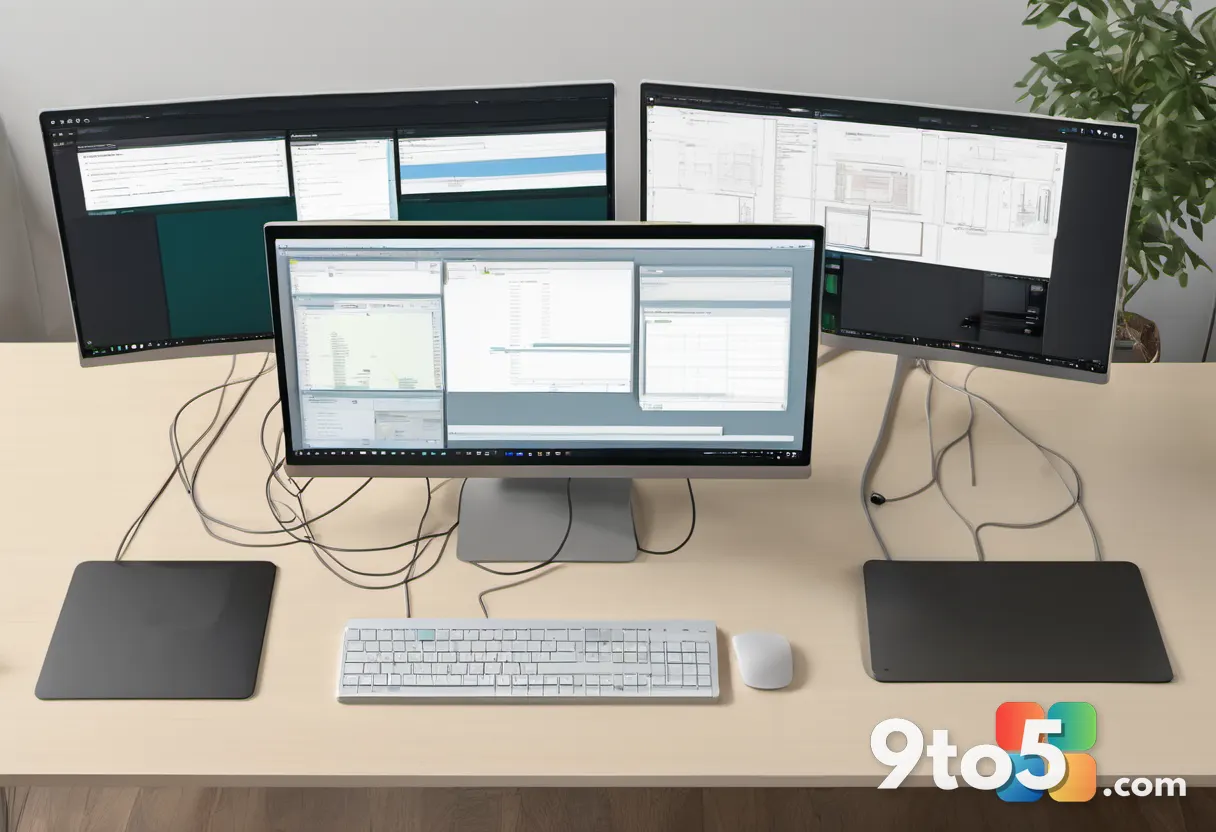
The daisy chain method connects monitors in a linear sequence. You start by running a DisplayPort cable from your computer’s DisplayPort output to the DisplayPort input on the first monitor. From the DisplayPort output on that monitor, you connect another cable to the DisplayPort input on the second monitor. You continue this pattern for each additional display in the chain.
Once the physical connections are complete, you must enable MST in the monitor settings. Navigate to the on-screen display menu on the first monitor in the chain and locate the Multi Stream Transport option. Toggle this setting to enabled. The monitor will then begin routing the video signal downstream to the connected displays.
Windows typically detects the additional displays automatically after MST is enabled. You can arrange the monitors in the correct order by opening Display Settings and selecting the Arrange option. Drag each display icon to match its physical position on your desk. If the displays do not appear, check that the MST feature remains enabled on the primary monitor and verify that all cables are securely connected.
Using an MST hub for monitors without DP output
Not all monitors include a DisplayPort output port. If your displays only have DisplayPort inputs, you cannot daisy chain them directly. In this case, an MST hub provides the same bandwidth-splitting functionality without requiring monitors with relay ports.
An MST hub connects to a single DisplayPort or USB-C port on your computer and distributes the video signal across multiple DisplayPort outputs. This setup is particularly useful for laptops and compact desktops that offer only one video output. The hub handles the signal splitting internally, allowing you to connect two or more displays through a single port on your computer.
When selecting an MST hub, verify that it supports the resolution and refresh rate you require. A hub rated for DisplayPort 1.2 will handle 1080p displays at standard refresh rates. For 4K content at 60Hz or higher refresh rates, look for a hub that supports DisplayPort 1.4 or DisplayPort 2.0 specifications.
What this means for you
DisplayPort MST reduces the number of cables running from your computer to your desk. If you are building a multi-monitor workstation or upgrading an existing setup, MST eliminates the need to fill every available video port on your graphics card. This is especially relevant for users with limited GPU outputs or those using laptops as desktop replacements.
The daisy chain approach also simplifies cable management. Instead of routing multiple cables from the computer to each monitor, you only need one cable from the PC and shorter inter-monitor connections. This creates a cleaner desk appearance and makes it easier to adjust monitor positions without disconnecting the primary video cable.
If your monitors lack DisplayPort outputs, an MST hub delivers the same benefit without requiring new hardware. You can continue using your existing displays while gaining the flexibility of a multi-port video solution from a single computer output.
How to get started with DisplayPort MST
Verify that your graphics card supports DisplayPort 1.2 or higher. Confirm that at least one monitor includes a DisplayPort output port if you plan to daisy chain. Purchase a DisplayPort cable rated for the resolution and refresh rate you intend to use. Enable MST in the monitor settings menu before arranging displays in Windows.
Source: PCWorld
Over to you: Are you using DisplayPort MST daisy chaining, or do you rely on an MST hub for your multi-monitor setup?