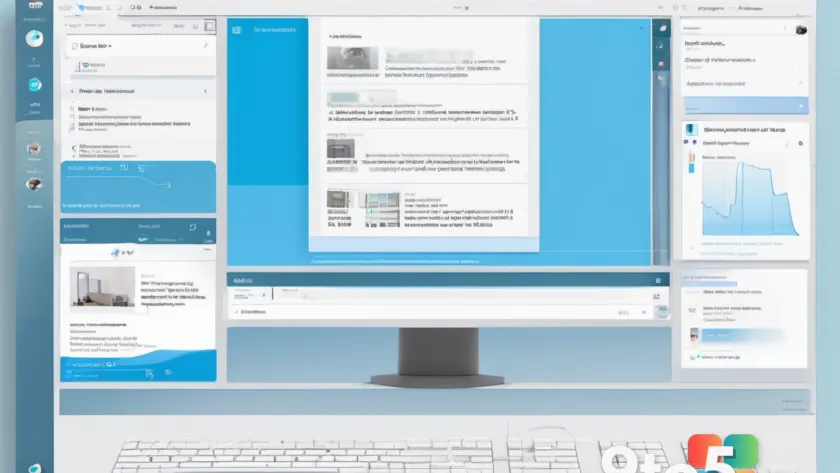
Microsoft has officially made Quick Parts available to all users of New Outlook on Windows. This feature, which allows you to save and reuse snippets of text in your emails, was a staple of Outlook Classic and Microsoft Word but was notably absent from the initial launch of the new client.
The rollout began in February 2026, but it wasn’t until the first week of July 2026 that the feature became widely available. If you have been waiting to stop copy-pasting repetitive phrases like shipping addresses or standard greetings, this update finally bridges that gap between the old and new clients.
How to use Quick Parts in New Outlook
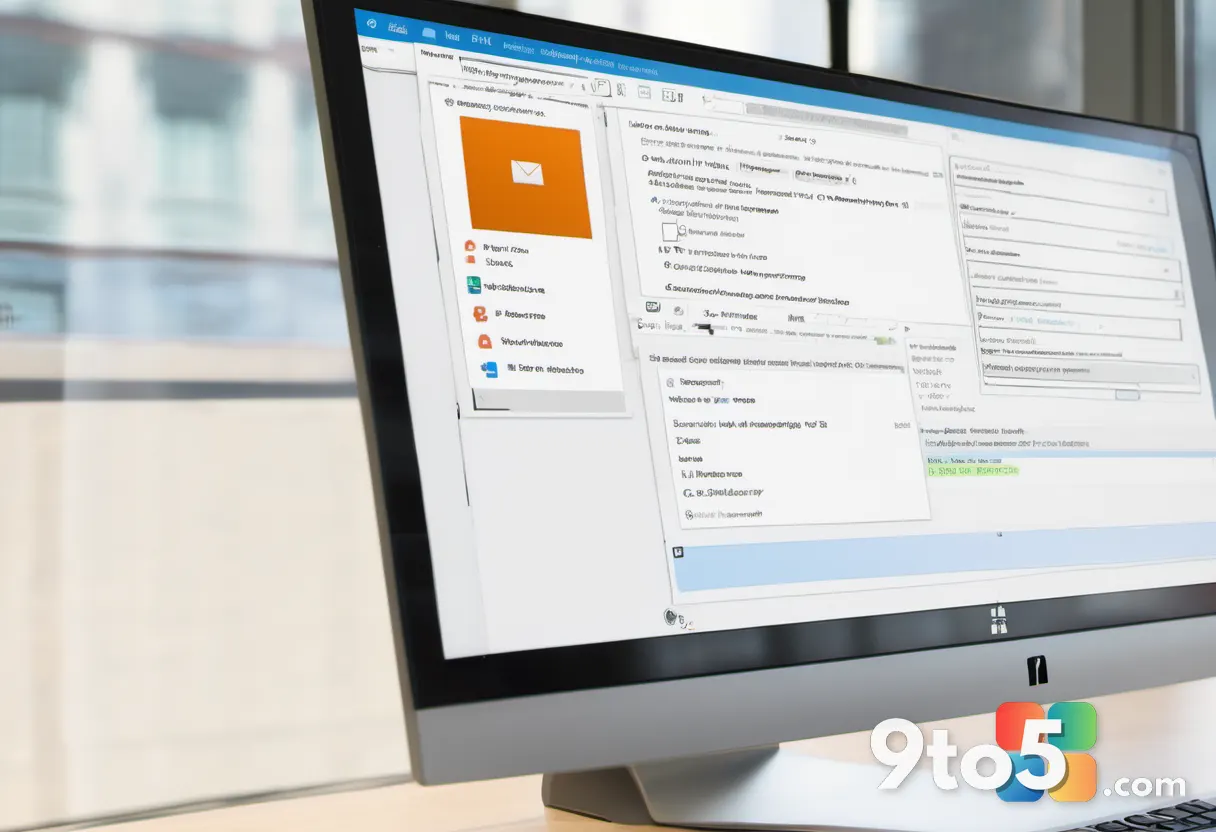
To start using email snippets, open a new email draft or reply. Highlight the text you want to save, then click the Insert tab in the ribbon menu. You will now see a Quick Parts toggle. Clicking it saves the selected content as a reusable snippet.
Whenever you need that text again, simply go to Insert > Quick Parts and select your saved snippet from the list. While the current method requires navigating the Insert tab, Microsoft is testing a more streamlined approach. Soon, you will be able to right-click any selected text in an email and choose Quick Parts directly from the context menu to save it instantly.
What’s coming next for New Outlook
Quick Parts is just one piece of a larger effort to bring New Outlook feature-parity with its predecessor. According to Microsoft’s roadmap, several other significant updates are in development:
- Unified Inbox: Similar to Gmail or third-party clients, this feature will combine emails from multiple accounts into a single view. You’ll be able to read, reply to, delete, or move messages from different mailboxes without switching tabs.
- Advanced Mail Merge: Future updates will support fully personalized email content for recipient lists, including dynamic names and greetings, bringing back functionality that power users rely on for mass communications.
- Local File Handling: New Outlook will soon allow you to send locally stored Office files directly if they are already open, by creating an additional local copy for attachment.
- Enhanced .PST Support: Advanced support for Personal Storage Table files is on the way, addressing a major pain point for users managing large archives of offline data.
Other improvements include better control over the folder pane and notification grouping. The latter aims to reduce desktop clutter by bundling recent emails into a single notification rather than spamming your screen with individual alerts.
What this means for you
If you have been hesitant to switch to New Outlook because of missing productivity tools, the arrival of Quick Parts removes one of the biggest hurdles. For everyday users, it saves time on repetitive tasks. For IT professionals and power users, the upcoming Unified Inbox and advanced Mail Merge features signal that Microsoft is taking the transition seriously.
However, performance issues remain. Despite these feature additions, New Outlook still struggles with launch speed compared to Outlook Classic, often taking around 10 seconds to open via email notifications on Windows. While the feature set is catching up, the underlying performance gap is a separate issue that Microsoft has yet to fully resolve.
Source: Windows Latest
Over to you: Will the addition of Quick Parts and Unified Inbox convince you to fully switch to New Outlook, or do you still prefer Classic?