For over a month, a persistent friction point in New Outlook has drawn consistent complaints: clicking a Windows notification to open an email triggers a noticeable wait before the message actually appears. The issue was first flagged after independent testing showed the client taking up to ten seconds to load the targeted message, a delay that felt especially jarring given how instantly Outlook Classic handles the same action. Microsoft has not formally announced a patch for this specific behavior, but the quiet rollout of version 1.2026.713.100 has delivered a measurable improvement. The New Outlook notification delay is now roughly half of what it was a month ago, though the underlying architecture keeps it from matching the legacy client.
The New Outlook notification delay gets cut in half
The fix arrived without a dedicated changelog entry. The closest official notation appears in the July 1, 2026 release notes under the standard catch-all phrase Various fixes to functionality and performance. In practice, that vague wording translates to a tangible workflow improvement. When you tap a new mail notification, the app still launches and renders the inbox first, but the targeted message now appears in approximately five seconds instead of ten. The improvement is repeatable across multiple test cycles and does not require any manual configuration changes.
The original complaint gained traction after a side-by-side comparison showed that manually opening Outlook from the Start menu and navigating to the message was actually faster than using the notification designed to shortcut the process. That paradox highlighted a deeper synchronization gap between the Windows notification system and the app’s internal message routing. Microsoft confirmed internally in late June that engineers were actively testing a resolution, though no target date was attached at the time. The silent deployment in version 1.2026.713.100 suggests the fix cleared internal quality gates and rolled out through the standard update pipeline.
Why New Outlook still can’t match Classic’s speed
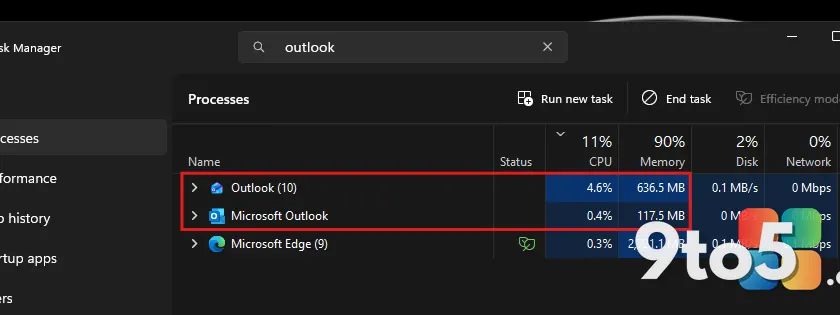
Halving the wait time is a genuine step forward, but five seconds remains a full five seconds longer than the instant response Outlook Classic provides. The gap exists because the two clients run on fundamentally different codebases. New Outlook is built on a WebView2 web framework, which means it operates as roughly ten separate background processes in Task Manager. Each process handles its own rendering, networking, and state management, effectively turning the email client into a dedicated browser window. Classic Outlook runs as a single, compiled native application that loads directly into memory without the overhead of a web runtime.
The resource footprint reflects that architectural split. Independent measurements from June showed New Outlook idling between 490 MB and 636 MB of RAM while drawing around 4% CPU. Outlook Classic sits at 117 MB to 148 MB and pulls under 1% CPU under the same conditions. Those numbers have not shifted dramatically despite the notification fix, which means the underlying rendering pipeline remains the primary bottleneck. Until Microsoft rewrites the core client as a native application rather than a hosted web view, raw launch speed and notification routing will continue to favor the legacy build.
Classic gets Copilot, New Outlook chases feature parity
While New Outlook works through its performance backlog, Microsoft is steering Outlook Classic toward an AI-first model. The company confirmed in mid-July that it will force-enable the Copilot Draft an email message capability across every supported version of Outlook later this year. An always-visible Copilot button, mirroring the floating panel already present in Word, Excel, and PowerPoint, is also heading to Classic. Both features require a paid Microsoft 365 Copilot license, effectively turning the legacy client into a delivery vehicle for AI tools rather than a focus for core feature development.
That strategic pivot comes as Microsoft retires Meeting Insights starting in September 2026. The tool previously surfaced relevant files and emails directly inside meeting invitations. Its replacement, labeled Prepare for this meeting, also demands a Copilot subscription, meaning users without one will lose the functionality entirely. Meanwhile, New Outlook continues closing the feature gap. Planner integration began rolling out in mid-July, Quick Parts reached general availability in early July, a stale-reply warning arrives in August, and drag-and-drop email categorization is scheduled for September. The client also now supports .PST imports and offline file attachments, though the former still relies on Classic to process the archive behind the scenes.
What this means for you
If your daily workflow depends on instant notification-to-message routing, Outlook Classic remains the faster option. The five-second improvement in New Outlook is noticeable, but it does not erase the WebView2 overhead. Users who prioritize resource efficiency, offline reliability, and mature add-in support should also stick with Classic for now. Microsoft has stated that Classic will remain supported until at least 2029, but the company’s migration roadmap targets a forced transition to New Outlook starting in March 2027. Organizations managing a fleet will need to plan for that shift, even if the current build still trails the legacy client in raw responsiveness.
How to get the update
The notification improvement ships with Outlook version 1.2026.713.100. To check your current build, open New Outlook and select Settings from the gear icon in the top-right corner, then navigate to General and click About Outlook. If your version number is lower, the client should prompt you to update automatically. You can also force a check by selecting Update Now from the same menu. Enterprise administrators distributing builds through Microsoft 365 Apps will receive the update through the standard monthly or semi-channel release cadence, depending on your current update ring configuration.
Source: Windows Latest
Over to you: Are you sticking with Outlook Classic for the speed, or will the improving New Outlook finally earn your daily use?