Microsoft has brought the SwiftKey Liquid Glass theme to the iOS version of its popular third-party keyboard, aligning the app’s look with Apple’s newest design language. The update is meant to make SwiftKey feel more at home on the latest iOS, but it hasn’t won over everyone — in fact, a good number of users aren’t happy with the result.
SwiftKey is one of the most widely used third-party keyboards on mobile, known for its predictive text, customization options, and built-in themes. By adopting Apple’s Liquid Glass aesthetic, Microsoft is making a deliberate choice to make the app feel native to the current iOS rather than a foreign overlay sitting on top of it.
What the SwiftKey Liquid Glass Theme Changes
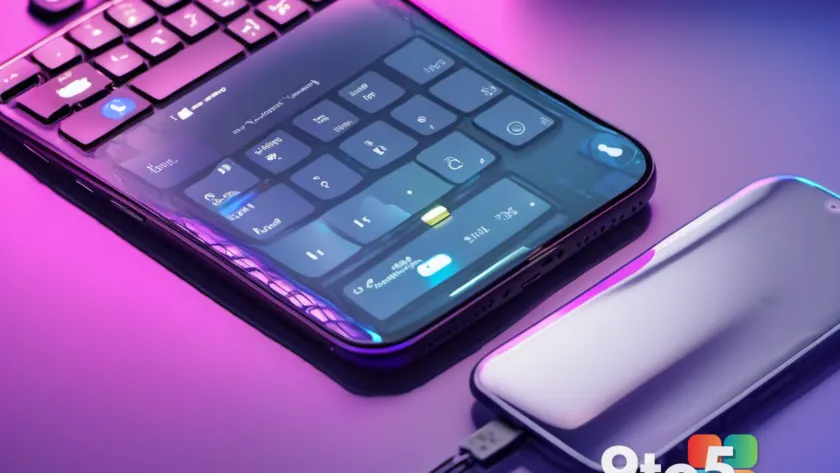
The most visible change is cosmetic. SwiftKey for iOS now uses the same translucent, glassy aesthetic that Apple introduced across its own apps and system interfaces. Keys, panels, and menus take on a see-through quality that lets the wallpaper and content behind them bleed through, matching the direction of the current iOS design.
For a keyboard that sits on top of virtually every screen you use, this kind of visual update is one of the most noticeable things a third-party developer can change. The intent is to make SwiftKey blend in with the rest of the operating system, giving it a look that’s consistent with the apps you already have open.
Why the Reaction Has Been Mixed
According to Neowin, the reception to the new theme has been far from uniformly positive. Users who have tried the updated SwiftKey have voiced complaints, with many saying they don’t love the new look. The criticism centers on the translucency itself: some find the see-through keys hard to read, especially against busy or bright wallpapers, and others simply prefer the cleaner, more solid look of the previous version.
This isn’t the first time a design shift like this has divided an app’s user base. Translucent interfaces are a hallmark of Apple’s current design direction, but they come with trade-offs in legibility that not every user is willing to accept. Keyboards, being something you type on constantly, make those trade-offs feel more acute than they would in a menu or a settings screen.
From an editorial standpoint, it’s worth noting that this kind of backlash is common whenever a developer commits fully to a translucent design without giving users a way to dial it back. When readability takes a hit, a segment of the user base will always push back — and keyboard apps are especially sensitive to that, since clarity matters more here than almost anywhere else on the screen.
What Is Liquid Glass?
Liquid Glass is the name Apple gave to the design language it introduced with iOS 26. Announced at the company’s WWDC developer conference and rolled out to public devices in the fall, it reworks the look of system UI elements — buttons, tabs, bars, and menus — to appear as if they’re made of translucent, light-bending glass. The effect is designed to make interfaces feel more dynamic, with elements shifting and refracting as you interact with them.
Because third-party keyboard developers build their apps to run on top of iOS, they’re often expected to update their designs to match when Apple makes a change this significant. SwiftKey’s move to the Liquid Glass theme is part of that broader trend, bringing a Microsoft app in line with the aesthetic Apple is pushing across its entire platform.
What This Means for You
If you use SwiftKey on an iPhone or iPad, the updated theme will arrive with the latest version of the app. Whether you like it or not, you’ll likely inherit the translucent look unless Microsoft offers a way to switch it off — something the source doesn’t confirm is available.
If the see-through keys bother you, there are a few practical things you can do. Switching to a solid, plain wallpaper can improve readability, and you can try the keyboard for a bit to let your eyes adjust. If the new design is a dealbreaker, you could fall back to another third-party keyboard or Apple’s built-in one until Microsoft potentially adds a theme toggle.
How to Get It
The SwiftKey Liquid Glass theme is available through the standard update path: open the App Store, search for SwiftKey, and tap Update if a newer version is available. If you haven’t installed SwiftKey yet, it can be downloaded for free and then enabled as your active keyboard in the iPhone’s Settings under Keyboard.
Once enabled, you can adjust SwiftKey’s appearance and settings from within the app itself. Whether Microsoft follows up with options to customize or tone down the Liquid Glass effect remains to be seen, but given the mixed reaction, it may be worth watching for a future update.
Source: Neowin
Over to you: Would you prefer SwiftKey keep its solid look, or do you actually like the new Liquid Glass transparency?