File Explorer remains one of the most frequently used interfaces in Windows, serving as the primary hub for organizing local storage, bridging cloud services, and managing daily workflows. According to the Windows Insider Blog, Microsoft is now rolling out a substantial update to that experience, targeting both foundational performance and the way users interact with files through the right-click menu. The changes represent a continuation of a broader quality commitment Microsoft outlined earlier this year, with a specific focus on reducing friction in the components that power users and casual readers rely on most.
Targeting the everyday friction points
Microsoft has spent the last several months profiling File Explorer to identify where latency and instability actually occur in real-world usage. The team focused on the interactions that happen dozens of times per day, setting measurable goals to make file launches faster and navigation more predictable. In practice, this means the shell process now initializes more efficiently, reducing the gap between clicking the taskbar icon and seeing your folders render on screen.
Behind the scenes, engineers have eliminated dozens of known stalls that previously caused freezes during routine operations. If you have ever experienced a frozen window while renaming a file, a delayed response when selecting multiple items, or a Home view that flashes and reloads unexpectedly, those specific failure modes have been addressed. The underlying goal is straightforward: reduce the number of moments where the operating system interrupts your workflow instead of supporting it.
Refining the details that accumulate over time
Beyond raw performance, Microsoft has implemented a series of usability adjustments that directly respond to long-standing user feedback. File renames will no longer be interrupted by background synchronization tasks, a change that previously caused silent failures or delayed confirmations. Case-only filename adjustments now reflect immediately in the interface, removing the need to wait for sync cycles to complete before seeing your changes take effect.
Navigation workflows have also been expanded. The Address Bar now accepts paths containing quotation marks and double backslashes, which simplifies handling of legacy directories and network shares that previously required manual escaping. Middle-clicking to open folders in a new tab has been extended to both the Address Bar and Home page folders, giving power users a faster way to multitask without reaching for keyboard shortcuts.
Smaller refinements continue to compound over time. The Home view now remembers whether individual sections were expanded or collapsed, so your layout persists across sessions. File sizes display using appropriate units like KB, MB, and GB, making storage consumption easier to read at a glance. The Details pane has been reorganized to group related properties together, reducing the number of clicks needed to verify metadata before moving or archiving files.
A completely redesigned File Explorer context menu
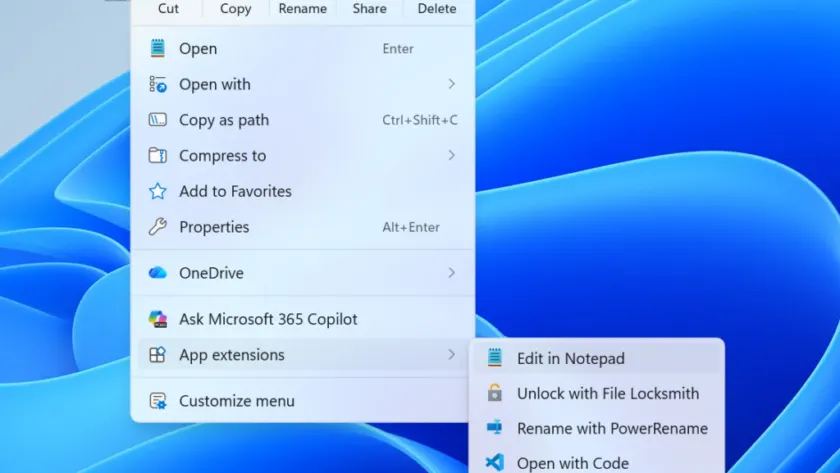
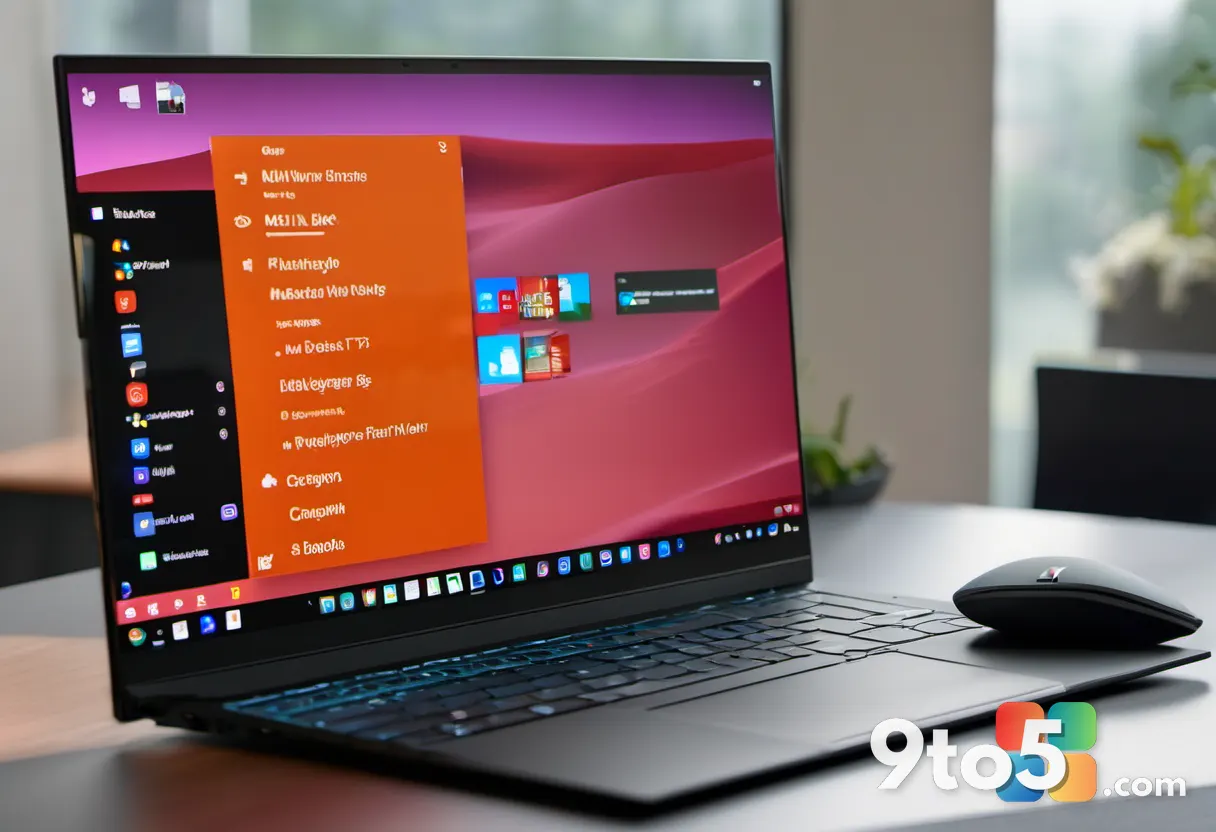
The most visible change in this update is the overhaul of the right-click interface. When Windows 11 launched, Microsoft replaced the traditional layered menu with a simplified, centered design. Over time, that menu accumulated app extensions, third-party shell handlers, and redundant commands, which slowed down rendering and made navigation less intuitive. The new design directly addresses those issues by prioritizing speed and giving users explicit control over what appears on screen.
The engineering improvements behind the faster open time are largely internal. By reducing the number of elements loaded by default and streamlining how app extensions register themselves, the menu now renders significantly quicker. Clutter was not just a visual problem; every additional command forced the shell to query more services before displaying the interface. A cleaner default menu means less background work and a more immediate response when you right-click a file or folder.
At the bottom of the new menu, a “Customize menu” shortcut opens a dedicated Settings page under Personalization. This section is divided into three clear areas. The first lets you toggle built-in Windows commands like Send to, Create shortcut, and Print, with some options like Print now available by default in Windows 11 for the first time. The second section manages app extensibility, allowing you to choose which third-party extensions appear in the main list or a submenu, or hide the submenu entirely. The third section addresses muscle memory, letting you move common commands like Cut, Copy, Paste, Rename, Delete, and Share into inline text rows, and reposition Properties to the bottom of the menu.
What This Means for You
For everyday users, the most noticeable improvement will be a File Explorer that feels more responsive and less prone to freezing during routine tasks. The redesigned File Explorer context menu removes the guesswork from right-clicking by showing only the commands you actually use, while still keeping advanced options one click away. Power users will appreciate the expanded Address Bar inputs, the persistent Home layout, and the ability to restore the classic command layout without relying on third-party registry tweaks or Group Policy workarounds. If you frequently manage large file sets or work across cloud and local storage, the sync-aware rename handling and standardized file size formatting will reduce friction in your daily workflow.
How to Get It
Microsoft confirmed via the Windows Insider Blog that these changes are now rolling out to Windows Insiders. The update is being deployed gradually through the standard Windows Update pipeline, meaning you should see it appear in your Update history within the next few days. If the changes do not appear immediately, navigating to Settings > Windows Update and selecting Check for updates will trigger the download. Users on the Dev Channel will likely receive the build sooner, while those on the Beta Channel may need to wait a bit longer as Microsoft continues to gather feedback before a wider release.
Source: Windows Blog
Over to you: Which customization option in the new context menu will you enable first, or are you sticking with the simplified default?
You may also like
 Microsoft Kicks Off Gradual Windows 11 Responsiveness Rollout in August Update
 Windows 11 is fully removing WMIC, a legacy tool abused by malware for years
 Windows 11 KB5121003 Update Triggers Game Crashes and Display Glitches
 Microsoft rolls out fresh Defender update for Windows 10, 11, and Server ISOs