Microsoft unveiled Project Zenith this week — a developer-focused version of Windows 11 paired with serious hardware, including a 64GB RAM baseline. The catch is that you don’t need to spend thousands on new gear to get the same software experience. Microsoft quietly published an open-source script that recreates the whole thing on any existing Windows 11 PC.
Here’s what changed, why it matters, and how you can grab the developer-friendly setup yourself.
#1 Project Zenith: a ready-to-code Windows 11 for high-end PCs
The headline from Microsoft’s announcement is Project Zenith, which the company describes as a “ready-to-code” Windows experience. But it isn’t a new edition or SKU of the operating system — it runs the same Home and Pro versions you already have. Instead, Microsoft has preconfigured a standard Windows 11 install with developer-friendly settings and bundled it with powerful hardware.
According to Microsoft’s announcement on the Windows Developer blog, qualifying hardware must meet a strict baseline: 64GB of RAM, 250GB/s of memory bandwidth, and a preconfigured Windows 11 setup. Microsoft says these specs are what developers need in the AI age.
That 64GB of memory is the headline number because it lets Zenith PCs run local AI models with 30B+ parameters without paying for cloud tokens. Microsoft says Project Zenith will first ship on AMD Ryzen AI Halo devices, with other OEM and chip partners coming later.
What actually changes in the software?
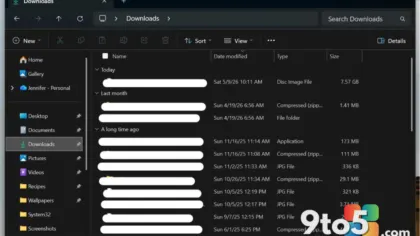
Since Project Zenith uses the same Windows 11 SKU, the “special” part is entirely about settings. Out of the box, Microsoft enables file extensions, hidden files, full file paths, and the Details pane in File Explorer. It also disables Start menu tips, account notifications, recently used files and folders, and sync-provider tips.
Windows Terminal and Visual Studio Code get pinned to the taskbar, and WSL plus local Linux and container development are baked into the intended workflow. In short, the machine is ready for both Windows and Linux development the moment you unbox it.
That’s the entire software story: a decluttered, developer-first configuration that would otherwise take you an afternoon to set up by hand. It fits into Microsoft’s longer push to keep Windows the default platform for developers, following years of investments like Windows Terminal, WSL, and native ARM support.
#2 Windows Developer Config: the same experience, for free
Here’s the part Microsoft isn’t talking up much. The exact same software configuration that ships on Project Zenith is available to anyone through an open-source project called Windows Developer Config, published on Microsoft’s GitHub.
Microsoft describes it as a way to turn a fresh Windows 11 PC into a “clean, distraction-free dev workstation in one shot.” When you look at what it actually does, the overlap with Project Zenith is obvious.
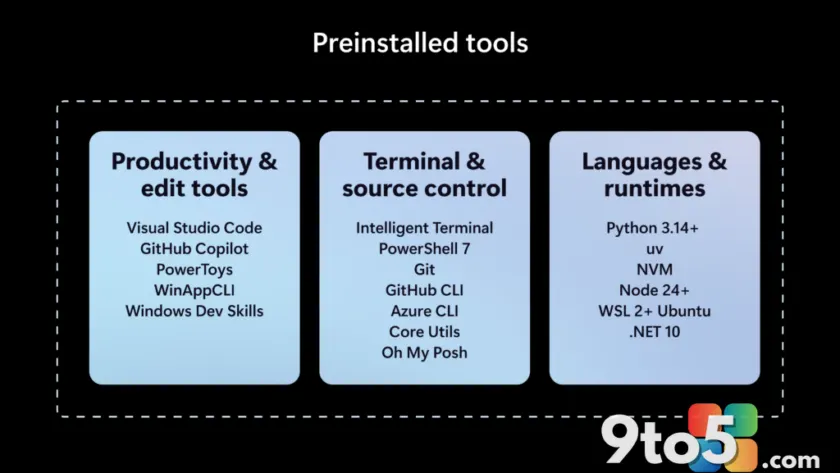
The configuration installs a collection of developer tools, including PowerShell 7, Git, GitHub CLI, Visual Studio Code, .NET SDK, Python, Node.js, Coreutils for Windows, and PowerToys. It also sets up WSL with Ubuntu, changes Windows Terminal defaults, enables Developer Mode and long-path support, and applies a long list of settings meant to cut the noise.
On the clutter-removal side, Windows Developer Config tells File Explorer to show file extensions and hidden files, enables the full path in the title bar, and turns off frequent files, frequent folders, cloud recommendations, and sync-provider notifications. It also disables Search suggestions and Highlights, Start recommendations, and Widgets, while turning on Do Not Disturb. Some of Edge’s default clutter is trimmed too.
Project Zenith vs. Windows Developer Config
The two approaches are nearly identical on the software side, and the only real difference is hardware. Here’s how they compare:
- Explorer and path settings: Both show file extensions, hidden files, full Explorer paths, and enable long paths.
- Clutter removal: Both disable recent files/folders, sync-provider tips, and Start recommendations.
- Developer tools: Both install VS Code, PowerShell 7, Git, and set up WSL with Ubuntu.
- Memory requirements: Project Zenith requires 64GB+ RAM and 250GB/s bandwidth for local AI; Windows Developer Config has no special memory requirement.
- Local AI: Zenith is designed to run 30B+ parameter models locally; Windows Developer Config depends entirely on your existing hardware.
- Delivery: Zenith ships preconfigured on qualified developer-class PCs; Windows Developer Config is applied by you using WinGet.
How to turn a normal Windows 11 PC into the developer setup
You don’t need to buy a Project Zenith PC to get all of this. Microsoft built Windows Developer Config around WinGet Configuration, so you don’t have to reinstall Windows or download a special ISO.
First, enable WinGet Configuration:
winget configure --enable
Then clone the repository:
git clone https://github.com/microsoft/WindowsDeveloperConfig.git
cd WindowsDeveloperConfig
Alternatively, you can download the repository as a ZIP from GitHub and extract it. Once you’re inside the folder, run:
winget configure -f .\windows-dev-config\dev-config.winget --accept-configuration-agreements --disable-interactivity
When that finishes, your Windows 11 looks and feels very close to the “special” Project Zenith software experience. The only thing you won’t get is running large local AI models — unless your current hardware already supports it.
What This Means for You
For most Windows users, this is a reminder that Microsoft’s developer-friendly settings aren’t locked behind expensive hardware. If you’re a developer or tinkerer who wants a decluttered Windows 11, you can replicate the Project Zenith software experience on your existing PC for free.
The 64GB RAM and 250GB/s requirements only matter if you want to run big local AI models without cloud costs. For everyone else, the software configuration is the valuable part — and it’s now a single command away.
That said, running an open-source configuration script means you should review what it changes before applying it. It installs software and rewrites a long list of system settings, so treat it like any other automation you’re trusting on your machine.
Source: Windows Latest
Over to you: Are you going to run Windows Developer Config on your current PC, or are you waiting for a Project Zenith machine with 64GB of RAM?
You may also like
 Microsoft Is Auto-Enabling Memory Integrity on Windows 11 Starting October 2026
 Windows 11 26H2 Has Entered the Preview Channel — Here’s What That Means
 Windows 11’s new context menu buries custom entries even deeper
 Windows 11 finally lets you OneDrive opt out of backup after years of dark pattern complaints