If your Windows 11 laptop suddenly stops charging at 80 percent, the first thing to know is that this is often intentional. Many manufacturers ship a battery protection feature that caps charging to preserve long-term battery health. But if you need a full charge for a long day away from a wall outlet, you can change that setting. This guide walks you through the most common fixes, from your manufacturer’s power app to BIOS options and driver updates.
Before You Start: Write down your laptop’s make and model (Dell, Lenovo, ASUS, HP, Acer, MSI, and others each ship different software). You’ll also want to be signed in with an administrator account, since some of these changes require elevated permissions. Enterprise or work-issued laptops may have these controls locked by your IT department, so check with them first if the options are missing.
Step 1: Confirm the 80 percent limit is a protection feature
Look for a battery status message or icon in your manufacturer’s software. Most laptops that stop at 80 percent are running a “battery protection,” “conservation,” or “adaptive charging” mode rather than suffering a hardware fault. Dell calls this feature Battery Saver or Power Manager conservation mode, Lenovo uses Battery Conservation Mode in Lenovo Vantage, ASUS names it Battery Health Charging in MyASUS, and HP lists it as Adaptive Battery Optimizer. If you see a note saying charging is limited to extend battery life, then the 80 percent cap is working as designed.
Check the system tray and your power app for a clear label. Click the battery icon in the taskbar to see the current percentage and any status note. If it says “plugged in, not charging” alongside the 80 percent figure, that confirms a conservation mode is active rather than a dead charger or battery. Knowing this distinction saves you from chasing driver fixes for a problem that is actually a setting.
Step 2: Open your laptop manufacturer’s power management app
Search the Start menu for your maker’s control app. This is where the 80 percent limit is most often set, so fixing it here usually solves the whole problem. Open the app that matches your brand: Lenovo Vantage, Dell Power Manager, MyASUS or Armoury Crate, HP Command Center, or Acer Care Center. If you are unsure which app you have, type the manufacturer name plus “vantage” or “power” into the Start search box.
Locate the battery or power section inside the app. Look for tabs or cards labeled Battery, Power, Energy, or Device Settings. The exact wording varies by brand and by app version, so scan for anything mentioning charge limits, thresholds, or battery health. Enterprise editions like Lenovo Vantage Enterprise or Dell Optimizer contain the same core controls, sometimes managed centrally by your organization.
Pro Tip: If you cannot find the app, download the official version directly from your manufacturer’s support website using your laptop’s model number. Third-party downloads can install unwanted software, so stick to the maker’s own site.
Step 3: Adjust the charge limit back to 100 percent
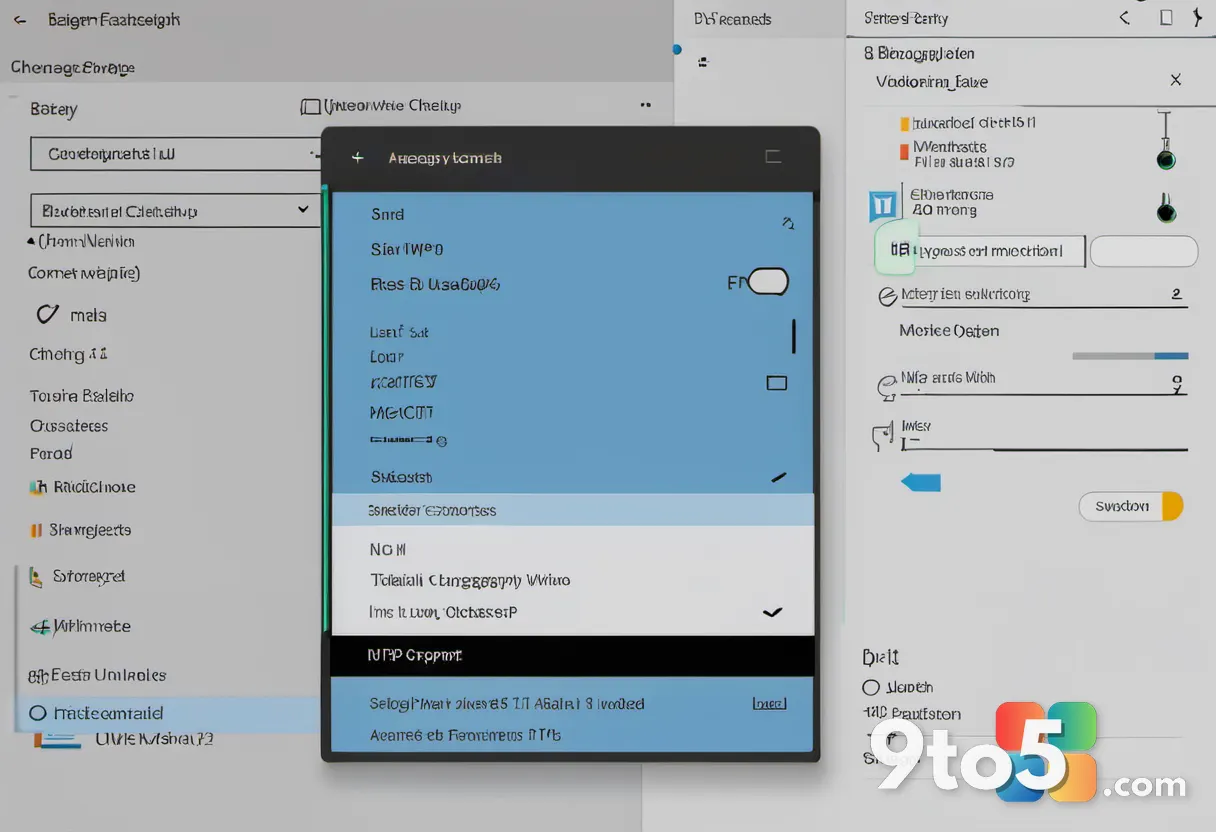
Find the battery limit or charge threshold control and change it. In your manufacturer’s app, look for a setting such as “Stop charging at 80 percent,” “Battery limit,” or “Adaptive charging,” then switch it to allow a full charge. Some apps use a slider or a dropdown with options like “Maximum lifespan” (80 percent) versus “Full charge” (100 percent). Toggle the protection mode off, or select the option that charges to full.
Save the change and watch the percentage climb. Most apps apply the new setting within a minute or two. Return to your battery icon and confirm the number keeps rising past 80 percent toward 100. If the setting reverts itself or stays greyed out, your account may lack permissions, or a corporate policy is overriding your choice.
Know when to leave the limit in place. If your laptop stays plugged in at a desk most of the day, keeping the 80 percent cap actually extends battery longevity. Reserve the full-charge setting for days when you will be moving around without a power source, then switch back when you return to your desk.
Step 4: Check the BIOS or UEFI for a battery limit
Restart the laptop and enter the BIOS setup. Press the key that opens firmware settings during boot, which is usually F2, F10, Del, or Esc depending on the brand. Hold the key right after the manufacturer logo appears, before the Windows splash screen loads. If you are unsure which key, search your laptop model plus “enter BIOS” to find the correct one.
Look for a power or battery configuration option. Browse the menus for something like “Battery Conservation Mode,” “Charge Threshold,” “Primary Battery Configuration,” or “Acpi Battery.” Enterprise business laptops from Dell and Lenovo are the most likely to include these firmware-level controls. Change the value to disable conservation or set the charge ceiling to 100 percent, then save and exit.
Save your changes and let Windows boot normally. Choose the option to save and exit rather than discarding changes. Once Windows loads, check whether the battery now charges past 80 percent. If the option was not there, your model simply does not expose this setting in firmware, and you should move on to the driver fixes.
Step 5: Update the battery and chipset drivers
Open Device Manager and find the battery drivers. Right-click the Start button and select Device Manager, then expand the “Batteries” section. You will typically see “Microsoft ACPI-Compliant Control Method Battery” and your adapter driver. Outdated or corrupted drivers here can cause Windows to misread the charge level, so refreshing them is a worthwhile step.
Update the driver automatically or reinstall it. Right-click the battery driver and choose Update driver, then let Windows search online. If that does not help, choose Uninstall device, then restart the laptop so Windows reinstalls a fresh copy on boot. This clears glitches that make a healthy battery appear stuck at a certain percentage.
Update your chipset drivers from the manufacturer. Open the Device Manager again and expand “System devices,” or visit your maker’s support site to download the latest chipset drivers. Chipset drivers control how the motherboard communicates with the battery and charger, and a stale version can trigger charging limits. Enterprise deployments may push these updates through your IT management console instead.
Step 6: Run the Windows battery diagnostic report
Generate a battery data report from Command Prompt. Click Start, type cmd, right-click Command Prompt, and run it as administrator. Type the following command and press Enter:
batteryreport
Open the generated report to inspect battery health. Windows saves the file to a path like C:\Users\YourName\battery-report.html. Open it in your browser and compare the “FULL CHARGE CAPACITY” against the “DESIGN CAPACITY.” If the full charge capacity is drastically lower than design, the physical battery may be wearing out and need replacement.
Look for design versus wear figures. A small gap between the two numbers means your battery is healthy and the 80 percent limit is almost certainly a software setting. A large gap suggests real battery degradation, which no setting can fix and may point to a warranty service call.
Step 7: Check Windows power settings and power saver modes
Review the Windows Battery settings for conservation options. Open Settings, go to System, and click Power. Look for any battery percentage caps or adaptive charging toggles that Windows 11 may offer. Some builds include a “Battery Saver” that reduces activity, though this rarely caps the charge percentage on its own.
Turn off any aggressive power saver modes. If a power saver is active, it can throttle charging behavior. Click the battery icon in the taskbar and set the level to “Best performance” or “Recommended” while plugged in. Then return to your manufacturer’s app to confirm the charge limit is still set for a full charge.
Verify the power plan is not limiting input. Open the Control Panel power plan settings and make sure the plugged-in plan does not restrict anything unusual. Most users can leave this at the default, but a custom low-power plan can occasionally interfere with charging behavior.
Troubleshooting: Fix the most common failure points
The limit option is greyed out or will not save. This usually means your account is not an administrator, or a corporate policy is enforcing the setting. Sign in with an administrator account and try again. If you are on a work-issued laptop, your IT department likely controls the battery limit, so request the change through your help desk rather than fighting the setting.
Your laptop still stops at 80 percent after changing the setting. Restart the computer so the new setting takes full effect, then confirm the manufacturer app shows the limit disabled. If it remains stuck, the issue may sit in the firmware, so revisit the BIOS battery options. Also verify you edited the right app, since some laptops install multiple power tools that can override each other.
You cannot find any battery limit setting at all. Some ultralight or budget models omit conservation features entirely, which means the 80 percent figure may reflect a genuinely worn battery. Run the batteryreport command and check the full charge capacity versus design capacity. A large gap points to battery wear, and the fix becomes a hardware replacement rather than a settings change.
Final tips to keep your battery healthy
Keep your manufacturer’s power app updated, since new battery features arrive through those updates. Avoid leaving your laptop permanently at 100 percent or permanently at zero, as both extremes accelerate wear. A good routine is to use the 80 percent protection mode at your desk and switch to a full charge only when you need it on the go. If none of these steps help and your battery health looks poor, contact your manufacturer’s support, especially if your laptop is still under warranty.
What battery protection setting does your laptop ship with, and did changing it restore a full charge? Let us know your model and what worked for you in the comments below.
Over to you: What battery protection setting does your laptop ship with, and did changing it restore a full charge?