Microsoft is bringing its Copilot AI assistant straight into Outlook’s email editor, so you no longer have to open the Copilot sidebar just to get help drafting or editing a message. This shift toward a Copilot Outlook email composer integration is the latest step in the company’s ongoing effort to fold AI into the apps you use every day.
Copilot Outlook Email Composer: The Sidebar Is Going Away
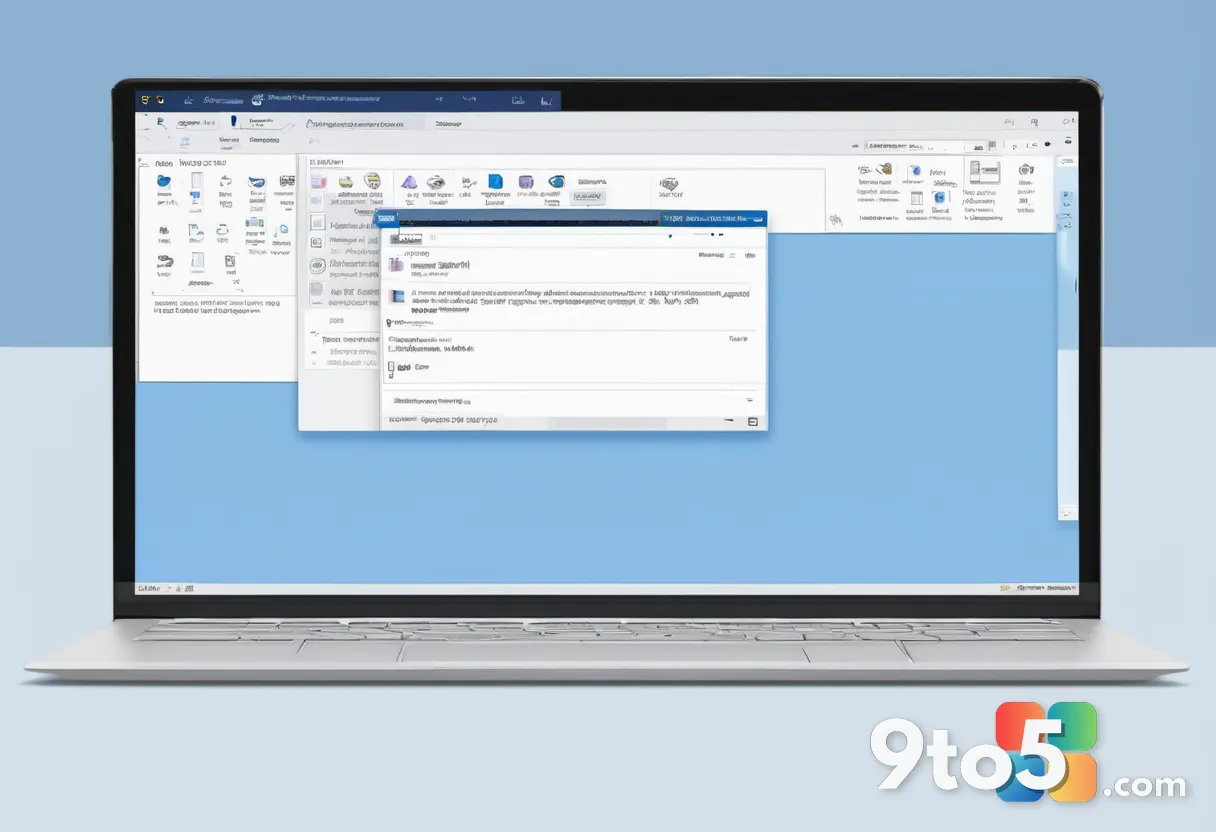
According to reporting from Neowin, Microsoft is relocating Copilot from Outlook’s sidebar directly into the email composer. The practical upshot is straightforward: rather than opening a dedicated Copilot pane and shifting your focus to it, the AI assistant becomes available right in the message-writing area.
On the surface this looks like a modest change, but it addresses something that has quietly frustrated Outlook users for a while. The Copilot sidebar has always anchored to the side of your inbox, which means drafting an email and consulting Copilot required constant toggling between two separate areas of the screen. With Copilot now living inside the composer, that awkward back-and-forth should feel noticeably smoother.
Why Microsoft Is Making the Change
This sits squarely within Microsoft’s broader strategy of embedding Copilot across as many apps as possible. Over the past couple of years, the company has worked to make the AI assistant feel like a natural part of your daily workflow instead of a standalone tool you have to deliberately reach for.
In Outlook, Copilot has long offered capabilities such as summarizing long email threads, drafting replies, and pulling key details out of a busy conversation. Those functions aren’t new with this update — what’s changing is where you access them. By seating Copilot inside the composer, Microsoft is trying to shorten the distance between “I need help with this email” and actually receiving that help.
The move also mirrors a design philosophy that’s spreading through the Office suite: treat AI as an integrated layer of the core experience rather than an optional add-on. That makes the feature more discoverable for people who might never open the sidebar on their own, and it signals that Microsoft sees AI assistance as a baseline expectation for email clients, not a novelty.
What This Means for You
For everyday Outlook users, the headline benefit is convenience. If you spend a good chunk of your day writing emails — work updates, replies to long threads, or messages where you’re unsure how to phrase something — having Copilot right in the editor removes one extra step from the process.
It’s also worth noting what this signals about the direction of these apps. Assistant features are quietly becoming a default part of the tool rather than an optional extra you have to opt into. For most people that’s a net positive, though it does mean the assistant is now woven into the experience whether or not you actively use it.
From an IT standpoint, the change is largely transparent. Because the feature lives inside the existing Outlook app rather than requiring a new plugin or separate service, organizations that manage Outlook through standard update channels should see it roll out alongside their normal Copilot and Office updates — assuming Copilot licensing and admin policies already permit it.

How to Get It
As with most of Microsoft’s Copilot rollouts, availability will depend on your Outlook version and region. If you’re running the latest Outlook for Windows, keep the app updated through Windows Update and the Office update channel, then look for the Copilot option to appear in the composer once the rollout reaches your account.
If you don’t see it yet, don’t worry — the change is still rolling out, and its absence just means it hasn’t reached your build. Microsoft typically stages these updates gradually, so the feature should appear on its own over time without any action needed from you.
One practical tip: if the Copilot option doesn’t show up in the composer after updating, double-check that your account has Copilot enabled and that your organization hasn’t restricted AI features through admin policy. In most consumer cases, simply waiting for the next incremental rollout is all it takes.
Source: Neowin
Over to you: Are you glad to see Copilot move into the composer, or do you prefer keeping it in its own sidebar?