Microsoft’s Xbox team is quietly rolling out another round of experimental features to console testers, and this cycle leans hard into both visual flair and streaming flexibility. According to reporting from Neowin, the latest Xbox Insider update is testing 1440p remote play, customizable startup animations, and background downloads during cloud gaming — along with a few other tweaks that haven’t been fully detailed yet.
This is standard fare for the Xbox Insider program, which lets Microsoft ship half-finished features to a small group of willing testers before they reach the wider player base. Here’s what we know about each change and what it could mean for your setup.
#1 Xbox remote play at 1440p
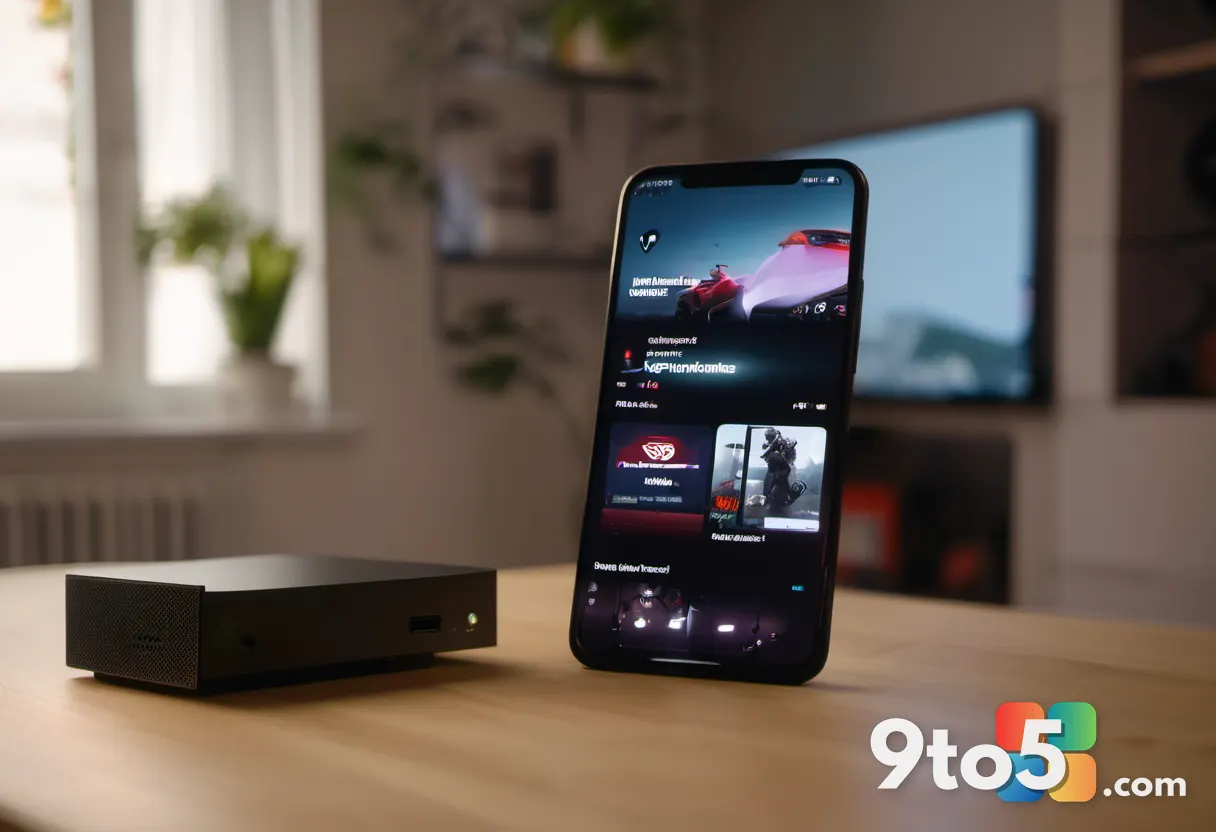
The headline addition is support for 1440p resolution during remote play. Remote play lets you stream games directly from your Xbox console to a phone, tablet, laptop, or other screen over your local network or the internet, so you can pick up a session anywhere without needing the TV turned on.
Previously, Xbox remote play has topped out at lower resolutions on many devices, which can make on-screen text look soft and fast-moving gameplay feel less crisp. Testing a 1440p option targets the sweet spot for many modern monitors and tablets, where that resolution is native and doesn’t require upscaling.
For players who spend time away from the couch — commuting, relaxing in another room, or traveling — a sharper remote feed is a meaningful quality-of-life upgrade. It also lines up with the fact that Xbox Series X and S games increasingly target higher resolutions, so giving remote play room to match that makes sense.
#2 Customizable startup animations
Microsoft is also experimenting with letting players customize the startup animations that play when your console boots up. Instead of a one-size-fits-all system splash screen, testers can apparently pick or tailor the animation that appears when powering the console on.
This fits into Xbox’s broader push toward personalization. The dashboard already offers themes, accent colors, and layout tweaks, and a customizable boot animation would extend that sense of ownership down to the very moment you turn the machine on.
It’s worth noting that the exact scope of what you can customize — preset animations, your own clips, timing, and the like — hasn’t been spelled out. As with most Insider experiments, the final version may look quite different from what testers are seeing today.
#3 Background downloads during cloud gaming
One of the more practical changes being tested is the ability to run background downloads while you play via cloud gaming. Xbox Cloud Gaming streams titles from Microsoft’s servers rather than your hardware, so your console or device isn’t doing the heavy lifting to render frames.
Because the local device stays relatively idle during a cloud session, Microsoft is exploring whether it can quietly pull game updates, patches, and downloads in the background without stealing bandwidth or interrupting your stream. In practice, that could save you from waiting around for updates to finish before you can play again.
What this means for you
If you’re not part of the Xbox Insider program, none of these features will show up on your console yet. Microsoft typically stages Insider builds to a small, rotating group of testers, so even signing up doesn’t guarantee immediate access.
The changes also aren’t guaranteed to ship. Insider testing acts as a filter — features that testers report as buggy or unwanted get cut, and even the ones that survive often get reworked before hitting stable releases. Treat these as early signals of direction rather than finished products.
How to get it
To try these features yourself, you’ll need to join the Xbox Insider program and switch your console to the appropriate fast ring. That usually means opening the Xbox settings menu, navigating to the Insider or preview options, and opting in for updates — then checking for a console update through the standard system update path.
Keep in mind that Insider builds can be unstable, and joining means your console will receive experimental software ahead of the general public. If your setup is mission-critical, you may want to wait for these features to mature in the Insider program before upgrading.
Source: Neowin
Over to you: Which of these Insider features are you most excited to try — 1440p remote play or customizable startup animations?
You may also like
 Microsoft Publisher Retirement Reminder: Here’s what you need to do before it’s gone
 Microsoft Really Wants Organizations to Build and Publish Apps with Copilot
 Microsoft Streamlines Edge Add-ons Store Reviews as AI Submissions Surge
 Swiss Government Tests Replacing Microsoft 365 with Open-Source Software