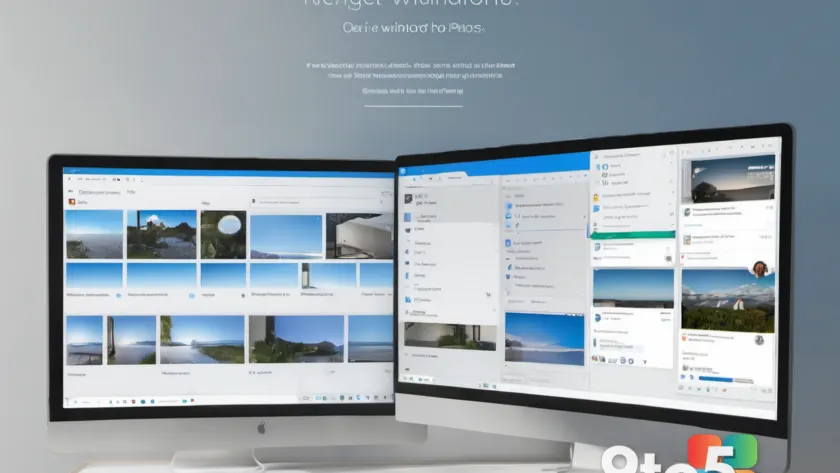
Microsoft is pushing a substantial refresh of Windows 11’s built-in photo viewer to everyone, and the headline change is that it feels noticeably less cluttered — and a lot faster. According to Windows Latest, the new Microsoft Photos update carries build version 2026.11080.24002.0 and is now available to all Windows 11 users, no Windows Insider Program membership required.
This isn’t Microsoft’s first pass at a leaner Photos app. The company originally tested this debloated design with Windows Insiders in July 2026, and at the time it was unclear whether it would ship to the general public. Based on that feedback, Microsoft has now approved the changes for a wider release.
Here’s everything that changed.
#1 The toolbar loses Designer, OneDrive, and Clipchamp
Before this update, the Photos app toolbar had as many as ten options — and that’s not even counting the ones tucked inside the three-dots menu. Microsoft has now trimmed it down considerably.
The Designer, OneDrive, and Clipchamp shortcuts have all been removed from the main toolbar. Designer opens Microsoft Designer, the company’s Canva-style graphics app, and previously sent your selected photo straight into it for editing (if the app was installed). Clipchamp is Microsoft’s video editor.
OneDrive has been moved entirely out of the toolbar and into the left sidebar or Settings. If you want to view pictures stored in OneDrive, just use the sidebar shortcut — the dedicated toolbar button is gone.
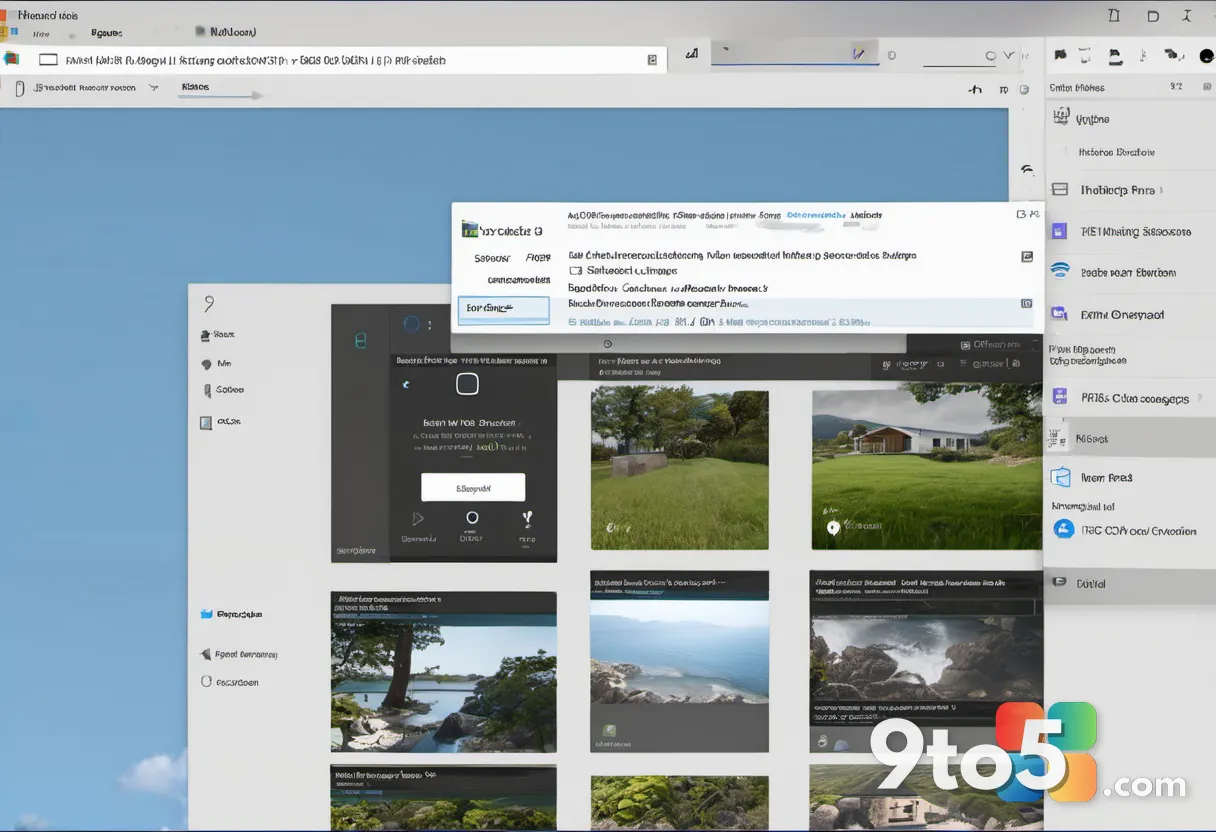
The main toolbar now holds just Edit, rotate, delete, print, share, the three-dots menu, and the new “Open with” option. Microsoft says it intentionally redesigned the viewer so you focus on your content and top actions instead of getting lost among too many choices.
#2 The ‘Ask Copilot’ button is gone
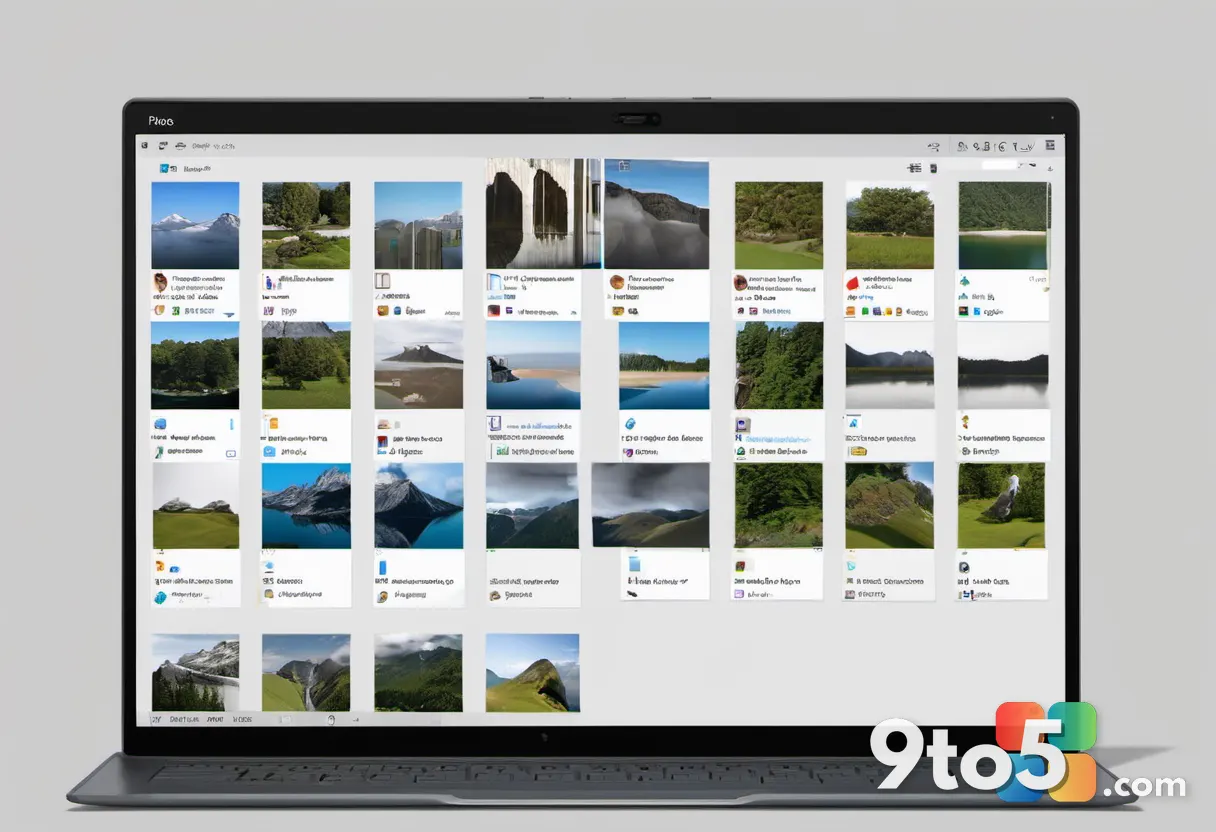
One of the most visible changes is the removal of the “Ask Copilot” button from the Photos app.
That doesn’t mean Photos has lost all of its AI tools. AI-powered background removal and similar features are still present, and Microsoft has kept them because they’re optional — you only invoke them when you actually want to use them. The thinking here is that a persistent Copilot entry point cluttered the interface, whereas task-specific AI tools stay out of the way until needed.
#3 A new ‘Open with’ menu replaces scattered shortcuts
With Designer, Clipchamp, and OneDrive no longer sitting in the toolbar, Microsoft needed a place to route them. The answer is a new “Open with” menu.
This menu lists options like Gallery, File Explorer, and “Choose another app,” which lets you pick any installed program to open a picture in. So if you still want to edit an image in Microsoft Designer or Clipchamp, you can — you just reach it through a couple extra clicks rather than a dedicated toolbar button.
The slideshow button has also been relocated to the bottom of the app, keeping the main toolbar lean.
#4 The right-click context menu is cleaned up
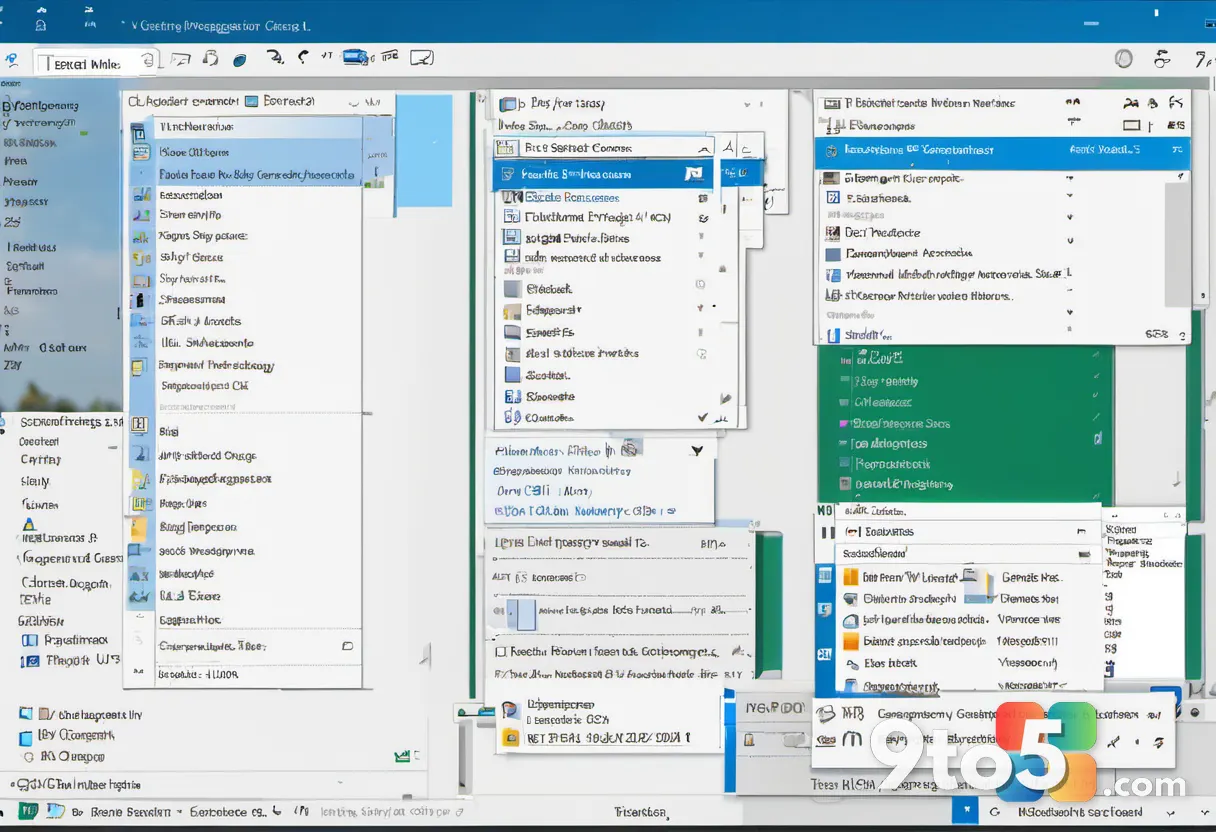
The right-click context menu has been trimmed to take up less vertical space, in line with the similar changes coming to File Explorer’s right-click menu. Related options are now clubbed together in a nested menu, and there’s a new command bar that mirrors the system-wide right-click layout.
If you right-click a photo, you’ll no longer see “Visual search with Bing,” “Edit with Designer,” or “Create a video with Microsoft Clipchamp.” Instead, those actions live under the new “Open with” entry in the menu.
There is one change that’s more annoyance than improvement: to find a photo’s file location, you now have to click “Open with” and then choose File Explorer. Previously, Photos exposed “Open in File Explorer” directly on the right-click menu, so this feels like a step backward for a common task.
#5 Photos loads nearly twice as fast
Beyond the visual cleanup, Microsoft says the app is noticeably faster across the board. Launches are quicker, zooming in and out is smoother, and you should see less lag on lower-end hardware. Large photos now open almost immediately instead of after a brief pause.
The right-click menu itself responds faster too. Microsoft attributes much of this to a new “multi-process architecture” for the photo viewer, which it says made loading photos almost twice as fast. In practice, that means the app spreads work across multiple processes rather than doing everything in one, which keeps it responsive even when handling big files.

#6 A rebuilt Info pane and better file support
The Info pane has been rebuilt and now offers options like Resize Image, Copy Path, Visual Search, and Open location. Some of these were previously available in the right-click menu, reinforcing the pattern that Microsoft has largely moved options around rather than removing them outright.
On the format front, Photos now has better support for HEIC photos, letting you edit HEIC files without converting them to a different format. It can also open SVG files directly, without needing a third-party app.
What This Means for You
For most Windows 11 users, this is a welcome cleanup. If you’ve ever felt the Photos app toolbar was overcrowded with shortcuts to apps you rarely use, the trimmed interface should feel calmer. The speed improvements are the part you’ll notice immediately, especially if you work with large photos or run on modest hardware.
The trade-off is that a few common actions now take an extra click — opening a file’s location in File Explorer is the most notable one. And while the “Open with” menu keeps Designer, Clipchamp, and OneDrive within reach, they’re no longer one tap away.
How to Get It
The new Microsoft Photos update (build 2026.11080.24002.0) is rolling out to all Windows 11 users. You don’t need to join the Windows Insider Program to get it. If you haven’t seen it yet, check for updates in Settings > Windows Update, and you can also look for an app update through the Microsoft Store.
Source: Windows Latest
Over to you: Which change matters most to you — the leaner toolbar or the speed boost — and is losing the one-click ‘Open in File Explorer’ a price you’d accept?
You may also like
 Microsoft Is Auto-Enabling Memory Integrity on Windows 11 Starting October 2026
 Windows 11 26H2 Has Entered the Preview Channel — Here’s What That Means
 Windows 11’s new context menu buries custom entries even deeper
 Windows 11 finally lets you OneDrive opt out of backup after years of dark pattern complaints