If your Windows 11 PC keeps dropping a Wi-Fi connection, refuses to authenticate, or shows a network as “connected” even after you changed the router password, the fix often comes down to one action: forgetting the network and reconnecting fresh. Forgetting a saved Wi-Fi network clears the stored credentials and configuration so Windows can build a clean connection profile from scratch. This guide walks you through the exact clicks needed, whether you use the Settings app or the quick network flyout, and covers what to do when Windows won’t forget the network or won’t reconnect afterward.
Forgetting a network is safe and reversible. It does not delete your files, apps, or settings — it only removes the saved password and connection details for that specific network. After you forget it, you reconnect like a brand-new device, which forces Windows to re-download the latest settings and re-enter your password. This resolves most “no internet, secured” errors, IP conflicts, and password mismatch problems without touching your router.
Step 1: Open Settings
- Press Windows + I on your keyboard to open the Settings app immediately. This is the fastest route and works on every Windows 11 PC, including Pro, Enterprise, and Education editions.
- Alternatively, click the Start button and type “Settings”, then press Enter when the Settings app appears at the top of the results.
- You should now see the Settings home screen with a left sidebar and a row of large tiles such as System, Bluetooth & devices, and Network & internet.
If the Settings window does not open, press Ctrl + Shift + Esc to open Task Manager, click the menu, choose Run new task, type control, and press Enter to launch the classic Control Panel as a fallback.
Step 2: Go to Network & internet
- Click Network & internet in the Settings sidebar. It sits near the top of the list and carries a small signal icon.
- On the right side, you will see a list of subpages. Click Wi-Fi to open the Wi-Fi settings panel.
- Make sure the Wi-Fi toggle at the top is switched on. If it is gray or off, click it to turn wireless connectivity back on.
When the Wi-Fi toggle is on, Windows shows your available networks and any saved networks below it under a section called Known networks.
Step 3: Locate the network you want to forget
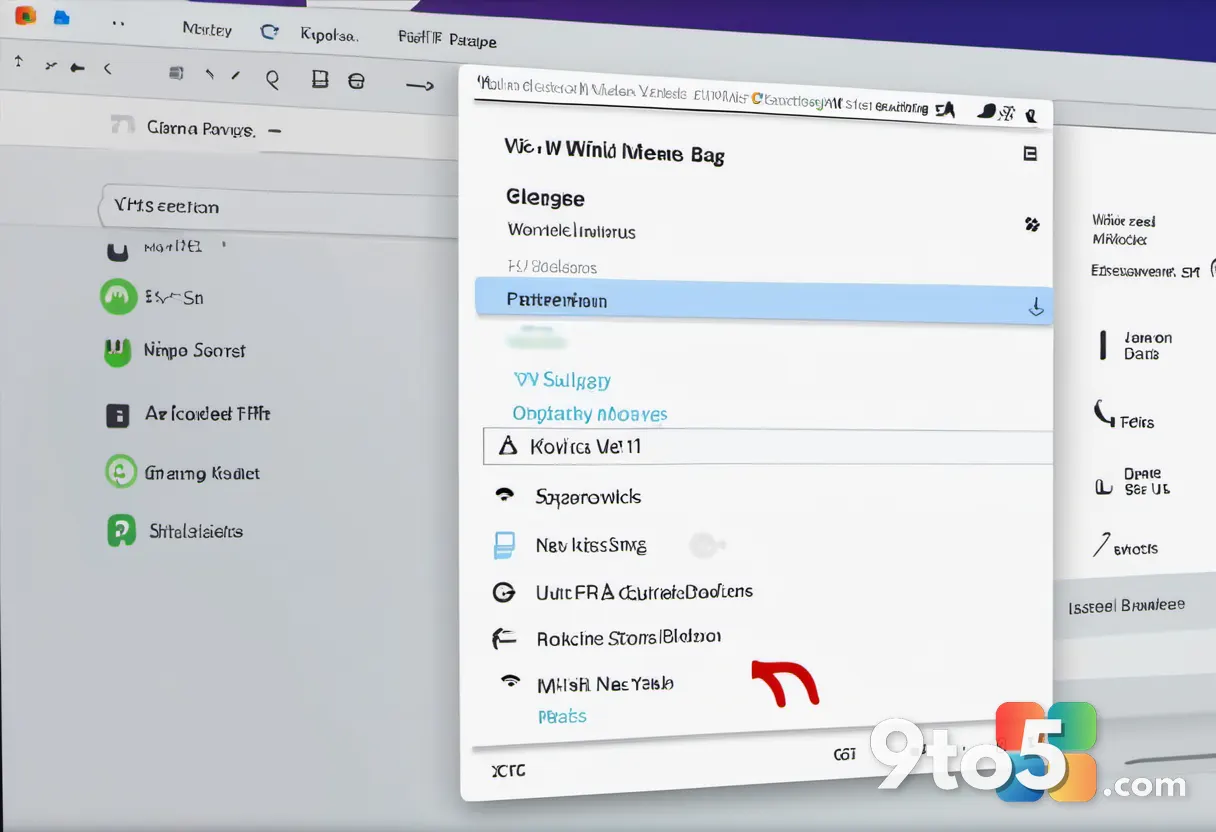
- Scroll down to the Known networks section on the Wi-Fi settings page. This area lists every Wi-Fi network your PC has connected to before, along with whether it is currently connected.
- Find the network causing trouble. It may show as “Connected” or as “Saved”.
- Hover over the network entry and click the three dots (…) menu on the right side of that row.
If you do not see the Known networks section, click the “Advanced options” link on the Wi-Fi page to expand it. This link sometimes hides behind the collapsed layout on smaller windows.
Step 4: Forget the network
- Click Forget from the three-dot menu. A confirmation prompt appears asking whether you are sure you want to forget the network.
- Click Forget again to confirm. Windows immediately removes the saved password and all stored settings for that network.
- The network disappears from the Known networks list, confirming the action succeeded.
Pro Tip: If you prefer, you can also click “Advanced options” under the network and then click the “Forget” button on that detail page. Both routes remove the same saved profile, so pick whichever menu feels more natural.
Step 5: Reconnect to the network fresh
- Click the network icon in the system tray, near the clock in the bottom-right corner of your taskbar. This opens the network flyout showing available Wi-Fi networks.
- Find the same network in the flyout and click it. Because Windows forgot it, the network now appears without a “Connected” label and may show a lock icon.
- Click Connect on the network entry.
Windows treats this as a first-time connection, so it asks for the password again and rebuilds a fresh connection profile.
Step 6: Enter the Wi-Fi password
- Type the current Wi-Fi password in the box that appears. If you do not know it, check the label on your router or ask the person who manages the network.
- Leave the “Show password” box unchecked unless you want to read what you type. Click it to reveal the characters, then turn it back off before connecting.
- Click Next or Connect to complete the pairing.
Once connected, the network shows a “Connected” status and the lock icon disappears, indicating a secured link to your router.
Step 7: Verify the connection works
- Open a browser and load any website, such as
bing.com, to confirm internet access is restored. - If the page loads, your fresh connection is working correctly.
- If it does not load, check the system tray icon. A globe icon means you are connected but have no internet, while a red X means the connection itself failed.
Troubleshooting
If forgetting or reconnecting does not solve your problem, work through these common failure points in order.
- Windows will not forget the network: Make sure the network is not currently connected to another adapter, or restart your PC and try again. Sometimes the three-dot menu shows no Forget option until you click “Advanced options” first.
- The network reconnects but shows “No internet”: Run the Network Troubleshooter by right-clicking the network icon and choosing Troubleshoot problems. You can also restart your router by unplugging it for ten seconds, which clears IP conflicts that a fresh Windows connection cannot fix alone.
- The password is rejected even though it is correct: Type the password carefully, watch for case sensitivity, and confirm Caps Lock is off. If it still fails, forget the network again and re-enter the password, since a corrupted saved profile can block new logins.
- Wi-Fi toggle is missing or grayed out: Open Device Manager, expand Network adapters, right-click your Wi-Fi adapter, and choose Update driver. A disabled or outdated driver hides the Wi-Fi controls entirely.
Final tips
- Forgetting a network only affects that one PC. Other devices keep their saved password, so forget it on each machine that has trouble.
- If a network constantly drops after reconnecting, the issue likely lives in your router or ISP rather than Windows, so test other devices on the same network.
- On Windows 11 Pro, Enterprise, and Education editions, you can also manage saved networks through the Settings app the same way, and group policy or MDM tools can push network profiles to many PCs at once.
- Keep your router firmware updated, since outdated firmware is a leading cause of connections that look fine but deliver no internet.
Forgetting a Wi-Fi network and reconnecting fresh is one of the quickest ways to clear stubborn connection problems on Windows 11. Follow the steps above and most “connected but no internet” or password errors resolve without any extra tools.
Over to you: What Wi-Fi problem did forgetting the network fix for you?