Google just slipped a quietly clever feature into its brand-new Pixel 11 lineup: the ability to choose from a set of distinct vibration patterns for different kinds of alerts. Now that custom Android vibrations exist, though, you might be wondering why you’d have to own a Pixel 11 to enjoy them. The answer is simple — you don’t. A free third-party app brings the same idea, and more, to basically any Android phone you already own.
What Google added to the Pixel 11
On the Pixel 11 series, Google buried a new option deep within the phone’s settings that lets you pick a distinctive vibration pattern for various alerts. The idea is practical: you can tell what’s happening on your phone by feel alone, without reaching for it. A particular buzz might mean an important call from work, while a different pattern signals a routine message that you can safely ignore for now.
The available presets include names like “Buzz,” “Heartbeat,” “Bumps,” and “Swirl.” They don’t just differ in pattern, either — they also vary in intensity and duration, giving you a wider palette of haptic feedback to choose from. In short, it’s a small but genuinely useful way to make your phone less about screen-glancing and more about simply knowing.
As of now, this feature is locked to owners of the new Pixel 11 models. It isn’t clear yet whether Google will roll it out to older Pixels or other Android handsets, or how far such a rollout might eventually reach. For everyone else, the option simply isn’t there — at least not from Google itself.
Why BuzzKill is the answer for any Android phone
There’s a well-established pattern on Android: when Google ships something nice on its own hardware, the community finds a way to bring it to other phones. The tool for this particular job is an app called BuzzKill, which I consider one of the most useful power-user utilities most people have never heard of.
The best way to think about BuzzKill is as a notification-filtering system. Just as Gmail lets you create rules to sort and manage incoming mail, BuzzKill lets you create rules to control how your phone reacts to notifications — including exactly how it vibrates. You define a condition, then tell the app what to do when that condition is met.
Privacy-wise, it’s about as clean as it gets. BuzzKill costs a one-time $4 purchase, doesn’t require any unusual permissions, collects no data from your phone, and has no internet access. In other words, even if it wanted to, there’d be no way for it to send your information anywhere. That’s a rare combination in a world of subscription apps that phone your device’s microphones and sensors.
And the best part: BuzzKill can actually do more than the Pixel 11’s built-in system. Where Google limits you to a handful of presets, BuzzKill lets you build a vibration pattern from scratch — down to the length of each buzz and each gap, plus how strong it feels. It’s the same core concept, taken a step further.
How to set up custom Android vibrations
Getting started takes about four minutes and works on any Android device, no matter who made it or how old it is. Here’s the full walkthrough.
First, download BuzzKill from the Google Play Store. Once it’s installed, work through the initial setup until you reach the main screen, then tap the button in the lower-right corner to create a new rule.
This opens a fill-in-the-blank, “if this, then that”-style rule. You’ll be filling in three blanks. The first asks which notification you want to target. Tap the field that says “any app” and choose the specific app — Messages, Slack, Calendar, and so on.
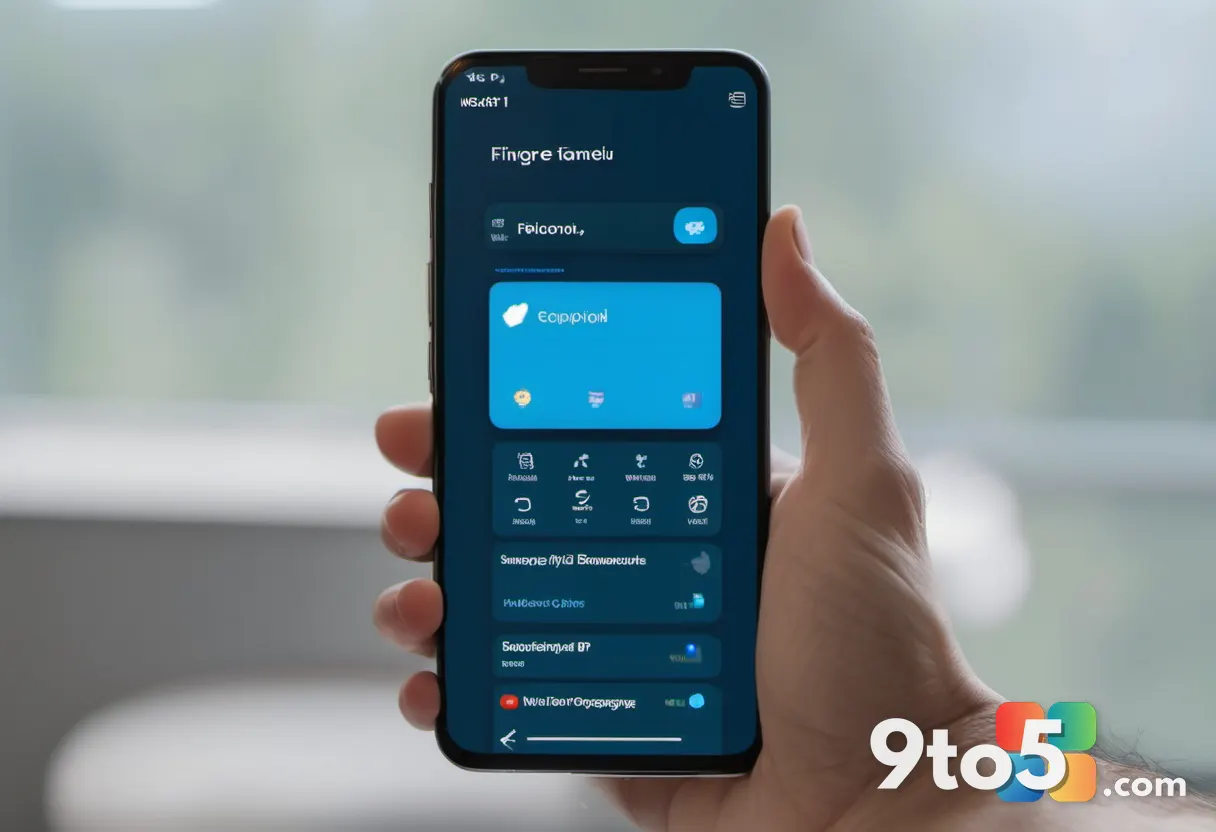
Next comes the second blank, labeled “contains anything.” This narrows the rule down to particular notifications within that app. If you want the pattern to apply to every notification from the chosen app, leave this field as-is. If you only want it to fire for messages containing a specific name, word, or phrase, enter that here. This is what lets you, say, give your boss’s messages a different buzz than everyone else’s.
The third and final blank currently reads “do nothing.” This is where the magic happens — it controls what your phone actually does when a matching notification arrives. Tap those two words, then scroll down and select “Custom alert” from the list. Tap “Pick action” to confirm, which expands the rule and reveals the last piece.
Finally, tap the newly appeared “default vibration” text. This is where you build your own pattern — a level of customization the Pixel 11’s system doesn’t even offer, since Google only gives you its preset choices.
Building your own vibration pattern
Tap the “Buzz” button to begin, or try the “Effect” button beside it for a different starting style. Either path opens a menu where you can choose from a variety of vibration styles for the first buzz in your sequence.
From there, you control the details. Combine whatever lengths of buzz and gap you like to create a rhythm that’s uniquely yours — a few quick taps for an urgent alert, a longer sweep for something less pressing. There’s also an “Intensity” option, so you can dial the vibration up or down depending on how strong or gentle you want it to feel.
Use the “Preview” button to feel the pattern in action before committing. Once you’re happy with it, tap “Pick pattern” at the bottom of the screen to save it, then tap “Save rule” to activate everything.
Repeat the process for any other notification types you want distinct patterns for. Over time, you’ll be able to identify what’s lighting up your phone purely by how it feels — a work call buzzing one way, a message from a friend vibrating another, and that low-priority ping you can safely ignore vibrating a third.
What this means for you
For everyday users, the payoff is small but real: less screen-checking and more situational awareness. When each important notification has its own tactile signature, you can react appropriately without ever glancing at the display — handy in meetings, during workouts, or when your phone is buried in a bag or your pockets.
It also opens up creative uses that go beyond simply telling alerts apart. BuzzKill’s filtering reaches well past vibrations: you can route low-priority alerts somewhere they won’t distract you, auto-mute back-to-back pings from the same nuisance, and generally take control of a notification experience that most phones leave entirely on autopilot.
The tradeoffs are minimal. At $4 with no subscription, no ads, and no data collection, it’s a one-time purchase that runs entirely on your device. The only real requirement is that you’re on Android — this is one area where iOS simply doesn’t give apps this kind of access, which is exactly why the workaround exists in the first place.
How to get it
Head to the Google Play Store and install BuzzKill for its $4 one-time fee. Open the app, create a rule for the notification you care about most, and build a vibration pattern that works for you. Within a few minutes, any Android phone can mimic — and in some ways beat — the custom vibration experience Google reserved for the Pixel 11.
Source: Computerworld
Over to you: What’s the first notification you’d give a custom vibration — a boss’s call, a message from Trent, or something else entirely?