Voice typing in Windows 11 turns your microphone into a fast, hands-free keyboard. Instead of hunting for words one letter at a time, you speak them and let Windows convert your speech into text across almost any app that accepts input. Whether you’re drafting a work email, writing a long report, or jotting notes during a meeting, this built-in feature can cut your typing time in half and reduce finger fatigue after a long day.
The tool ships free with Windows 11 and needs no third-party software. This guide walks you through launching it, speaking clearly, adding punctuation with voice commands, and fixing the few issues that sometimes block accurate transcription. You can also enable the more advanced Voice Access mode for full hands-free control of the entire system.
Before You Start
Make sure your PC has a working microphone. Most laptops have a built-in one, but desktop users often need a USB or headset mic. You also benefit from a stable internet connection, since Windows 11 sends a portion of your audio to Microsoft’s servers to improve accuracy. If you value privacy and want offline processing, several languages run locally, but online mode delivers the sharpest transcription.
Open the Windows Settings app first so you can confirm your language and microphone are ready. Press Win + I to open Settings, then navigate to Time & language and select Speech. Here you can verify your speech language and run the microphone setup wizard if needed.
Step 1: Launch Voice Typing with the Windows Key Plus H
Open any text field where you want to type, then press Win + H on your keyboard. This keyboard shortcut is the fastest way to start voice typing and works in almost every app, including Microsoft Edge, Word, Notepad, and email clients.
When it works, a small voice typing toolbar appears near your cursor, showing a live microphone icon and a box that displays your spoken words as they are transcribed. If the toolbar does not appear, confirm that voice typing is enabled in Settings under Time & language > Speech, where you can toggle the feature on. On enterprise-managed devices, your IT administrator may have disabled this shortcut, so check with your help desk if the toolbar stays hidden.
Step 2: Point Your Microphone and Speak Naturally
Once the toolbar is open, sit about six inches from the mic and speak at a normal conversational pace. Windows listens for your voice and converts it to text in real time, so avoid speaking too fast or mumbling, which lowers accuracy.
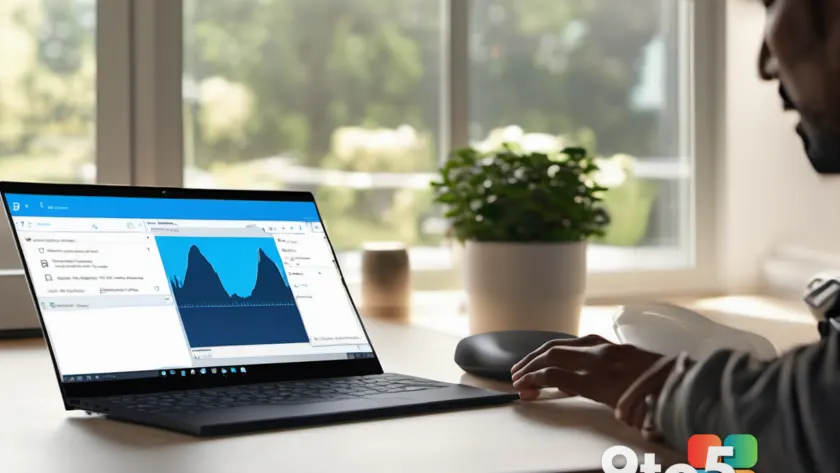
You will see a waveform or pulsing animation while the microphone is active, confirming that Windows is listening. If nothing appears on screen, click the microphone button on the toolbar to start it manually, or check that the correct input device is selected in Settings > System > Sound. Turn down background noise like TVs or fans, since Windows can mistake other speech for your commands.
Step 3: Dictate Text and See It Appear Instantly
With the microphone active, read a sentence aloud and watch the words fill in the text field below. Windows inserts spaces automatically when you pause, so you do not need to say the word “space.” Your words show up in the preview box first, then move into the document as you continue speaking.
To stop, press Win + H again or click the stop button on the toolbar. If Windows mishears a word, you can edit it with your mouse or keyboard after stopping. For longer passages, take short breaks to drink water, since a dry throat hurts recognition quality.
Pro Tip: Practice with a short paragraph first to learn how Windows handles your accent and pace. A few minutes of warm-up dictation dramatically improves accuracy before you tackle an important document.
Step 4: Add Punctuation and Formatting with Voice Commands
Voice typing understands spoken punctuation, so you can insert marks without touching the keyboard. Say words like period, comma, question mark, exclamation point, new line, or new paragraph to place them in your text.
You can also say delete that to remove the last phrase, or select all and copy to move text around. These commands make dictated writing feel much closer to hand-typing, since you can build complete, punctuated sentences out loud. Try dictating a few sentences with commas and periods to build muscle memory for the spoken commands.
Step 5: Fine-Tune the Microphone and Language Settings
If accuracy feels off, open Settings > Time & language > Speech to adjust your options. Here you can change the speech language, turn on or off online transcription, and tune the microphone volume. Choosing the language that matches your native accent often improves recognition noticeably.
Enterprise users can manage these settings centrally through Microsoft Intune or Group Policy, which lets IT push a consistent voice typing configuration across all company devices. After changing a setting, restart the voice typing toolbar so the new options take effect. Run the microphone troubleshooting wizard in Settings if Windows still fails to pick up your voice.
Step 6: Try Voice Access for Full Hands-Free Control
If you want to control the whole PC without a mouse or keyboard, enable Voice Access, a more powerful companion feature. Search for Voice Access in the Start menu, or find it in Settings under Accessibility > Voice Access, and turn it on.
Voice Access lets you say commands like click Send, scroll down, type hello, and open Google to navigate apps entirely by voice. It is especially useful for users with mobility or repetitive strain injuries who cannot type for long. Note that Voice Access is available on Windows 11 Pro, Enterprise, and Education editions, so confirm your version before installing.
Troubleshooting Common Voice Typing Problems
Nothing appears when you speak. Confirm the microphone is not muted and is set as your default input device in Settings > System > Sound. Click the microphone icon on the voice typing toolbar to start it manually, and make sure no other app has claimed the microphone exclusively.
Windows mishears your words. Slow down, speak clearly, and reduce background noise. Switch to the language that matches your accent, and make sure you are on a reliable internet connection, since online transcription is far more accurate than offline mode.
The toolbar will not open. Verify the feature is enabled in Settings > Time & language > Speech. Update Windows to the latest build, since voice typing improvements ship with monthly patches. On work computers, your IT team may have blocked the Win + H shortcut, in which case you will need to contact your help desk.
Microphone picks up too much noise. Adjust the input volume and noise suppression in Settings > System > Sound, and try using a headset with a dedicated mic instead of the built-in laptop microphone for cleaner audio.
Closing Tips
Start each dictation session with a brief warm-up paragraph to help Windows learn your voice. Keep the microphone clear of dust and speak at a steady pace for the best results. Save your dictated drafts early, since a crashed app can wipe unsaved text. With a little practice, Windows 11 voice typing becomes a reliable way to get your ideas onto the screen without straining your fingers.
Have you tried using Windows 11 voice typing for your daily writing, and how accurate has it been for your accent and speaking style?
Over to you: Have you tried Windows 11 voice typing for your daily writing, and how accurate has it been for your accent?