When Windows 11 begins behaving erratically, you might notice missing icons, sudden crashes, or apps that refuse to launch. These symptoms often point to damaged system files, usually caused by interrupted updates, aggressive antivirus scans, or unexpected power loss. Microsoft built two command-line utilities directly into the operating system to repair that damage: the System File Checker (SFC) and the Deployment Image Servicing and Management (DISM) tool. Running both in the correct order restores the protected Windows component store and repairs the underlying system image before SFC can successfully replace the broken files.
Before You Start: Make sure your PC is connected to a reliable power source and a stable internet connection. DISM requires online access to download fresh component files from Microsoft servers. If you are running Windows 11 Enterprise or Education, the commands remain identical, though your organization’s group policies might restrict elevated command-line access.
Step 1: Open an Elevated Command Prompt
Press Win + X and select Terminal (Admin) or Command Prompt (Admin). You will see a User Account Control prompt appear asking for permission to make changes to your device. Click Yes to proceed. Opening the terminal with administrative privileges is mandatory because SFC and DISM need to write to protected system directories that standard user accounts cannot modify. If you see a message stating that admin access is blocked, check your local group policy or contact your IT administrator before continuing.
Step 2: Run the System File Checker (SFC) Scan
Type sfc /scannow and press Enter. The command prompt will immediately begin scanning your protected system files. You will see a progress counter that updates in real time, typically taking between five and thirty minutes depending on your drive speed and the extent of the corruption. When the scan finishes, Windows will display a status message explaining what it found. If the tool reports that it successfully repaired files, you can skip ahead to Step 4. If it says that corruption was found but could not be fixed, you must run DISM before trying SFC again, because the component store itself needs repair first.
Step 3: Run the DISM Repair Commands
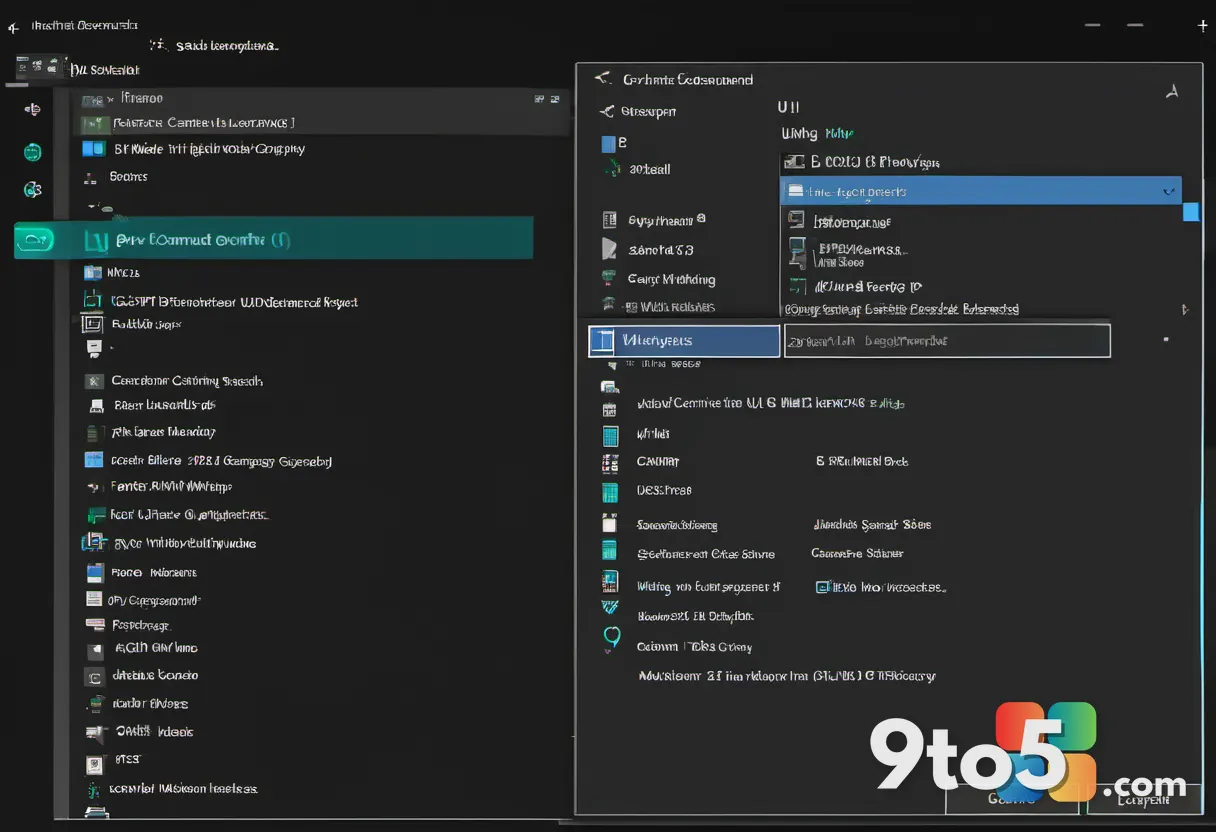
Type DISM /Online /Cleanup-Image /RestoreHealth and press Enter. This command connects to Microsoft’s update servers, downloads a clean copy of the Windows component store, and repairs the damaged system image. The process will display a percentage counter that may pause at certain checkpoints, which is completely normal while it verifies and replaces corrupted files. You might see a message indicating that DISM completed successfully, or it could report that it found corruption but could not repair it. If the latter appears, ensure your internet connection is active, temporarily disable third-party antivirus software, and run the command again. After DISM finishes, type sfc /scannow one more time to allow SFC to repair files using the now-healthy component store.
Step 4: Restart Your PC and Verify the Repair
Type shutdown /r /t 0 and press Enter to restart your computer immediately. A full reboot forces Windows to reload all system services and apply the repaired files to memory. When your desktop returns, open Task Manager and check the Performance tab to confirm that CPU and memory usage have returned to normal levels. Launch a few of the applications that were previously failing, and monitor your system for another hour to ensure the corruption does not reappear. If the same errors return, the issue may stem from failing storage hardware rather than software corruption.
Troubleshooting Common Issues
SFC reports that it cannot fix some files. This almost always means the component store is damaged. Run the DISM command from Step 3, wait for it to finish, then rerun sfc /scannow. If both tools fail, your Windows image might be too degraded to repair online. In that case, use the Windows 11 Installation Media to perform an in-place upgrade, which preserves your files while rebuilding the system partition.
DISM fails with error 0x800f081f or 0x800f0906. These codes indicate that Windows Update components are broken or your system cannot reach Microsoft servers. Open services.msc, locate Windows Update, and set its startup type to Manual. Restart the service, then run DISM again. If the error persists, you may need to reset the Windows Update cache by deleting the contents of C:\Windows\SoftwareDistribution before retrying.
The terminal shows a permission denied error. You likely opened a standard Command Prompt instead of an elevated one. Close the window, press Win + S, type cmd, right-click Command Prompt, and choose Run as administrator. If your organization manages the device, your IT department may have disabled elevated shells through group policy.
Pro Tip: Save your scan results for future reference. After running sfc /scannow, type copy %windir%\logs\cbs\cbs.log %userprofile%\Desktop\SFC_Log.txt to place a readable copy of the system file checker log on your desktop. Reviewing that file later will show exactly which files were replaced and when the corruption began.
Final Tips for Long-Term Stability
Keep Windows Update enabled and allow cumulative patches to install automatically. Interrupted updates are the leading cause of component store corruption. Schedule regular disk checks by running chkdsk /f /r from an elevated terminal to catch storage errors before they damage system files. If you frequently install third-party drivers or beta software, create a system restore point before making changes so you can roll back without triggering a full repair cycle.
Over to you: Have you ever relied on SFC and DISM to rescue a struggling Windows 11 installation?