Microsoft OneNote has undergone a remarkable evolution since its debut as an add-on in Office 2003. Over the years, it transitioned from a niche tool to a staple of the Office suite, eventually becoming a free download across PC, Mac, mobile, and web platforms. However, its journey wasn’t without its detours. During the Windows 8.x era, Microsoft introduced a slower, simplified UWP version that lacked many of the features power users relied on. That chapter has now closed, and OneNote on PC has reverted to its traditional architecture, which is now available in the Microsoft Store. This return is significant, particularly for those who rely on third-party extensions to maximize their productivity.
Like many traditional Office applications, OneNote supports an add-in architecture that allows developers to build extensions. These are now managed through the Microsoft 365 “apps” marketplace. However, the ecosystem for OneNote is surprisingly sparse compared to other Office apps like Word or Excel. At the time of writing, there are only 39 OneNote apps listed, and even some of Microsoft’s own tools, such as the OneNote Clipper for Chrome or Edge, are missing from the marketplace. This gap is partly due to the UWP version’s lack of extensibility, which left many third-party developers behind during that era.
Despite the limited marketplace, one add-in stands out as an essential tool for heavy OneNote users: Onetastic. This comprehensive suite of enhancements is not listed in the Microsoft 365 marketplace, yet it has become indispensable for many. Onetastic is the brainchild of Omer Atay, a veteran who has been part of the OneNote development team for two decades. What started as a side project over a decade ago has grown into a robust toolset that addresses many of the gaps in OneNote’s native functionality.
Onetastic is organized into three main categories, each offering unique benefits that significantly enhance the OneNote experience.
#1 OneCalendar: Your Editing History at a Glance
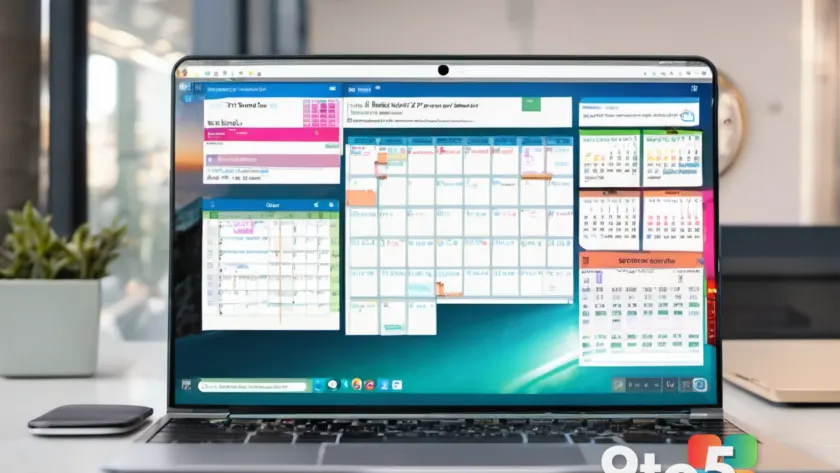
One of the most praised components of Onetastic is OneCalendar. This feature provides a visual calendar view of all the pages you’ve edited across your open sections and notebooks, organized by the date of modification. For users who manage multiple notebooks or have frequent recurring meetings, OneCalendar is a game-changer. It eliminates the need to manually search through page titles or rely on the “Recently Edited” list, which can be limited in scope.
The functionality is intuitive and fast. When you hover over an item in the calendar view, you get a quick preview of that page, allowing you to verify its relevance without navigating away. Clicking on an item instantly jumps OneNote to that specific page. This is particularly useful for recalling notes from past meetings or reviewing updates made to a shared document. OneCalendar can be pinned to the Quick Access Toolbar or even the taskbar for easy access. Additionally, it can be downloaded and run as a standalone application if you prefer not to integrate it directly into OneNote.
#2 Macroland: Automation and Customization
For users who frequently perform repetitive tasks in OneNote, Macroland offers a powerful solution. This component provides a macro language and a suite of tools that enable extensive automation. Macroland comes with hundreds of downloadable macros that can handle everything from simple formatting tasks, like inserting a horizontal line, to complex operations such as sorting pages alphabetically or generating a table of contents for an entire notebook.
The flexibility of Macroland allows users to tailor OneNote to their specific workflow. Whether you need to standardize the formatting of meeting notes or quickly organize a large notebook, Macroland provides the tools to do so efficiently. This level of customization is often what separates a good note-taking experience from a great one, and it highlights the value of third-party add-ins in filling the gaps left by Microsoft’s native feature set.
#3 Onetastic Tools: Essential Utilities
Beyond OneCalendar and Macroland, Onetastic includes a collection of general tools that enhance the overall usability of OneNote. One notable feature is the improved management of Favorites. This allows users to pin commonly used pages, such as a shopping list or a project dashboard, directly to the toolbar for instant access. This simple enhancement can save significant time for users who frequently reference specific pages.
Onetastic has evolved significantly over the years, growing from a few basic capabilities into a comprehensive productivity suite. While the core features are available for free, there are also paid options for users who require advanced functionality. The pricing model reflects the extensive development and maintenance that Omer Atay has invested in the project, ensuring it remains compatible with the latest versions of OneNote.

What This Means for You
For everyday OneNote users, Onetastic represents a way to unlock the full potential of the application. While OneNote is powerful on its own, the add-in addresses common pain points, such as navigating large notebooks and automating repetitive tasks. The return to the traditional OneNote architecture on PC has revitalized the ecosystem, making it easier than ever to install and use third-party extensions.
If you find yourself spending too much time searching for notes or performing manual formatting tasks, Onetastic is worth exploring. Its free tier offers substantial value, and the paid options provide additional convenience for power users. Given the limited number of OneNote add-ins available, Onetastic stands out as a must-have for anyone looking to optimize their note-taking workflow.
How to Get Onetastic
You can download Onetastic directly from the official website. The installation process is straightforward, and the add-in integrates seamlessly with the traditional OneNote app on PC. For those who prefer not to install the full suite, OneCalendar can be used as a standalone application. Whether you use the free or paid version, Onetastic is a testament to the value of community-driven development in enhancing Microsoft’s productivity tools.
Source: Windows Latest
Over to you: Do you use OneCalendar daily, or do you prefer navigating OneNote without third-party tools?