As July concludes, it is worth reviewing the substantial wave of changes Microsoft pushed through the Windows Insider Program during the second half of the month. The company delivered a mix of performance enhancements, accessibility improvements, and interface refinements across the Experimental and Beta channels. While some of these changes represent features already visible in other Insider tracks, their arrival in the Beta and Experimental channels signals Microsoft’s ongoing effort to align the program’s release cadence.
For users tracking the development of Windows 11, this period brought notable updates to core components like File Explorer, Windows Search, and the Start menu. Additionally, the company addressed long-standing requests regarding taskbar positioning and introduced new controls for touchpad gestures. Below, we break down the most important changes, the specific builds that introduced them, and what they mean for your daily workflow.
#1 Windows Search Automatic Locations
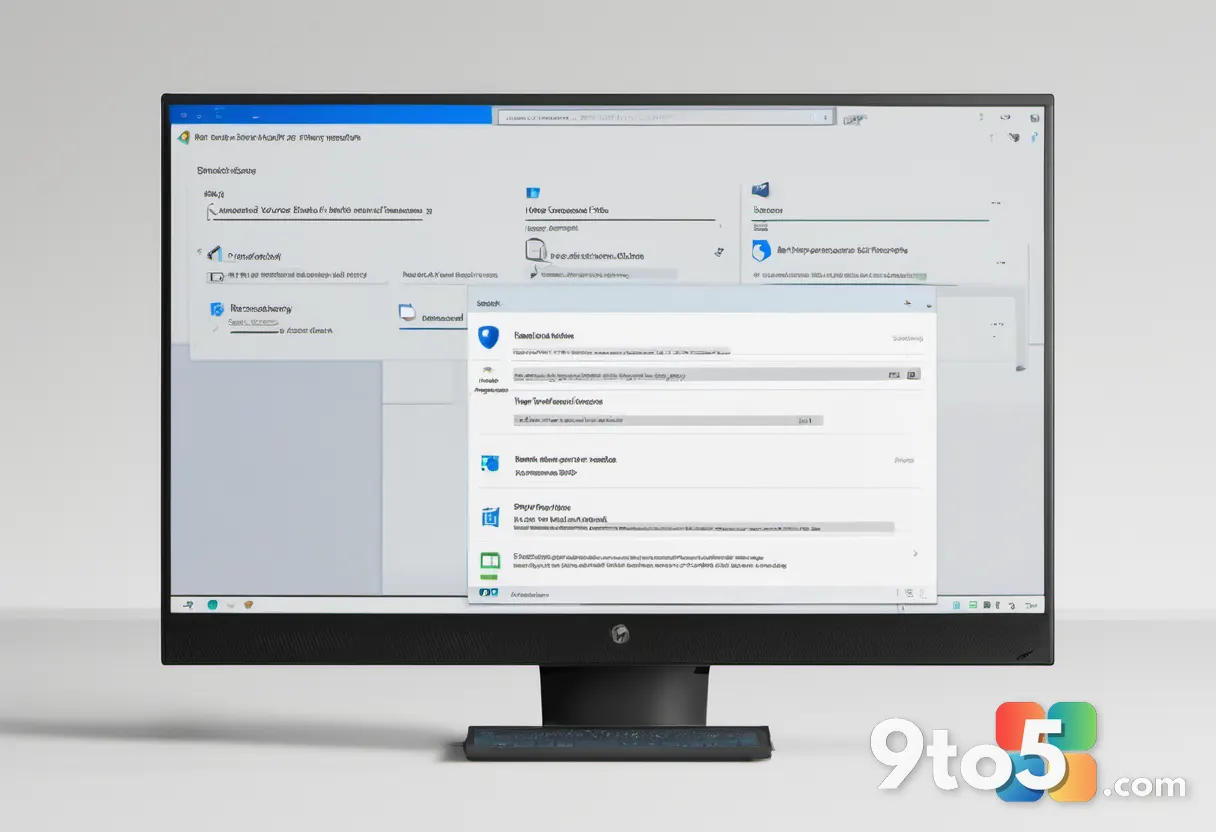
Starting with build 26300.9032, Windows Search now includes a feature designed to automatically discover and index additional folder locations based on your usage patterns. Known as “Automatically find additional relevant locations,” this setting leverages signals from frequently accessed files and directories to surface relevant results without requiring manual indexing.
The option is located in Settings > Privacy & security > Search. Alongside this, users will notice a new toggle for “Search the contents of online files,” which grants Windows Search permission to query cloud-stored content directly from the search interface.
#2 Phone Link Improvements
The Phone Link companion flyout within the Start menu has received a usability upgrade in build 26300.9032. Users can now hover over recent messages or notifications in the “Recent” section to preview their content instantly, eliminating the need to open the full application for quick checks.
This functionality requires the Phone Link app to be updated to version 1.26021.3.0 or higher. The change streamlines mobile-desktop integration by reducing the number of clicks needed to view incoming communications.
#3 Adaptive Hibernate Policy
Microsoft has refined the adaptive hibernate policy in build 26300.9032 (version 25H2) to optimize battery preservation. The updated logic prevents the system from entering hibernation when the battery charge exceeds 80 percent, while ensuring hibernation triggers when the charge drops below 10 percent.
This adjustment increases the frequency of instant-on resumes from Modern Standby and extends battery life at lower charge levels. The same policy update is available in builds 28120.2630 and 28020.2623 for version 26H1.
#4 File Explorer Performance Boost
Build 26300.8935 delivered three specific performance improvements to File Explorer. First, the system now deletes large and fragmented files more rapidly. Second, the Home page loads faster, and the “Recommended” section on that page now supports touch scrolling for easier navigation of the file carousel.
Additionally, starting with build 26220.8925 for version 25H2, the “Details” view now displays file sizes using appropriate units (KB, MB, GB) instead of defaulting to kilobytes. Users can also middle-click folder locations on the Home page to open them in new tabs.
#5 Widgets and Taskbar Updates
The Widgets entry point on the Taskbar has been updated in preview build 26300.8935. The animated icon now matches the system accent color rather than remaining fixed in red, and it displays more dynamic content when notifications are enabled in the Widgets dashboard.
These visual refinements align the Taskbar’s appearance more closely with user customization preferences and provide immediate visual feedback for pending notifications.
#6 Windows Update Changes
In build 28120.2630 (Experimental channel for version 26H1), Microsoft is reducing the frequency of system restarts required for updates. A new unified update experience coordinates driver, .NET, and firmware updates with the monthly quality update, consolidating them into a single monthly reboot.
The company is also expanding update pause controls, allowing users to extend pause durations as many times as needed. These changes are also available in build 28020.2623 in the Beta channel for version 26H1.
#7 Touchpad Gestures and Accessibility
Builds 28120.2630 and 28020.2623 for version 26H1 introduce new gesture controls for Precision Touchpads. The updates include scroll and zoom speed adjustments, as well as accelerated scrolling, which increases scroll speed the longer you continue the gesture.
These controls work across most applications, though WinUI 3 apps will require WinAppSDK 1.8 or 2.0 to fully support the changes. The updates are also available in build 26220.8925 for version 25H2.
#8 Taskbar Positioning and Start Menu Customization
Starting with build 26220.9022 for version 25H2 in the Beta channel, users can now change the Taskbar position to the top, left, right, or bottom of the screen. This setting is found in Settings > Personalization > Taskbar > Taskbar behaviors.
Alongside positioning, Microsoft is rolling out new Start menu customization options in build 26220.8925. Users can now choose which sections appear in the menu, adjust its size, and hide their name and profile picture for privacy. The “Recommended” section has also been renamed to “Recent.”
#9 Account Control and Voice Access
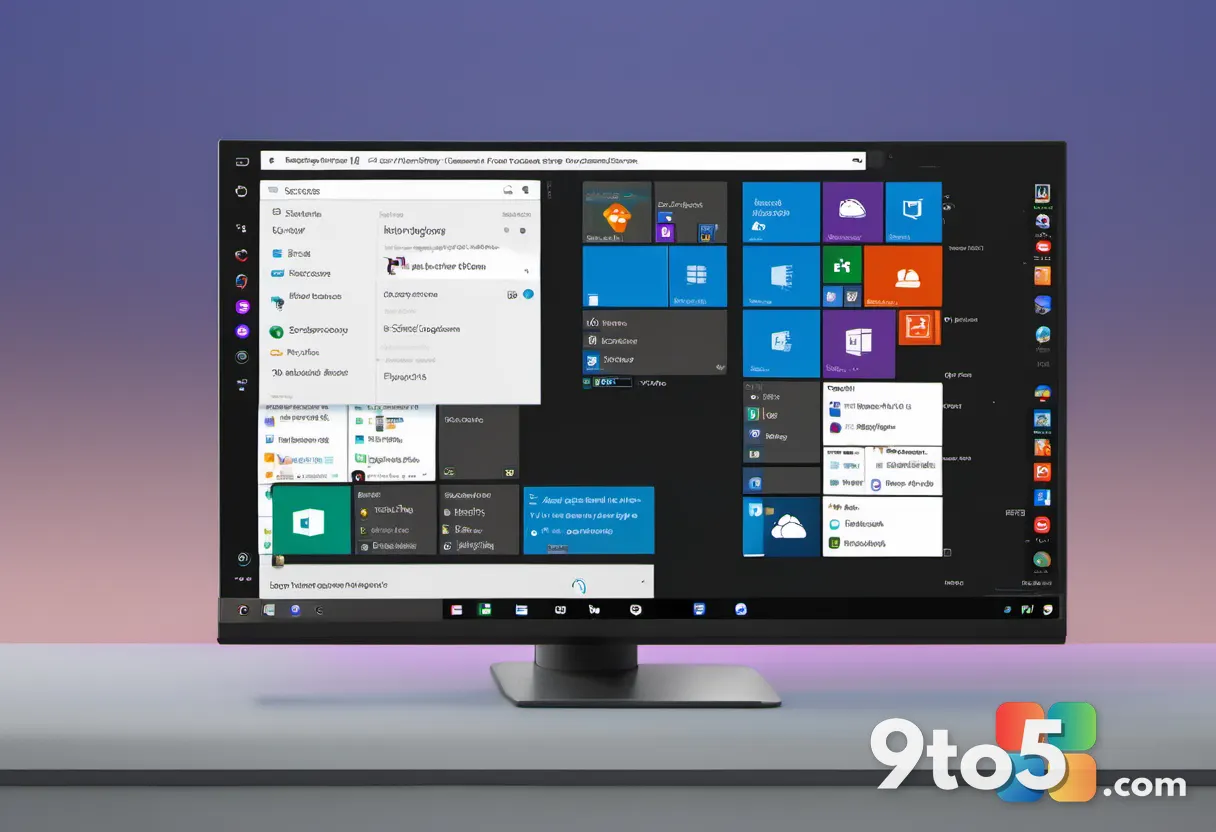
The Account Control flyout in the Start menu has been redesigned in build 29634 (Experimental channel for version Future Platforms). The updated interface includes a subscription badge, account benefits, and storage details, providing a centralized location for Microsoft account management.
Additionally, build 29634 introduces Voice Isolation for Voice Access, which uses on-device processing to filter background noise and nearby conversations. Users can choose between three speech recognition models: “Voice Isolation,” “Remove background noise only,” and “No filtering.”
What This Means for You
For everyday Windows 11 users, these July updates translate to a more responsive and customizable experience. The File Explorer performance improvements and automatic search location indexing reduce friction when managing files and locating documents. The ability to reposition the Taskbar addresses a long-standing request from users who prefer alternative screen layouts, while the expanded Start menu customization options provide greater control over your desktop environment.
Business users and IT administrators will benefit from the refined adaptive hibernate policy and the new smart card policy support for Azure Virtual Desktop and Windows 365 sessions. The consolidated update experience also reduces downtime by minimizing the number of required restarts.
How to Get It
To access these features, you must join the Windows Insider Program and be enrolled in either the Beta or Experimental channel. Ensure your device is running the specific builds mentioned above to experience the corresponding updates. You can check your build number by navigating to Settings > System > About.
If you are not yet enrolled, you can sign up via Settings > Windows Insider Program. Remember that Insider builds are pre-release software and may contain bugs or stability issues. It is advisable to back up your data before installing preview builds, especially if you rely on your device for critical work.

Looking Ahead
Microsoft’s July 2026 updates demonstrate a continued focus on refining core Windows 11 experiences rather than introducing radical new features. The alignment of the Beta and Experimental channels with previously released features suggests the company is streamlining its development pipeline. As these changes move closer to general availability, users can expect a more polished and consistent Windows 11 experience in the coming months.
Source: Latest from Windows Central
Build details:
- 26H2
- build 28020.2539
- build 28120.2546
- build 29639
Over to you: Which of these July 2026 Windows 11 updates are you most looking forward to using in your daily workflow?