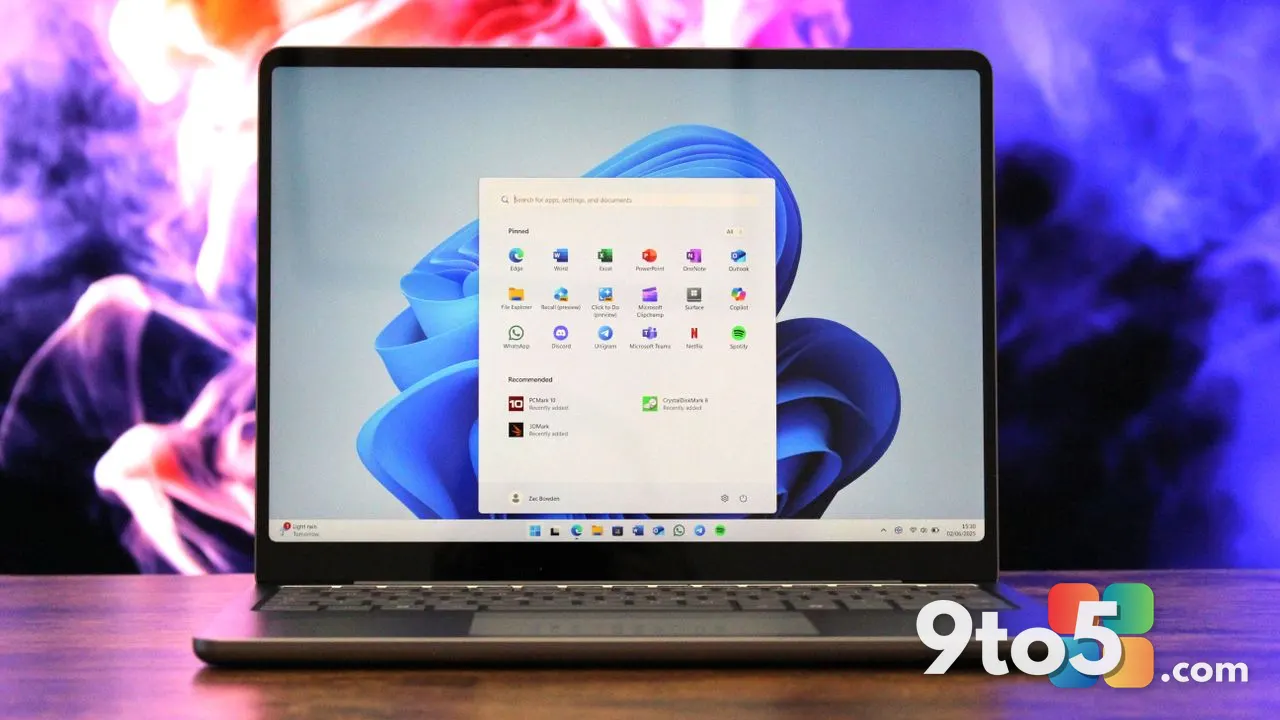
Microsoft has pushed five new Windows Insider builds to participants in the Windows Insider Program. If your PC is currently enrolled in the testing rings, you will likely see a fresh download available in Settings within the next few hours.
What Just Happened
According to the initial report from Thurrott.com, Microsoft distributed five separate builds across its testing infrastructure today. The announcement is brief, but the rollout is significant for anyone actively testing pre-release Windows software. When Microsoft releases multiple builds in a single day, it typically indicates that the engineering teams are iterating quickly on specific features, addressing critical feedback, or preparing for an upcoming preview drop.
For the average user, seeing five builds land at once might seem unusual, but it is a standard part of the development cycle. Each build represents a snapshot of the operating system at a specific point in time. Testers who skip updates or pause their devices may suddenly find themselves with several versions to choose from, though the Windows Update service will generally prioritize the most recent build to ensure compatibility with the latest testing feedback loops.
What This Means for You
If you are an active tester, this release cycle means your feedback window is open again. The Windows Insider Program relies on real-world usage data from participants to identify regressions, performance bottlenecks, and UI inconsistencies before they reach the general public. Receiving five new builds in quick succession suggests that Microsoft is actively refining the codebase and wants testers to validate changes across different hardware configurations.
For those not currently enrolled, this update is not relevant to your daily workflow. The builds distributed today are pre-release software and are not intended for production machines. Microsoft consistently advises against installing Insider builds on primary devices due to the potential for instability, data loss, or incomplete feature sets. If you rely on your PC for work or critical tasks, sticking with the stable Windows 11 release channel remains the safest option.
How to Check for Your Update
Checking for the new builds is straightforward. Open the Start menu, navigate to Settings, and select Windows Update. From there, click the Check for updates button. If your device is eligible for the specific channel you are enrolled in, the new build will appear in the update history or as an available download.
It is worth noting that rollout speeds can vary. Microsoft often staggers updates to manage server load and to monitor initial crash reports. If you do not see the update immediately, do not worry. The distribution typically completes within 24 hours, though it can sometimes take longer depending on your region and network conditions.
Understanding the Windows Insider builds
The Windows Insider Program is divided into several channels, each catering to different testing preferences. The Dev channel offers the most cutting-edge features but comes with higher instability. The Beta channel provides a more balanced experience, focusing on features that are closer to completion. The Release Preview channel is reserved for builds that are nearly ready for the general public, offering a near-final experience with minimal bugs.
When Microsoft issues multiple builds, they may target different channels simultaneously. This allows the company to gather feedback on experimental features in Dev while stabilizing core components in Beta. Testers should review the official changelog, typically published on the Windows Insider Blog, to understand exactly what each build contains and whether it aligns with their testing goals.
What to Do Next
If you decide to install the new builds, ensure you have a reliable backup of your important files. While Insider builds are generally stable within their respective channels, unexpected issues can arise. After the installation completes, take some time to explore the new features and report any problems you encounter through the Feedback Hub. Your input directly influences the final version of Windows that millions of users will eventually receive.
For those who prefer to wait, you can pause updates through the Windows Update settings. However, keeping your Insider build current ensures you are part of the active testing community and helps Microsoft prioritize the most critical fixes. The development cycle is continuous, and regular participation helps shape the future of the operating system.
Source: Thurrott.com
Over to you: Which Insider channel do you prefer for testing, and what feature are you most eager to try in the latest builds?