Microsoft Edge 152.0.4191.52 is now available to the public, and the headline addition is a feature aimed at fighting scam notifications. Here’s what you need to know about the update and what it changes for everyday users.
What’s new in Edge 152
According to reporting from Neowin, Microsoft has pushed Edge version 152.0.4191.52 to the stable channel. The most notable addition is a new capability designed to help defend against scam notifications — the deceptive push-notification messages that have long plagued browsers across the web.
Edge has relied on the standard Chromium notification system for years, in which websites request permission to send you alerts. That same mechanism has been repeatedly abused by low-quality and malicious sites that spam users with promotional or outright fraudulent messages. The new feature in 152 fits into Microsoft’s ongoing effort to make that permission flow safer and to reduce the number of times users are caught out.
How scam notifications reach you
To understand why this matters, it helps to know how these notifications typically arrive. When you visit a website, it can trigger a browser prompt asking whether you want to allow the site to send notifications. Scam operators know that a quick, careless tap on “Allow” can lead to a steady stream of junk — and in worse cases, messages that try to trick you into calling fake support lines or visiting phishing pages.
The problem has grown more common in recent years, as notification spam has become a reliable vector for scams. Sites use aggressive or fake prompts, sometimes mimicking system warnings, to pressure users into granting permissions they don’t fully understand. Once granted, those sites can push content repeatedly, even when you aren’t on their page.
What the new protection does
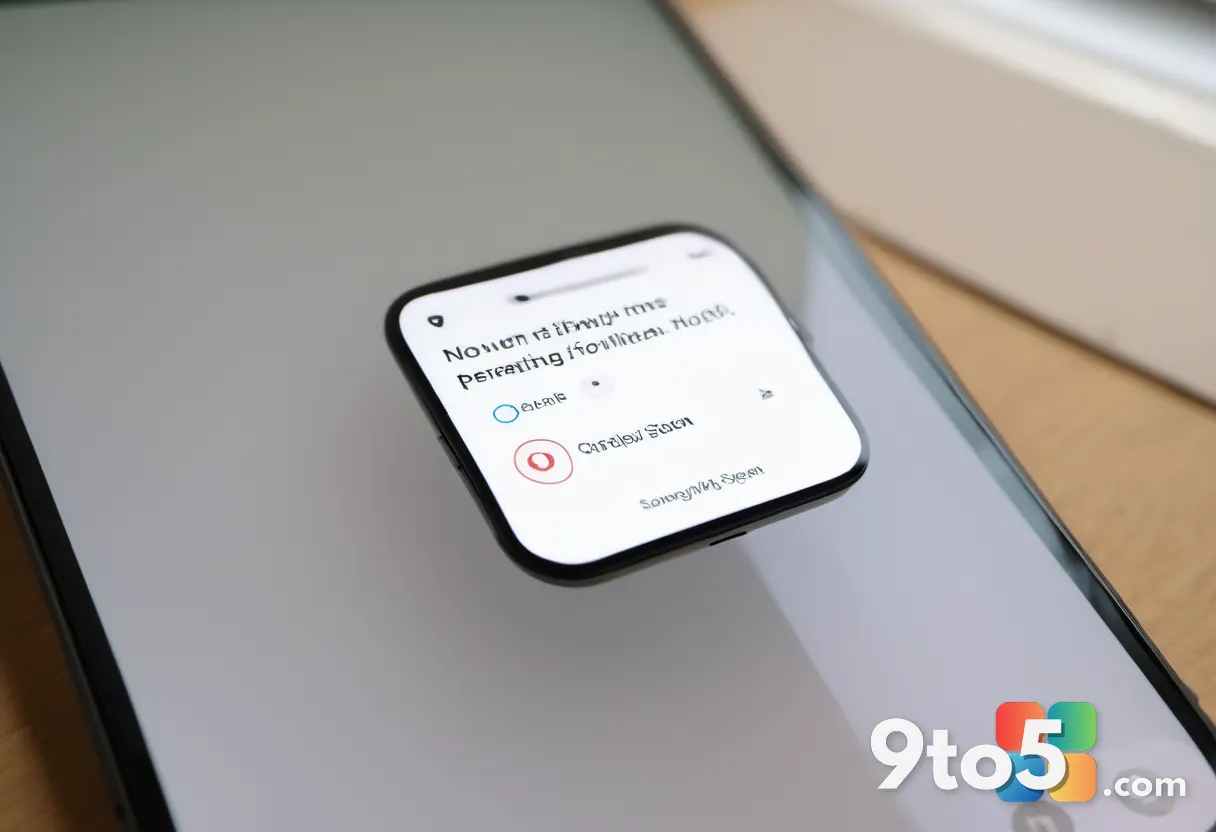
The feature added in Edge 152 is meant to give users better protection against these deceptive prompts. Rather than leaving the decision entirely to a user’s judgment at the moment of the request, the update adds safeguards that help identify and block notification requests from sites that appear to be abusing the system.
This fits into Microsoft’s broader approach to browser safety, which combines proactive detection with manual user controls. In practice, the goal is to reduce the number of times you’re asked to make a risky decision — and to quietly stop the worst offenders from being able to spam you in the first place.
What This Means for You
For most users, the practical takeaway is simple: fewer chances to accidentally opt into scam notifications. If you’ve ever clicked “Allow” on a site without thinking it through — or if you’ve dealt with a website that kept pestering you with alerts — this update should make that experience a bit cleaner.
It’s also worth noting that no feature is a perfect shield. You’ll still see legitimate notification prompts from sites you actually want alerts from, and you retain full control over which sites can notify you. The update is designed to reduce risk, not to remove your ability to choose.
How to get Edge 152 and manage notifications
Microsoft typically rolls out stable browser updates automatically. Once your copy of Edge has received the update, you can check your version by going to Settings > About Microsoft Edge, which will also trigger a check for the latest build. If you’re still on an older version, the update should appear shortly — though rollout timing can vary by region and device.
You can also manage your notification permissions manually at any time. Head to Settings > Cookies and site permissions > Notifications, where you can review which sites are allowed to send alerts, remove ones you no longer trust, and adjust how Edge handles future requests. Doing this now is a good habit regardless of the update, since it puts you in control of what can ping you at any moment.
Bottom line: Edge 152.0.4191.52 is a modest but useful step in Microsoft’s long-running effort to make your browser a little harder to trick. Keep Edge set to update automatically, and you’ll pick up the protection without lifting a finger.
Source: Neowin
Over to you: Have you ever accidentally clicked Allow on a notification prompt — and did it lead to spam?