Microsoft is rolling out fresh Windows 11 Insider Preview builds across the Beta, Experimental, and Release Preview channels, and this week’s update brings a couple of small but genuinely useful touches for gamers and anyone who signs in with their face in a dark room.
According to the Windows Insider Blog, the team shipped new builds on 16 October 2026, alongside the launch of a brand-new lineup of Windows 11 devices powered by the NVIDIA RTX Spark chip. Here is everything that changed and what it means for you.
#1 New Windows 11 Insider Preview builds this week
The headline news is simply that new builds are available. Depending on which channel you are on, you will want to grab a different build number, so here is the complete list straight from Microsoft’s release notes.
On the main Windows 11 track, Insiders in the Beta channel get Build 26220.9739, while the Experimental channel receives Build 26340.9750.
For those running the newer 26H1 track, the Beta (26H1) channel ships Build 28020.3262 and the Experimental (26H1) channel ships Build 28120.3272. Microsoft noted that there is no Experimental (Future Platforms) build today, so do not expect a new drop there this week.
If you prefer a more stable preview, the Release Preview channel is also getting updates. Insiders on Windows 11 version 25H2/26H2 can pull Build 26200.9807 / Build 26300.9807, while those on the 26H1 track get Build 28000.3351.
#2 NVIDIA RTX Spark devices launch
Beyond the software, today also marks the arrival of a new range of Windows 11 devices built around NVIDIA’s RTX Spark chip. Microsoft pointed out that these devices are a natural fit for the Insider Program, inviting new device owners to join and provide feedback as Microsoft works to shape Windows around the new hardware.
For Insiders, this is a reminder that preview builds are increasingly tested on fresh silicon. If you pick up an RTX Spark device, you will want to enroll in the Insider Program early so you can report how the OS behaves on the new platform before it goes mainstream.
#3 A refreshed Gaming Task View in Xbox mode
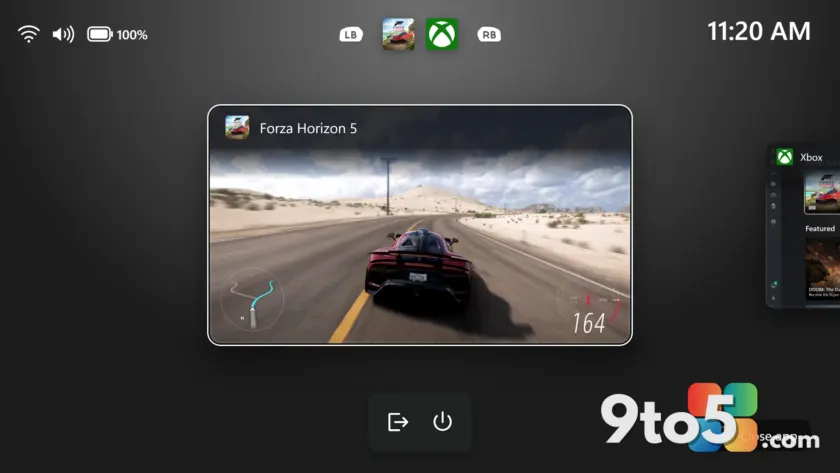
The most visible feature change lands in gaming. Microsoft is introducing a refreshed Gaming Task View experience in Xbox mode, centered on a new navigation bar that gives you quick access to Exit to Desktop and Power Options.
In practice, this means you no longer have to dig through menus to leave a game and return to your desktop or power down your PC. The key system actions sit right in the new bar, which should speed up the moment you want to step away from a session.
This change is rolling out to the Beta and Experimental channels, so you will need to be on Build 26220.9739 or Build 26340.9750 to try it.

#4 Windows Hello brightens your screen in the dark
The second feature is aimed at anyone who uses facial recognition in a dimly lit room. Windows Hello facial recognition can now temporarily brighten your screen to help you sign in when the lighting is poor.
To turn it on, head to Settings > Accounts > Sign-in options > Facial recognition (Windows Hello) and switch on Automatically adjust screen brightness during face recognition.
This one is only in the Experimental channel, so it is tied to Build 26340.9750. It is a small convenience, but one that should save you from fumbling at your PC in the dark while trying to catch your face in the camera.
What this means for you
Neither feature is a dramatic overhaul, but both are the kind of incremental polish the Insider Program lives for. The Gaming Task View tweak saves clicks for console-style gamers, and the Windows Hello brightness boost is a quiet quality-of-life win for night-owl sign-ins.
If you are on the Beta channel, you get both features. If you only want the Hello tweak, you will need to jump to Experimental for the brightness feature.
How to get it
To receive these builds, open Settings > Windows Insider Program and select the channel you want to be on, then check for updates. Make sure your build numbers match the list above once the download completes, and report any issues through the Feedback Hub so the team can triage them before release.
Source: Windows Blog
Over to you: Which of these two features are you most excited to try on your Insider build — the refreshed Gaming Task View or the Windows Hello brightness boost?