Microsoft is rolling out new Windows 11 Insider Preview builds this week, pushing updates to the Beta and Experimental channels. According to the Windows Insider Blog, the release ships on 18 September 2026 and bundles a set of accessibility and recovery changes that are worth a look.
Which builds are shipping today?
The headline drop lands on two channels. The Beta Channel is running Build 26220.9492, while the Experimental Channel has jumped to Build 26340.9502. Both carry the new accessibility features described below.
Insiders on other specific builds also got updates. Microsoft shipped a new Experimental (26H1) build at Build 28120.3032, and a separate Experimental (Future Platforms) build at Build 29671.1000. Those two are tracked in their own release-note pages, since they preview features aimed at upcoming hardware.
If you’re on the Stable or Release Preview channels, this week’s changes haven’t reached you yet — those builds typically lag the Insider channels by several weeks. The full release notes for each build are linked from the Windows Insider Blog post.
What’s new in the Windows 11 Insider Preview builds
All three new features are shipping in the Experimental channel build. That’s the most aggressive channel Microsoft pushes, so the changes are still evolving before they reach Beta and, eventually, the Stable release.
#1 A refreshed mouse indicator
The first change is an accessibility improvement to the Mouse indicator, the on-screen highlight that appears around your cursor when you press and hold the Ctrl key. Microsoft is swapping in a “sleeker” new animation, available in the Experimental channel build.
The indicator is toggled under Accessibility settings, and the update adds one practical option: you can now keep the indicator active until you press the Escape key. Previously the highlight disappeared the moment you released Ctrl, which some users found interruptible during accessibility workflows. Holding it until Escape gives a more consistent visual cue.
For readers who rely on the indicator to make their cursor visible to others during screen shares or presentations, this is a small but meaningful change to how the highlight behaves.

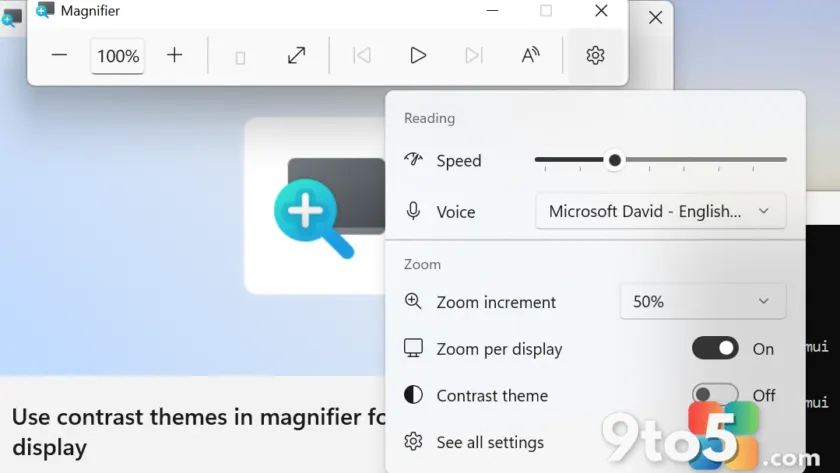
#2 A lower-glare contrast theme in Magnifier
The Magnifier gets a new contrast theme toggle aimed at reducing screen glare. The reasoning is straightforward: many people who struggle with bright displays reach for color inversion to tone things down.
The catch, as Microsoft frames it, is that inversion rewrites everything on screen — including photos, charts, and videos — which can make content harder to read rather than easier. The new contrast theme toggle is designed to cut glare without that blanket inversion, so you get a gentler screen without distorting the content behind it.
It’s another piece of the accessibility roadmap Windows has been building out, and it fits alongside the other contrast and readability options already in the app.
#3 Cloud rebuild gains drive sanitizing and remote management
The third update touches Cloud rebuild, the recovery option that restores a Windows 11 PC to a clean, known-good state by performing a full OS reinstall. Microsoft is adding two changes to it.
First, Cloud rebuild can now sanitize the device’s drives as part of the reinstall. That means the recovery process can wipe drive contents, which matters for anyone handing a machine off or refreshing a fleet. Second, IT administrators can now configure and start Cloud rebuild remotely through the Recovery CSP — the Configuration Service Provider that lets management tools drive recovery settings over the wire.
For IT admins managing a fleet, the remote management piece is the more useful change. Being able to trigger and configure a full rebuild from a central console removes a fair amount of hands-on-keyboard work for imaging and refresh cycles.
What this means for you
For most everyday users, the changes are incremental rather than headline-grabbing. The mouse indicator animation and the Magnifier contrast toggle are quality-of-life accessibility tweaks you’ll notice only if you use those features regularly. The Cloud rebuild improvements matter more for anyone who has ever had to rebuild a sluggish or flaky machine — and especially for admins rolling them out at scale.
The one thing to keep in mind is that everything here is in the Experimental channel so far. Experimental builds are the most aggressive Microsoft pushes, and features can still shift before they land on the Beta channel or, eventually, the Stable release.
How to get the new builds
To install these, you need to be enrolled on the Beta or Experimental channels through the Windows Insider Program. Open Settings and go to Windows Insider Program, then trigger a check for the latest build. If you’ve already selected a channel, the update should arrive automatically — or you can pull it on demand from Update settings.
Because these are Experimental builds, expect the occasional rough edge. If a feature or the rebuild itself misbehaves, the release notes pages linked from the Windows Insider Blog are the best place to check for known issues and any rollbacks.
Source: Windows Blog
Over to you: Will you move to the Experimental channel to try the new Magnifier contrast theme, or stay on Beta until it stabilizes?