Distractions are the enemy of deep work. Whether you are answering emails, writing a report, or studying for an exam, a single notification can pull you out of your flow and cost you minutes you cannot get back. Windows 11 ships with a built-in tool designed to fight exactly this problem: Focus Sessions. Part of the Microsoft Timer app, Focus Sessions pairs a Pomodoro-style countdown with Focus Mode, which silences notifications, and it even links to your Microsoft To Do task list so you can commit to specific work up front.
This guide walks you through setting up and running a Focus Session from start to finish. You will learn how to pick tasks, set a timer, add calming background sounds, and even pin a live widget to your desktop. No third-party apps required.
Before You Start
Focus Sessions is available in the Microsoft Timer app on Windows 11 version 23H2 and later, including Windows 11 Pro, Enterprise, and Education editions. If you do not see the feature, update Windows through Settings > Windows Update, or grab the latest Timer app from the Microsoft Store. You will also want a Microsoft account signed in, since the feature syncs tasks with Microsoft To Do.
Step 1: Open the Microsoft Timer app
Press the Windows key, type “Timer”, and press Enter. The Timer app has replaced the older Clock app in recent Windows 11 updates, so search for “Timer” rather than “Clock”. If you installed the app previously, it opens immediately to the Alarm or Timer tab.
Alternatively, click the Search box on your taskbar and type “Timer”, or find the app in your Start menu app list. Once it opens, you will see several tabs across the top: Alarms, Timer, Focus Sessions, and Sleep. Look for the Focus Sessions tab, which carries the feature we want.
Step 2: Switch to the Focus Sessions tab
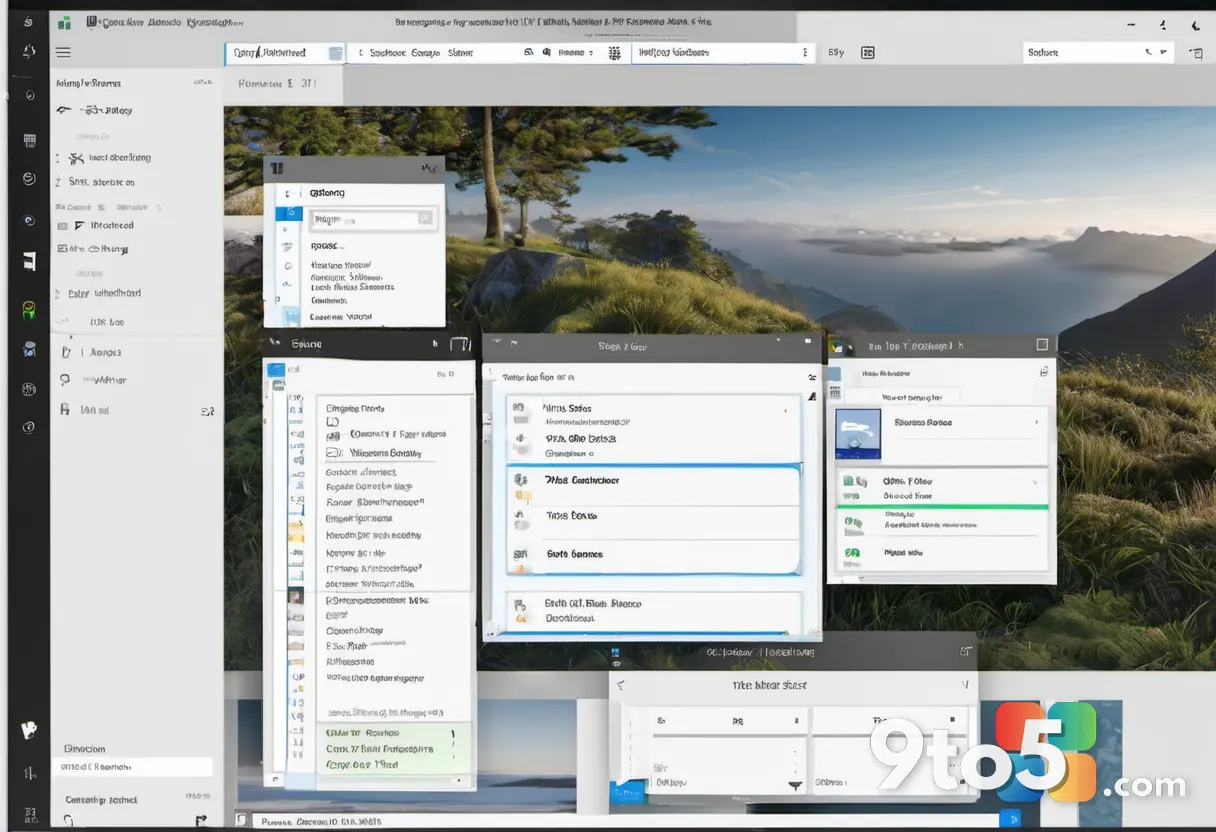
Click the “Focus Sessions” tab along the top of the app window. You will be taken to a clean screen that shows a large clock in the center, a task area on the left, and a duration selector at the bottom. The default session length is usually 25 minutes, which follows the classic Pomodoro technique of focused work bursts followed by breaks.
If the screen looks different or empty, make sure you clicked the correct tab. The Focus Sessions tab sits next to Timer and Sleep. Clicking it loads the full interface with your task list and sound options.
Step 3: Add tasks from Microsoft To Do
Click “Add a task” under the Tasks section to pull in items from your Microsoft To Do list. Focus Sessions reads the tasks you have created in the Microsoft To Do app, so any item you tag or create there will show up here. Clicking the option opens a checklist of your existing tasks for you to select.
Checking a box next to a task tells the session which work you intend to tackle during this focus block. As the timer runs, completed tasks get struck through, giving you a visual sense of progress. If no tasks appear, open the Microsoft To Do app first, add a couple of items, then return here and refresh.
Step 4: Set your session duration
Adjust the minutes using the up and down arrows beneath the clock. The default is 25 minutes, but you can extend or shorten it to match your attention span and workload. Longer sessions suit deep work like writing or coding, while shorter blocks work well for quick chores or email.
Below the duration selector you may also find options to set how long your break should be between sessions. A typical setup is 25 minutes of focus followed by a 5-minute break. Choose values that keep you motivated without causing fatigue.
Step 5: Choose background sounds
Click the sound options to pick ambient noise that helps you concentrate. Focus Sessions offers a selection of background audio such as rain, ocean waves, a cozy cafe, or a crackling fireplace. These sounds mask distracting office noise and give your brain a steady auditory backdrop.
Select a sound by clicking its icon. You can adjust the volume with a slider so it sits comfortably under your work. If you prefer silence, leave the sound off entirely. Turn the volume down if the audio competes with music from another app.
Step 6: Start the Focus Session
Click the green “Start” button to launch your session. As soon as it begins, Windows activates Focus Mode in the background, which mutes notifications from apps and reduces pop-ups on your screen. The timer counts down while your selected tasks and chosen sound fill the app window.
You can switch to other windows and keep working while the session runs in the background. When the timer reaches zero, Windows plays a short chime and prompts you to take a break. If notifications still appear during the session, check Step 8 to confirm Focus Mode is active.
Pro Tip: Keep the Focus Sessions widget pinned to your desktop so you can start a block from anywhere without opening the app. See Step 7 for details.
Step 7: Pin the Focus Sessions widget to your desktop
Right-click an empty area of your desktop and choose “Widgets” to open the widget board. Search for the Focus Sessions widget, add it, and then pin it to your desktop. This places a compact, live timer that you can start and stop without launching the full app.
The pinned widget updates in real time and shows your remaining focus time at a glance. Drag it to a corner of your screen where it will not get in your way. This is especially handy if you juggle multiple monitors or keep the main app closed while working.
Step 8: Manage Focus Mode and notifications
Open Settings and navigate to System > Focus to review how notifications behave during sessions. Focus Sessions relies on Focus Mode (formerly called Do Not Disturb) to silence alerts. You can control which apps are allowed to break through, set automatic rules, and choose which people can reach you during critical calls.
If you want full silence, set Focus to “Alarms only” or “Exceptions only”. For partial focus, allow notifications from a specific app like your messaging tool while everything else stays muted. Adjusting these settings here ensures your session stays interruption-free.
Troubleshooting Common Issues
Even a straightforward feature can throw a few snags. Here are the most common problems and how to fix them.
- Focus Sessions tab is missing: Update Windows to version 23H2 or later via Settings > Windows Update > Windows Update. You can also update the Timer app through the Microsoft Store and relaunch it.
- No tasks show up: Make sure you are signed in with the same Microsoft account used in Microsoft To Do. Open the To Do app, add a task, then return to Focus Sessions and click the task list to refresh.
- Notifications still appear during a session: Confirm Focus Mode is active in Settings > System > Focus. Set it to “Alarms only” and verify that no critical apps are whitelisted by accident.
- The timer stops or resets: Ensure your PC is not entering Sleep mode, which pauses the countdown. Go to Settings > System > Power > Screen and sleep, and set “When plugged in, put my device to sleep after” to a longer interval or “Never”.
Final Tips for Staying Productive
Focus Sessions works best when you pair it with consistent habits. Start each block with a single, well-defined task rather than a vague goal like “do work”. Keep your phone in another room or on Do Not Disturb so you are not tempted to check it during a break.
Take your breaks seriously. Stand up, stretch, or look out a window for a few minutes to rest your eyes and reset your focus. Over time, you will notice which durations and sounds keep you in the zone, and you can fine-tune your setup accordingly. With a little practice, Focus Sessions becomes a reliable part of your daily workflow.
Over to you: What focus session length works best for you—25 minutes or something longer?