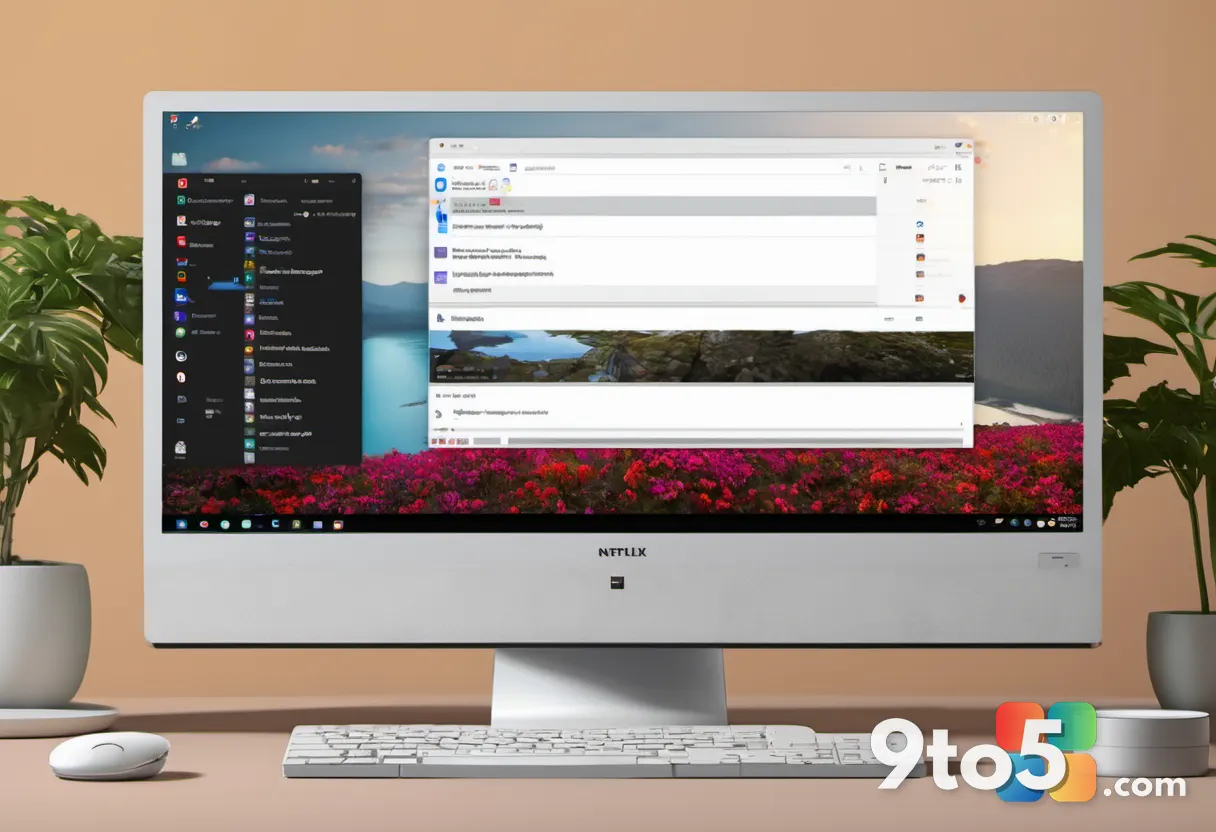
For years, Windows users wanting to watch Netflix in 4K Ultra HD were forced into a corner: you had to use Microsoft Edge. Google Chrome, the world’s most popular browser, was capped at 1080p due to strict Digital Rights Management (DRM) policies enforced by Netflix and content providers. That restriction has now been lifted. Netflix has quietly enabled 4K streaming in Chrome on Windows 11, finally giving users the freedom to choose their preferred browser without sacrificing picture quality.
According to reports cited by gHacks and originally identified by Chrome Unboxed, this change was rolled out without a formal announcement. Users first noticed the capability when they were able to play Ultra HD content in Chrome, provided their systems met a rigorous set of hardware and software criteria. While this is a welcome development for the Windows ecosystem, it is not a simple plug-and-play feature. Netflix continues to enforce strict DRM and hardware security requirements to ensure content protection standards are met.
What Changed for Windows Users
The previous limitation was a point of frustration for many tech enthusiasts and power users. Microsoft Edge was the only browser on Windows that supported the Widevine L1 DRM certificate chain required for 4K playback. If you tried to stream Ultra HD content in Chrome, Firefox, or Brave, Netflix would automatically downgrade the resolution to 1080p, regardless of your subscription tier or hardware capabilities.
This new update effectively ends the Edge monopoly on high-resolution streaming. It signals a shift in how Netflix handles DRM across different browser engines on the Windows platform. The change applies specifically to Windows 11, leveraging the operating system’s modern media foundation and DRM infrastructure. Users on older versions of Windows, such as Windows 10, are not mentioned as eligible for this update, suggesting that Netflix’s new DRM implementation relies on features specific to the Windows 11 media stack.
Strict Requirements for Netflix 4K Streaming Chrome
Updating your browser alone will not unlock 4K playback. Netflix enforces a comprehensive checklist of hardware, software, and account requirements. If any single condition is unmet, the stream will automatically revert to 1080p. Based on the details reported, here is what your setup must include to qualify for Ultra HD streaming in Chrome:
- Operating System: You must be running a fully updated Windows 11 PC. This requirement ensures compatibility with the latest Windows Media Foundation and DRM protocols.
- Browser Version: Google Chrome must be version 117 or newer. Older versions lack the necessary Widevine updates to handle the 4K DRM handshake.
- Subscription Tier: An active Netflix Premium plan is required. This is the only tier that includes 4K Ultra HD streaming capabilities.
- Graphics Processing Unit (GPU): Your GPU must be capable of decoding HEVC/H.265 video at 4K resolution. Supported GPUs include NVIDIA GeForce GTX 1050 or newer, or AMD Radeon RX 400-series or later. An Intel or AMD processor compatible with these GPUs is also necessary.
- HEVC Video Extensions: You may need to install Microsoft’s HEVC Video Extensions from the Microsoft Store. This codec extension is often required for Windows to decode high-efficiency video streams properly.
- Display and Connection: You need a 4K display running at 60Hz. If you are using an external monitor, it must support HDCP 2.2 copy protection over HDMI or DisplayPort. HDCP 2.2 is a mandatory encryption standard for 4K content transmission.
- Account Settings: Your Netflix account playback settings must be set to “Auto” or “High.” If set to “Medium” or “Low,” Netflix will not attempt to stream at 4K resolution regardless of your hardware.
Admins managing a fleet of Windows 11 devices should note that the HEVC extension and Chrome version requirements may need to be deployed via Group Policy or Intune to ensure all machines meet the criteria. The HDCP 2.2 requirement also means that older monitors or cheap HDMI cables that do not support the standard will block 4K playback even if the rest of the system is capable.
macOS Users Are Still Left Behind
While Windows users are gaining access to 4K in Chrome, macOS users are not included in this update. On Apple’s operating system, Google Chrome remains limited to 1080p streaming. This is due to Apple’s own DRM policies and the way Safari integrates with the system’s media framework.
For Mac users, Safari is still the only browser that supports Netflix 4K streaming. This inconsistency highlights the fragmented nature of DRM enforcement across platforms. Netflix appears to be rolling out the Chrome 4K support selectively, likely starting with Windows 11 before potentially expanding to other platforms in the future. No official timeline has been provided for macOS support.
What This Means for You
For everyday Windows 11 users, this update removes a significant barrier to high-quality streaming. You no longer need to switch to Edge or use workarounds to watch Netflix in 4K. However, the strict hardware requirements mean that older PCs may not be able to take advantage of this feature. If you are running a GPU older than the GTX 1050 or RX 400, or if your monitor does not support HDCP 2.2, you will likely still be capped at 1080p.
The enforcement of these requirements ensures that content creators and distributors maintain their DRM standards, but it also places the responsibility on users to verify their setup. If you are unsure whether your system qualifies, checking your GPU model, Chrome version, and display specifications is the first step.
How to Get It
To start streaming 4K Netflix in Chrome on Windows 11, follow these steps:
- Ensure your Windows 11 is fully updated via Settings > Windows Update.
- Update Google Chrome to version 117 or newer via the three-dot menu > Help > About Google Chrome.
- Verify your Netflix subscription is the Premium tier.
- Check your GPU and install Microsoft’s HEVC Video Extensions if needed.
- Connect a 4K 60Hz display with HDCP 2.2 support.
- Set your Netflix playback settings to “Auto” or “High” in your account settings.
Once all requirements are met, you should be able to select 4K resolution from the Netflix quality settings menu while using Chrome. If the option is missing, double-check each requirement, as Netflix will silently downgrade the stream if any condition is not satisfied.
Source: Windows News: Updates, Security Patches, Microsoft OS Changes – gHacks
Over to you: Have you switched to Chrome for 4K Netflix, or are you sticking with Edge for the time being?
You may also like
 The Apple Effect: Why Windows 11 RAM Optimization Is Now a Survival Strategy
 Outlook Mobile Gets OneDrive Signature Support and Calendar Drag-and-Drop
 Chrome Is Likely Never Getting Windows 11’s Modern Redesign, as Even Microsoft No Longer Cares
 Report: Passkey Security Vulnerabilities Could Enable Account Takeover