According to Microsoft’s official update documentation, the company has rolled out fresh previews to the Windows 11 Insider Beta channel, introducing two highly requested enhancements: a resizable Start menu and a set of new touchpad gestures. The new builds, designated as 26220.8925 and 28020.2539, signal a continued push toward refining the core desktop experience for users who prefer deeper customization and precision input control.
#1 Resizable Start menu
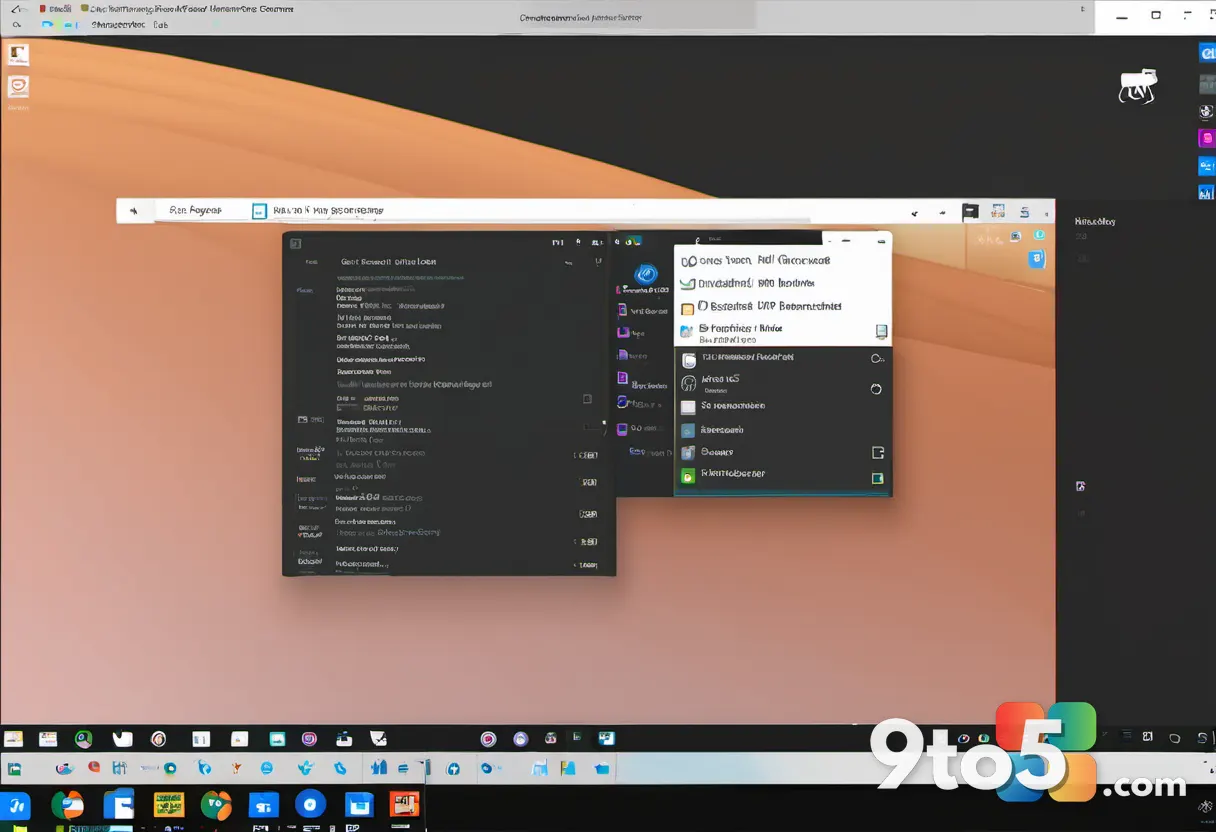
Perhaps the most visible change in these latest previews is the ability to resize the Start menu. For years, Windows users have requested the flexibility to adjust the dimensions of the Start menu to better suit their workflow, a feature long available in third-party launchers like StartAll Returner and ExplorerPatcher. Microsoft’s implementation in the Beta channel now allows the menu to expand or contract directly from the desktop interface.
In practice, this means you can drag the edges of the Start menu to reveal more pinned items, adjust the width to accommodate wider application icons, or shrink it down to minimize screen real estate usage. The adjustment happens in real time, providing immediate visual feedback without requiring a restart or a trip into system settings. A subtle resize handle appears along the borders to indicate that the dimensions are adjustable.
This development aligns with Microsoft’s broader strategy to modernize the Start menu’s foundation. While the menu’s architecture has remained largely consistent since Windows 11 launched, adding resize capabilities addresses a long-standing usability gap. It also hints at potential future modular layouts, where users could arrange tiles and lists in proportions that match their monitor aspect ratios or personal preferences. Historically, the Start menu has undergone significant redesigns in Windows 8 and Windows 10, but fine-tuning its physical dimensions has always been left to user customization tools.
#2 New touchpad gestures
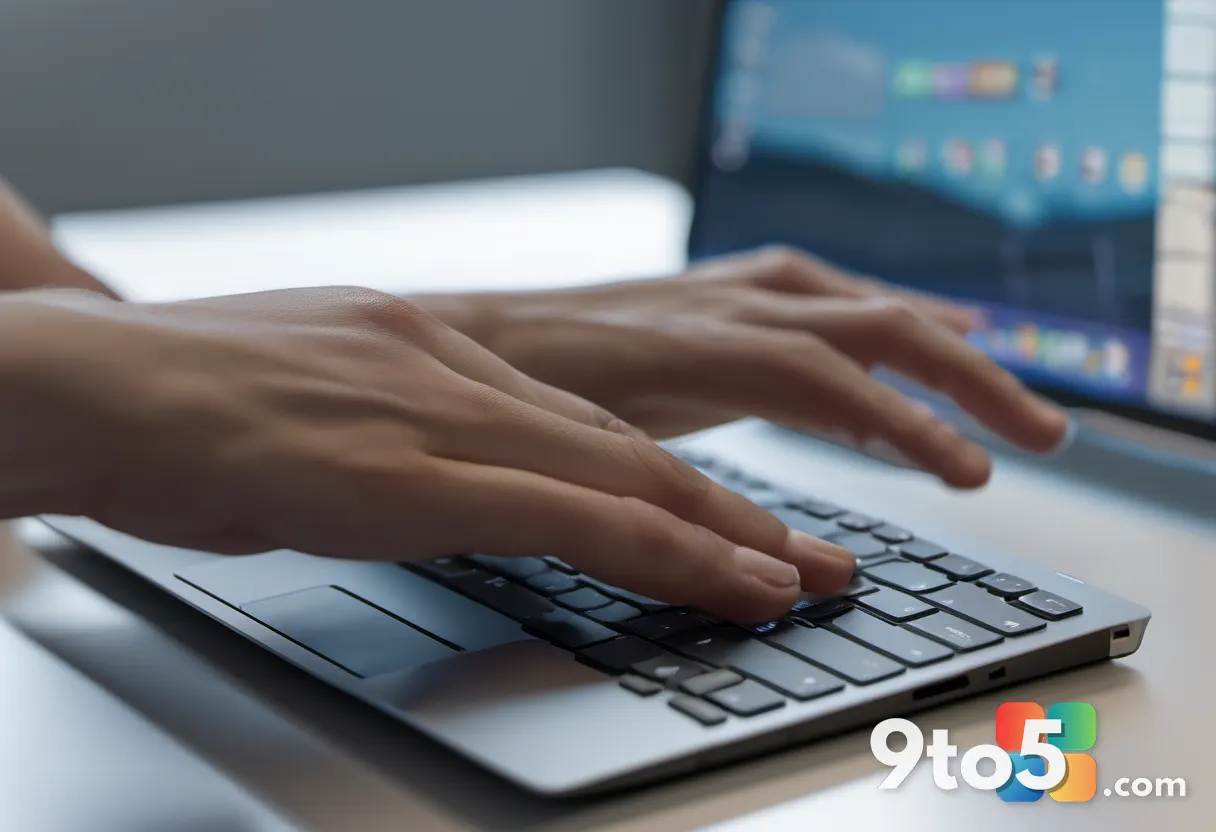
The second major addition focuses on precision input. The new builds introduce updated touchpad gestures designed to streamline navigation and multitasking. While specific mappings for every new gesture have not been fully detailed in the initial rollout notes, the update expands the existing gesture library to cover more complex multi-finger inputs.
For users who rely on laptop trackpads as their primary pointing device, these additions reduce the need to reach for a mouse. The enhanced gesture set typically targets common workflows such as switching between virtual desktops, accessing the task view, or managing open windows with greater fluidity. Microsoft has historically rolled out gesture refinements in response to Insider feedback regarding consistency across different hardware manufacturers.
From a technical standpoint, these gesture updates are integrated into the underlying pointer driver stack. This means the improvements should apply system-wide, affecting not just native applications but also third-party software that respects standard Windows input protocols. Users with high-refresh-rate laptops may also notice smoother tracking during rapid multi-finger movements, as the driver optimizations prioritize latency reduction.
What This Means for You
For everyday Windows 11 users, these updates represent a step toward a more adaptable desktop environment. The resizable Start menu eliminates the frustration of cramped icon grids on ultrawide monitors or overly large menus on standard displays. Meanwhile, the refined touchpad gestures cater to the growing number of professionals who prioritize portability and battery life by avoiding external peripherals.
If you are currently using workarounds or third-party utilities to achieve similar functionality, these native improvements may eventually replace those tools. However, because these features are arriving in the Beta channel, they are still subject to refinement. Microsoft uses this phase to gather telemetry and user feedback before pushing changes to the stable release branch. IT administrators managing enterprise fleets should note that Beta channel updates are generally not recommended for production workstations due to potential compatibility variances.
Additionally, the introduction of these features sets a precedent for how Microsoft handles legacy interface elements. By officially supporting resize functionality, the company acknowledges that one-size-fits-all UI dimensions no longer match modern multi-monitor setups. Users who frequently switch between docking stations and portable modes will find the dynamic resizing particularly useful, as it reduces the need to manually reconfigure layouts each time the hardware changes.
How to Get It
To test these updates, you will need to join the Windows Insider Program and switch your update channel to Beta. You can do this by navigating to Settings > Windows Update > Windows Insider Program. From there, select the Beta channel and follow the on-screen prompts to download the latest preview build.
Keep in mind that Beta channel builds are intended for secondary devices or virtual machines. While they are generally more stable than earlier preview stages, they may still contain bugs or compatibility issues. Microsoft recommends backing up important data before installing any Insider preview to ensure you can restore your system if needed. The Beta channel typically receives updates on a monthly cadence, allowing ample time for feature stabilization before they reach the Dev channel or the public release.
Once the update is downloaded, your system will restart to apply the changes. After logging back in, you can test the new Start menu dimensions by clicking the Start button and dragging the edges. If you encounter any unexpected behavior, you can revert to the default size by right-clicking the menu border and selecting the reset option, if available. Should you decide to step back to the stable release, you can use the Windows Update settings to pause Insider previews or revert to the previous build within the ten-day rollback window.
As Microsoft continues to iterate on the Windows 11 experience, features like these highlight a commitment to user-driven design. The Beta channel remains the best vantage point for seeing how the operating system evolves in response to community input. Stay tuned for further details as these builds mature and approach the release candidate stage.
Source: Neowin
Over to you: Will you rely on the new native resize feature, or do you prefer keeping your current third-party Start menu customization tools?
You may also like
 Microsoft Is Phasing Out Phone Verification Codes for a New Passwordless Standard
 Xbox Game Pass Gets Halo Remake, Beast of Reincarnation, and Corsair Cove
 Microsoft Pledges $60 Million to DOE’s Genesis Mission for AI-Powered Science
 Apple’s AI Strategy Could ‘Run the Table’ by Prioritizing On-Device and Edge Deployment