The ability to resize the touchpad right-click zone is officially here in Windows 11. This update gives users direct control over the size of the bottom-right region on their trackpad, aiming to reduce accidental clicks while making right-clicking more intuitive. According to the Windows Insider Blog, this functionality has moved from optional preview updates to the mandatory July 2026 Patch Tuesday release.
If you are running the affected builds, you will see this change land automatically. The update is distributed as KB5101650, rolling out to OS builds 26100.8875 for Windows 11 version 24H2 and 26200.8875 for version 25H2. This follows the feature’s initial appearance in the March 30, 2026 Insider Preview Build 26300.8142 and its subsequent inclusion in the June 23 optional update KB5095093.
How to access the new touchpad right-click zone setting
Microsoft has placed the new control in a logical location within the Settings app. You can now customize the size of the right-click zone by navigating to Settings > Bluetooth & devices > Touchpad > Touchpad. Under the Gestures & Interaction section, you will find a drop-down menu labeled with the available sizes.
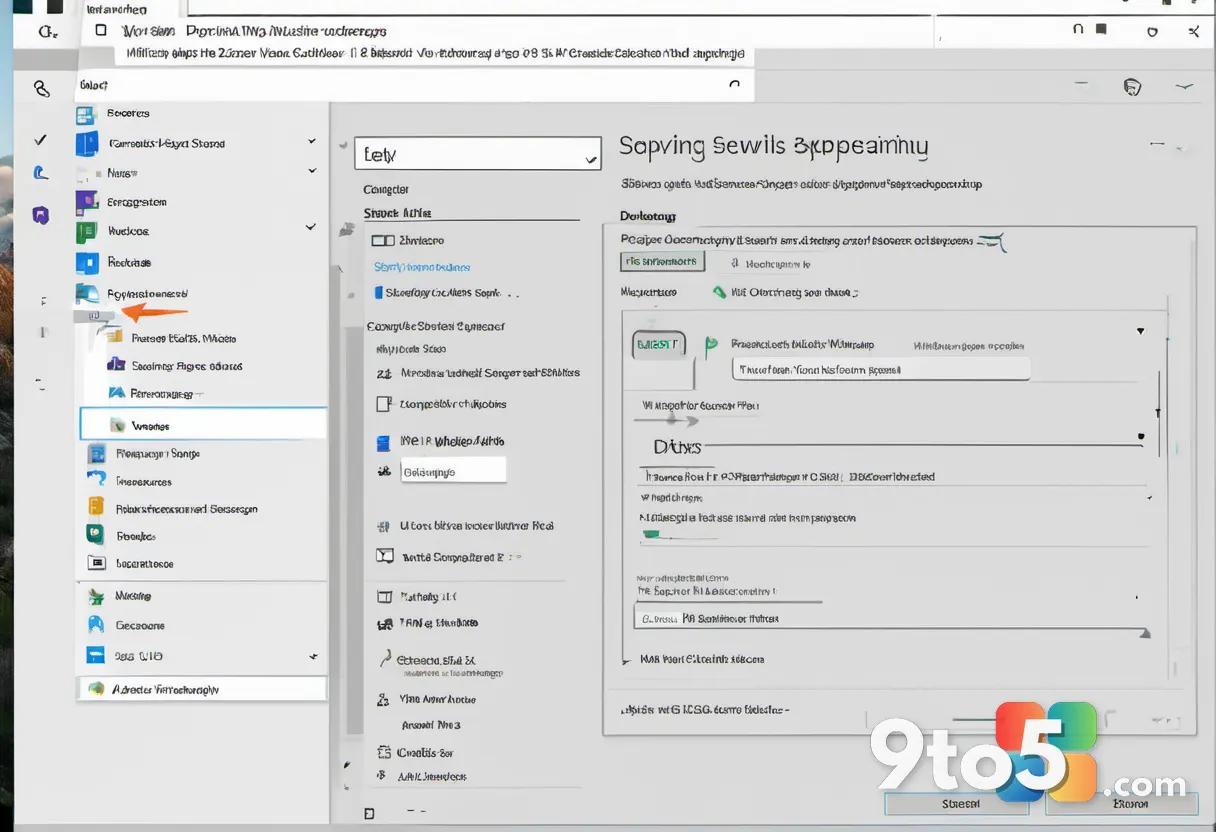
The menu offers four preset options: Default, Small, Medium, and Large. These presets allow you to scale the responsive area of the bottom-right corner to suit your typing and clicking habits. If your device’s OEM has provided specific tuning support, you may also see a Custom value option, giving you even finer granularity over the zone dimensions.
It is worth noting that Microsoft specifies this feature is only available on touchpads with a pressable surface. This means the setting will not appear or function on older non-precision touchpads or certain virtual trackpad configurations. The requirement ensures that the hardware can physically register the input across the adjusted area without ambiguity.
How Windows 11’s resizable touchpad right-click zone compares to macOS
While this update brings a level of polish that many Windows users have long requested, it is important to clarify the comparison with Apple’s operating system. The headline claim that this feature beats macOS requires a nuanced look at what each platform actually offers.
MacBooks do not allow users to change the size of the right-click zone on their haptic trackpads. While macOS lets you choose where a right-click happens, the boundaries of that zone are locked and cannot be scaled up or down. On a Mac, right-click settings are adjusted by heading to System Settings > Trackpad > Point & Click. Under Secondary click, you are presented with three options:
- Click or Tap with Two Fingers (Default)
- Click in Bottom Right Corner
- Click in Bottom Left Corner
For most users, the ability to simply toggle between two-finger tapping and corner clicking is sufficient. However, for those who frequently experience accidental right-clicks or find the default corner too small for comfortable use, the Windows 11 adjustment offers a significant advantage. This update signals that Microsoft is becoming more confident in its OEM partners to ship touchpad hardware that expands the user experience.
What this means for you
For everyday Windows laptop users, this update addresses a common pain point: the frustration of accidentally triggering a context menu when you intended to click or tap. By allowing you to shrink the zone, you can gain more precision. Conversely, if you have larger hands or find the default zone too difficult to hit consistently, expanding it reduces the need for precise aiming.
This change also reflects a broader shift in how Microsoft approaches input hardware. The operating system is moving away from a one-size-fits-all approach to touchpad interaction. By exposing these controls to users, Microsoft is acknowledging that different users have different physical preferences and usage patterns. It is a step toward making Windows 11 feel more polished and responsive to individual needs.
How to get it
To access the new touchpad right-click zone resizing feature, you need to install the July 2026 Patch Tuesday update. You can do this through Windows Update by navigating to Settings > Windows Update > Check for updates.
Ensure your system is running the latest version of Windows 11. If you are on version 24H2, your build number should update to 26100.8875. If you are on version 25H2, look for build 26200.8875. Once the update is installed, restart your device and check the Touchpad settings to see the new options.
If you prefer offline installation, Microsoft provides direct download links for the update packages. You can find these on the Microsoft Update Catalog by searching for the KB number KB5101650. This is useful for IT administrators managing fleets or users with limited connectivity.
The bigger picture: Haptics in Windows 11
This update is not just about resizing a click zone; it is part of a larger push to make touch-based feedback a first-class citizen in Windows 11. Microsoft has been working on improving haptics throughout 2026, and this feature is a small piece of that broader strategy.
In June, Microsoft published its full haptics design guidelines for developers, introducing a new InputHapticsManager API. This API allows apps to trigger specific vibration patterns on supported mice, touchpads, and pens. The goal is to move beyond generic buzzes and create a defined vocabulary of feedback types.
Microsoft categorizes these haptic feedbacks into two groups:
- Interaction feedback: Covers moments during an action, like a light pulse when hovering over a drop target or a sharp pulse when an object snaps to an alignment guide.
- Process confirmation: Covers the outcome of a completed action, with an ascending pattern for success and a descending one for errors.
Each waveform is tuned by three variables: intensity, decay, and sharpness. Microsoft is asking developers to stick to consistent patterns to avoid confusing users. The guidance is specific down to the millisecond, emphasizing that feedback should land in under 50ms of the triggering action to maintain a clear connection between what you did and what you felt.
Microsoft is also framing this as an accessibility feature. Touch feedback can give blind and low-vision users, along with people who are deaf or hard of hearing, a way to confirm an action without relying on a screen or speaker. This aligns with Microsoft’s ongoing commitment to inclusive design.
Notably, the Logitech MX Master 4 is supported for subtle haptic pulses when scrolling hits a boundary or an object aligns to a guide. This is a direct parallel to what Apple has been doing on Mac trackpads for a decade. Apple’s Force Touch trackpad, launched in 2015, uses pressure sensors and a Taptic Engine to simulate the feel of a click and provide tactile feedback during interactions.
While Apple has had roughly ten years to refine this, Microsoft is now catching up by treating touch feedback as a designed system on the desktop OS. With the new right-click resize setting, the new API, and the design guidelines now published for developers, OEMs have all the more reason to include modern haptic touchpads on all their Windows laptops.
Source: Windows Latest
Build details:
- kb5095093
- kb5101650
Over to you: Have you tried resizing your touchpad right-click zone yet, and does it make a difference for your daily use?
You may also like
 Outlook Classic Gets Always-Visible Copilot Button, Microsoft 365 Copilot Required
 NVIDIA Hotfix Driver Resolves Halo: Campaign Evolved RTX 50 Issues and Path of Exile 2 Pauses
 Windows 11’s “Get Updates Early” Toggle Is Auto-Installing Out-of-Band Patches You Don’t Need
 Microsoft Pushes Out-of-Band Patch KB5121767 to Fix Dell PC Performance Bug