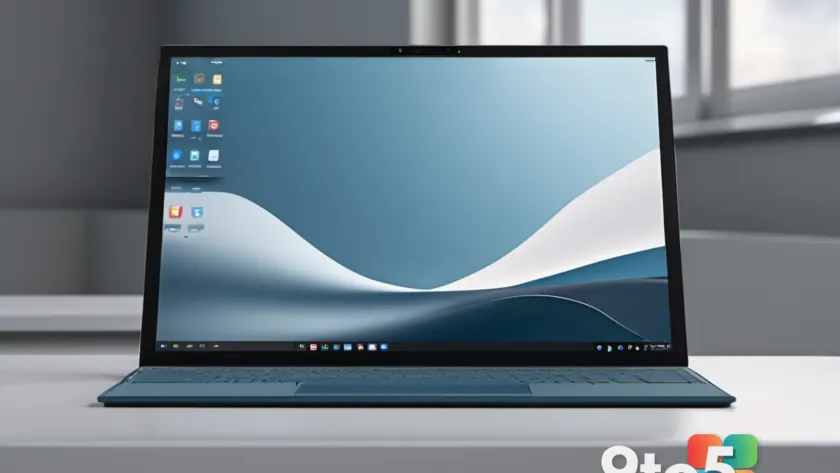
When you buy a cellular-capable laptop, you expect to be able to get online without hunting for Wi-Fi. For one AskWoody reader, though, a new Surface Pro cellular setup ran straight into a wall: several hours on the phone with AT&T support, and a Windows cellular wizard that never even lists the carrier.
According to the account posted on AskWoody, the reader had just picked up a new Surface Pro with cellular connectivity and was trying to get mobile data working. The device itself supports both an eSIM and a physical SIM card, so in theory the setup should have been straightforward. In practice, it was anything but.
What actually happened
The reader described spending “several hours” on the phone with an AT&T support representative who was, by all accounts, “very nice” and genuinely tried to help. The goal was simple: get cellular data running on a brand-new Surface Pro.
But even with a willing support agent on the line, the setup stalled. The core of the problem came down to Windows itself rather than AT&T’s network — the carrier simply wasn’t showing up where it should have.
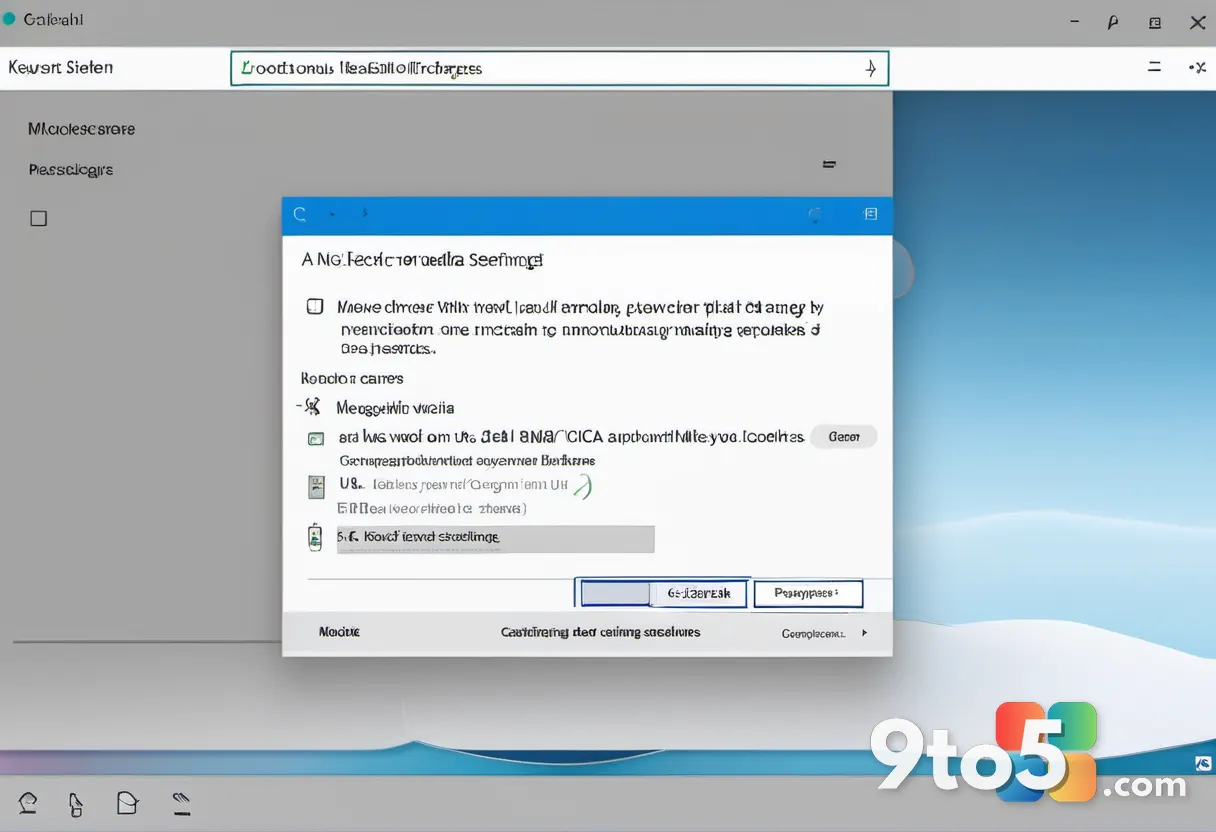
The cellular wizard that doesn’t list your carrier
The reader noted that in the past, they were able to launch a cellular wizard within Windows — a setup tool meant to walk you through connecting to a mobile network. The catch is that AT&T wasn’t listed in that wizard.
That detail matters. When Windows’ cellular setup tool doesn’t recognize or offer your carrier, the wizard can’t complete its job, and you’re left trying to bridge the gap between Microsoft’s software and your carrier’s network on your own.
The AskWoody post cuts off at this point, so the final outcome of the setup attempt isn’t confirmed. What’s clear is that the blocker sat squarely in the software layer, not in the SIM hardware or the AT&T network itself.
Surface Pro cellular setup: eSIM and physical SIM
Surface Pro models with cellular support are designed to work with either an eSIM (an embedded, digitally provisioned SIM) or a traditional physical SIM card. That dual support is meant to give buyers flexibility — you can switch carriers or add a data plan without swapping hardware.
However, the presence of the hardware options doesn’t guarantee a smooth software experience. Windows’ cellular settings and carrier-detection wizard have historically been the finicky part of the equation, and this account is another data point in that pattern.
It’s worth noting that Windows 11’s native cellular support has long been more limited than many users expect. Unlike smartphones, Windows laptops don’t always surface a full list of carriers, and setup can depend on carrier-specific configuration files that aren’t always present. This is general context about Windows’ cellular behavior, not a claim from the source post.
What this means for you
If you’re shopping for a cellular Surface Pro — or any Windows laptop with mobile data — this is a heads-up. The ability to run on 4G/5G out in the field is a real selling point, but don’t assume the in-Windows setup will be plug-and-play, especially if your carrier isn’t prominently listed.
For AT&T customers specifically, the takeaway is that you may need to do some legwork beyond the wizard. Having your account details, eSIM QR code (if applicable), and plan information ready before you start can save you the kind of multi-hour phone call described here.
What to do if you hit the same snag
If Windows’ cellular wizard doesn’t list your carrier, here are a few practical steps to try:
- Check for carrier configuration files: Some carriers ship with Windows and appear automatically; others require you to add them manually in the cellular settings.
- Try the eSIM route: If your plan supports it, provisioning an eSIM through the carrier’s app or a QR code can bypass the wizard’s carrier list entirely.
- Update Windows: Microsoft periodically updates cellular support and driver packages, so making sure you’re on the latest build can help.
- Have your details ready: Whether you call support or work through it yourself, having your account and SIM information on hand keeps the process moving.
Bottom line: the hardware is capable, but the software path to getting online can still throw a curveball. As this AT&T and Surface Pro experience shows, sometimes you just have to work through it — don’t argue with the computer, but do know where the friction is likely to be.
Source: AskWoody
Over to you: Have you ever hit a carrier that Windows’ cellular wizard simply didn’t list — and how did you finally get online?