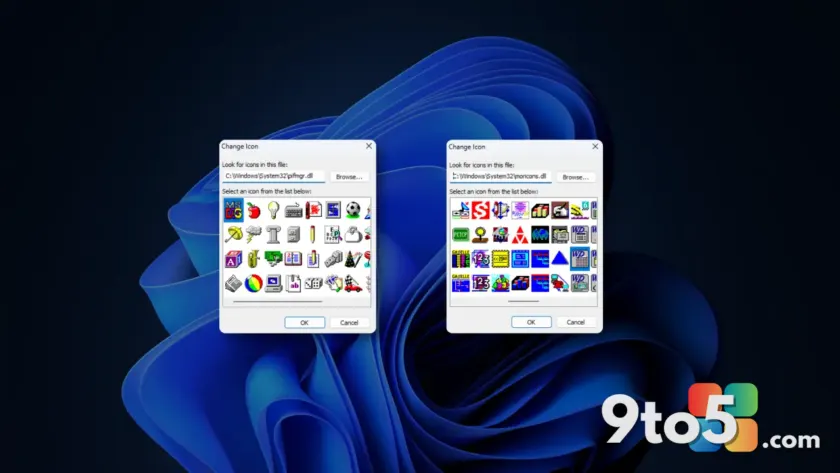
Windows 11 introduced a refreshed design language with rounded corners and a new set of Fluent icons, but the visual history of the operating system hasn’t been entirely erased. If you are feeling nostalgic for the classic icons from Windows 7, XP, or even earlier, you will be pleased to know they are still present on your system. These assets are buried within system files and folders, waiting to be accessed by users who want to restore a bit of retro flair to their desktop.
While Microsoft has streamlined the default appearance for a modern look, the underlying icon libraries remain largely intact. This guide explains where these assets are located and how you can extract them for personal use.
Where the Icons Are Hiding
The old Windows icons are not stored in a single, easily accessible folder. Instead, they are embedded within dynamic link libraries (DLLs) and system files located in the C:\Windows\System32 directory. These files serve as resource containers for the operating system, holding everything from error messages to the icons you see in File Explorer.
Key files to investigate include imageres.dll, shell32.dll, and desk.cpl. The imageres.dll file, in particular, is a goldmine, containing a vast array of icons ranging from folder graphics to device indicators. Because these are compiled files, you cannot simply open them in a text editor; however, Windows File Explorer can render the icon resources within them.
How to Access the Old Icon Libraries
Accessing these buried assets requires a few specific steps. The most straightforward method involves using File Explorer to navigate to the system folder. You can do this by pressing Win + R, typing %SystemRoot%, and pressing Enter to jump directly to the Windows directory.
From there, enter the System32 folder. You will need administrative privileges to view the contents of some files, but you can often browse the icon resources without modifying them. To view the icons within a file like imageres.dll, right-click the file and select Properties. Navigate to the Details tab, though this only shows metadata.
A more effective approach is to use the built-in Windows icon viewer capabilities. If you have a tool that allows you to browse DLL resources, you can extract the icons directly. Alternatively, you can copy the DLL file to a different location and rename it to .zip in some cases, though this is not guaranteed to work for all system files. For most users, the simplest way to view the icons is to use a dedicated icon viewer utility or to search for the specific icon index within the file using third-party software.
Using the Icons in Your Projects
Once you have located the icons you wish to use, the next step is extraction. If you are using a third-party icon editor, you can typically import the DLL file and select the specific icon resource you want to save. These tools allow you to export the icon in standard formats like .ico, which can be used for custom shortcuts, desktop backgrounds, or software projects.
It is worth noting that while the old icons are still present, Microsoft may have removed or repurposed some resources in newer updates. The collection in Windows 11 is a mix of legacy assets and new designs. If you are looking for specific icons from Windows XP or Vista, you may find them in the older system files, but availability can vary depending on your current build.
What This Means for You
For users who prefer the classic aesthetic, this discovery offers a way to personalize your system without relying on third-party themes that might compromise security. By accessing the built-in icon libraries, you can restore familiar folder icons, drive symbols, and other elements that have been updated in Windows 11.
This also highlights the modular nature of the Windows operating system. Even as the visual design evolves, the core resources remain accessible to those who know where to look. Whether you are a developer needing legacy assets or a user simply missing the old look, these buried icons provide a link to the past.
How to Get Started
To begin exploring, start by navigating to C:\Windows\System32 and examining the imageres.dll file. If you encounter permission issues, ensure you are running File Explorer with the appropriate privileges. For a more user-friendly experience, consider using a reputable icon viewer tool that can browse DLL resources without the need for complex file manipulation.
Source: Neowin
Over to you: Which old Windows icon do you miss the most, and would you use it on your current desktop?