The LG Monitor Adware Scandal Explained
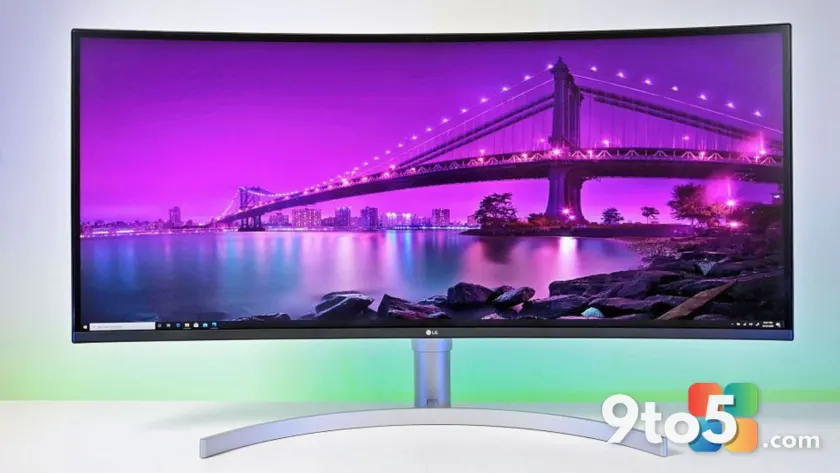
LG found itself at the center of a significant privacy and consumer trust controversy after its monitors were discovered silently installing software that pushed third-party advertisements. The issue came to light following an investigation by hardware review outlet Gamers Nexus, which documented how certain LG monitor models would automatically deploy a companion application upon first connection to a PC. That application, in turn, triggered persistent pop-up notifications promoting McAfee antivirus subscriptions, even on systems where the software was already installed or unnecessary.
What made the situation particularly contentious was the lack of transparency. Unlike standard OEM bloatware that typically appears during initial Windows setup, the LG monitor app installed quietly in the background without clear user consent. The pop-ups appeared directly on the desktop, interrupting workflow and raising questions about whether the monitors were functioning as intended or acting as unauthorized advertising channels.
Microsoft Steps In to Resolve the Issue
The backlash moved quickly from tech forums to mainstream coverage, eventually drawing direct intervention from Microsoft. Windows chief Pavan Davuluri confirmed that Microsoft had reached out to LG regarding the behavior. In a statement, Davuluri noted that LG agreed to immediately disable the McAfee pop-ups from the monitor companion app. Microsoft emphasized that it would continue working with ecosystem partners to ensure a consistent and respectful experience for users across all connected devices.
While bundling antivirus trials with new hardware is a long-standing industry practice, the silent installation method used by the LG monitor app crossed a line for many users and reviewers. The distinction lies in the delivery mechanism: rather than offering a clear opt-in during OS setup, the adware was triggered by the peripheral hardware itself, effectively bypassing standard Windows installation protocols.
Will the Scandal Change Buying Habits?
The question now is whether this incident will translate into a lasting shift in consumer behavior. LG has historically been a pioneer in display technology, frequently introducing first-to-market features in its UltraGear gaming lineup. High-end models like the 45GX950A and 32-inch OLED variants have received widespread critical acclaim for their panel quality, refresh rates, and color accuracy.
However, the monitor market is highly competitive. Brands like Dell, ASUS, Samsung, and BenQ offer comparable specifications, and many panels are sourced from the same display manufacturers. Once LG holds a temporary advantage in a specific category, competitors typically close the gap within months. This means buyers who prioritize hardware quality over brand loyalty will find plenty of viable alternatives that do not carry the same privacy concerns.
What This Means for You
If you currently own an LG monitor that triggered the companion app, the immediate fix is already in place. LG has disabled the McAfee pop-ups following Microsoft’s intervention, meaning the most intrusive aspect of the issue has been resolved. However, the underlying software may still reside on your system. Users who prefer a completely clean environment should check their installed applications and remove any LG monitor utility if it is no longer needed for calibration or firmware updates.
For those shopping for a new display, the incident serves as a reminder to review privacy policies and bundled software disclosures before purchasing. While LG monitors remain technically excellent, the adware controversy highlights the importance of understanding what software accompanies your hardware. Many competitors now offer more transparent pre-installation practices, which may influence your decision depending on how much you value a clean out-of-box experience.
How to Check Your Monitor Setup
To verify whether your LG monitor triggered the companion app, open the Windows Start menu and navigate to Settings > Apps > Installed apps. Search for “LG Monitor” or “LG OnScreen Control.” If you find the application listed and it is not essential for your workflow, you can uninstall it directly from this menu. Additionally, check your startup programs in Task Manager to ensure the app is not launching automatically. Keeping your monitor firmware updated through the official LG support page will also help ensure you are running the patched version that no longer triggers unwanted advertisements.
Source: Latest from Windows Central
Over to you: Will you stick with LG despite the adware, or switch brands this time around?