If your Windows 11 PC drags through the login screen and takes minutes to reach the desktop, startup programs are likely the culprit. Every application you install often registers itself to launch the moment you power on your machine. While some of these apps provide essential background services, others consume valuable RAM and CPU cycles before you even click anything.
Disabling unnecessary startup programs is one of the most effective ways to reclaim boot speed and overall system responsiveness. This guide shows you exactly which apps to keep, which ones to remove from the launch queue, and how to verify that your changes actually took effect. Follow the numbered steps below to streamline your startup sequence.
Before You Start: Make a mental note of the apps you rely on for cloud backups, antivirus protection, or hardware monitoring. You will want to leave those enabled so your system remains secure and synchronized. The steps below focus on removing only the nonessential software that slows down your initial login.
Step 1: Open Task Manager
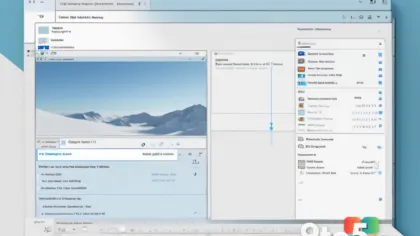
Press Ctrl + Shift + Esc simultaneously on your keyboard. This keyboard shortcut launches Task Manager immediately without navigating through the Start menu or right-clicking the taskbar. You will see a compact window displaying only the most active applications. If your screen shows the simplified view instead of the full interface, click the More details link at the bottom left to expand it. This expanded view reveals the tabs you need to manage startup behavior.
Step 2: Navigate to the Startup Apps Tab
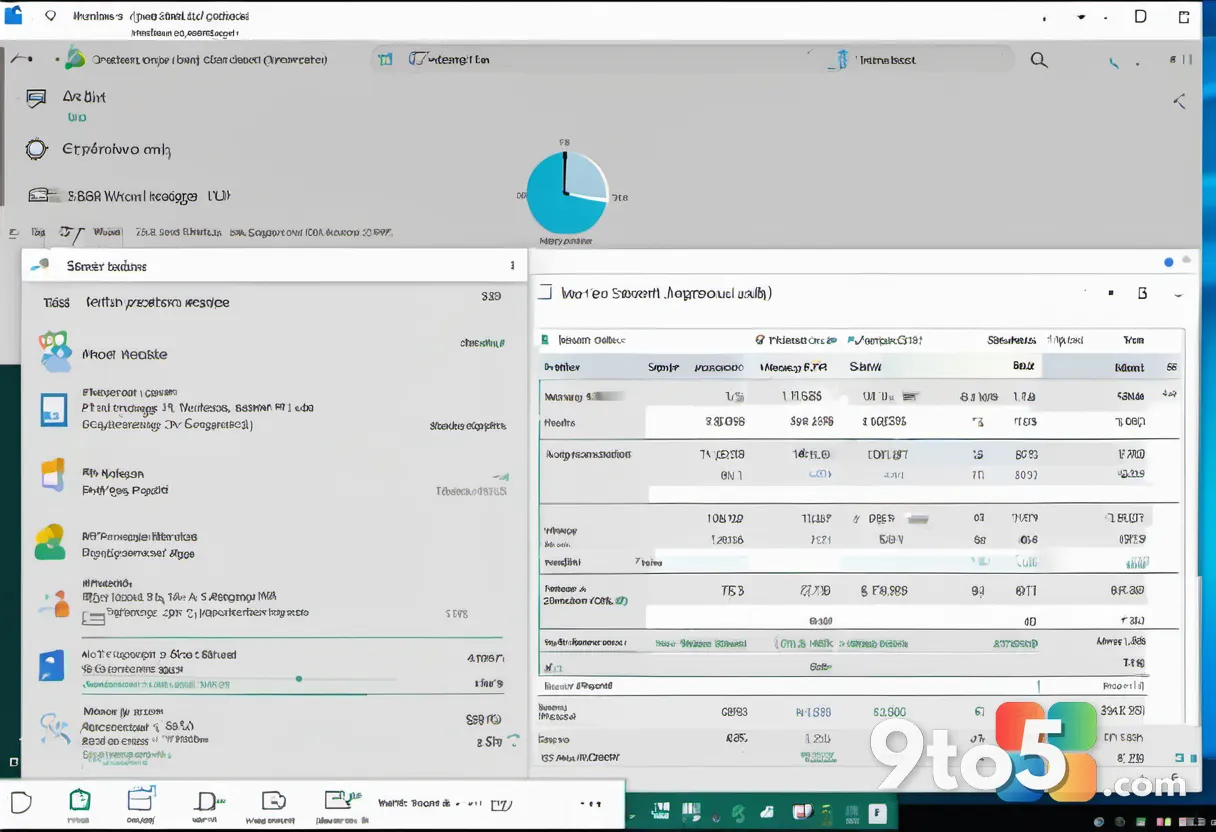
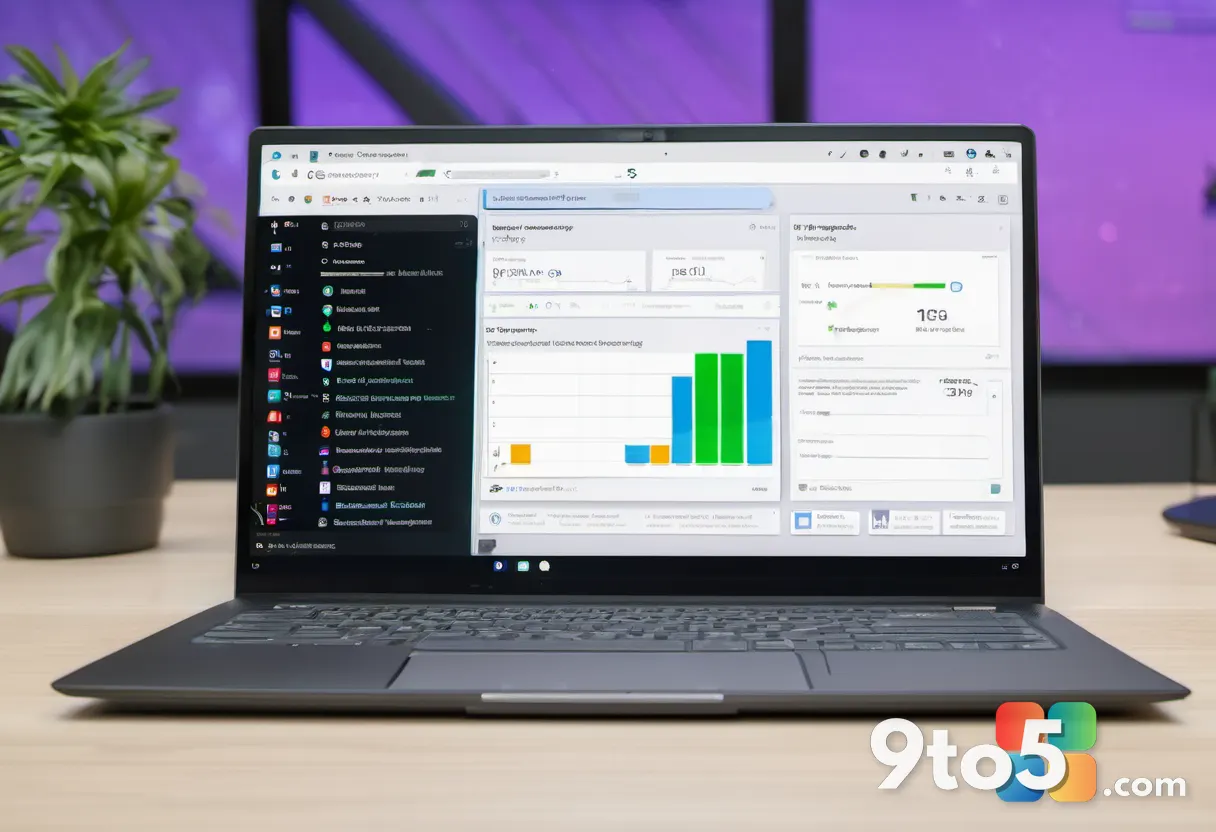
Click the Startup apps tab located along the left side of the Task Manager window. Once you select this tab, the main panel populates with a complete list of every program configured to launch at boot. You will notice columns showing the app name, publisher, status, and startup impact. Take a moment to scan this list before making any changes. If you do not see the tab immediately, click the Performance icon first, then select Open Task Manager at the bottom of the window to reveal the full layout.
Step 3: Identify Programs That Slow Your Boot
Review the Startup impact column and sort the list by clicking its header. Windows 11 assigns each registered app a rating of Low, Medium, or High based on how much it delays your login process. Apps marked as High impact are prime candidates for removal from the startup queue. You can also hover over the Status column to see whether each program is currently enabled or disabled. Cross-reference this list with your own usage habits to separate genuinely useful tools from forgotten bloatware.
Step 4: Disable Unwanted Startup Applications
Right-click the application you want to stop launching automatically, then select Disable from the context menu. The status indicator next to that app will immediately switch from Enabled to Disabled. You do not need to uninstall the program itself; disabling it only prevents it from running during the boot sequence. You can still open the application manually whenever you need it. Repeat this action for every nonessential program you identified in the previous step.
Step 5: Restart Your Computer to Apply Changes
Close Task Manager and restart your PC through the Start menu or the power button. Shutting down and powering back on forces Windows to rebuild the startup sequence without the disabled entries. When the machine reaches the login screen, time how long it takes to load the desktop. You should notice a measurable reduction in boot time, especially if you disabled several High impact applications. If the change feels negligible, return to Task Manager and review the remaining enabled apps for additional candidates.
Pro Tip: If you accidentally disable an app you actually need, you can reverse the change by returning to this same Startup apps tab, right-clicking the disabled program, and selecting Enable. Your files and settings remain completely untouched throughout this process.
Troubleshooting Common Issues
Task Manager refuses to open or shows a blank Startup tab. This usually indicates a corrupted system file or a group policy restriction. Press Win + R, type msconfig, and press Enter to open System Configuration. Navigate to the Services tab, check Hide all Microsoft services, and click Disable all to rule out third-party interference. Alternatively, run sfc /scannow in an elevated Command Prompt to repair corrupted Windows components.
An application refuses to disable or re-enables itself after a restart. Some malware and aggressive updaters override your startup preferences. Open the app’s own settings menu and look for an option labeled Launch at startup, Run on boot, or Auto-start. Uncheck that option inside the application itself. If the problem persists, scan your system with Windows Security or a trusted third-party antimalware tool to ensure no background process is forcing the launch.
Boot speed did not improve after disabling multiple apps. Slow logins often stem from storage drive degradation rather than software conflicts. Open Task Manager, click the Performance tab, and select your primary drive. Check the Health and Active time graphs. If your drive is nearly full or showing high active time during idle moments, consider freeing up storage space or upgrading to a faster NVMe SSD. Network authentication delays and outdated graphics drivers can also extend login times.
Final Tips for Maintaining Boot Speed
Check your startup list once a month, especially after installing new software. Developers frequently add auto-launch features without asking for permission, so a quick review prevents future slowdowns. Keep your Windows 11 installation updated, as Microsoft regularly optimizes background processes and boot sequences in cumulative updates. If you manage multiple user accounts, remember that startup settings apply individually to each profile. Disabling apps in one account will not affect the startup queue in another.
By removing the digital clutter that crowds your login screen, you give your Windows 11 PC the breathing room it needs to reach the desktop quickly. Your system will feel more responsive, your battery will last longer on laptops, and you will spend less time staring at a spinning cursor.
Over to you: Which startup app surprised you the most when you finally disabled it?